Back Up Authenticator Codes
Your phone died, and with it went your authenticator app — and every two-factor code for every account. Now you are locked out of email, banking, and everything else, begging support desks for mercy. This disaster is entirely preventable: backup codes and cloud-synced authenticators turn a dead phone from a catastrophe into a fifteen-minute inconvenience.
TL;DR / Quick Fix
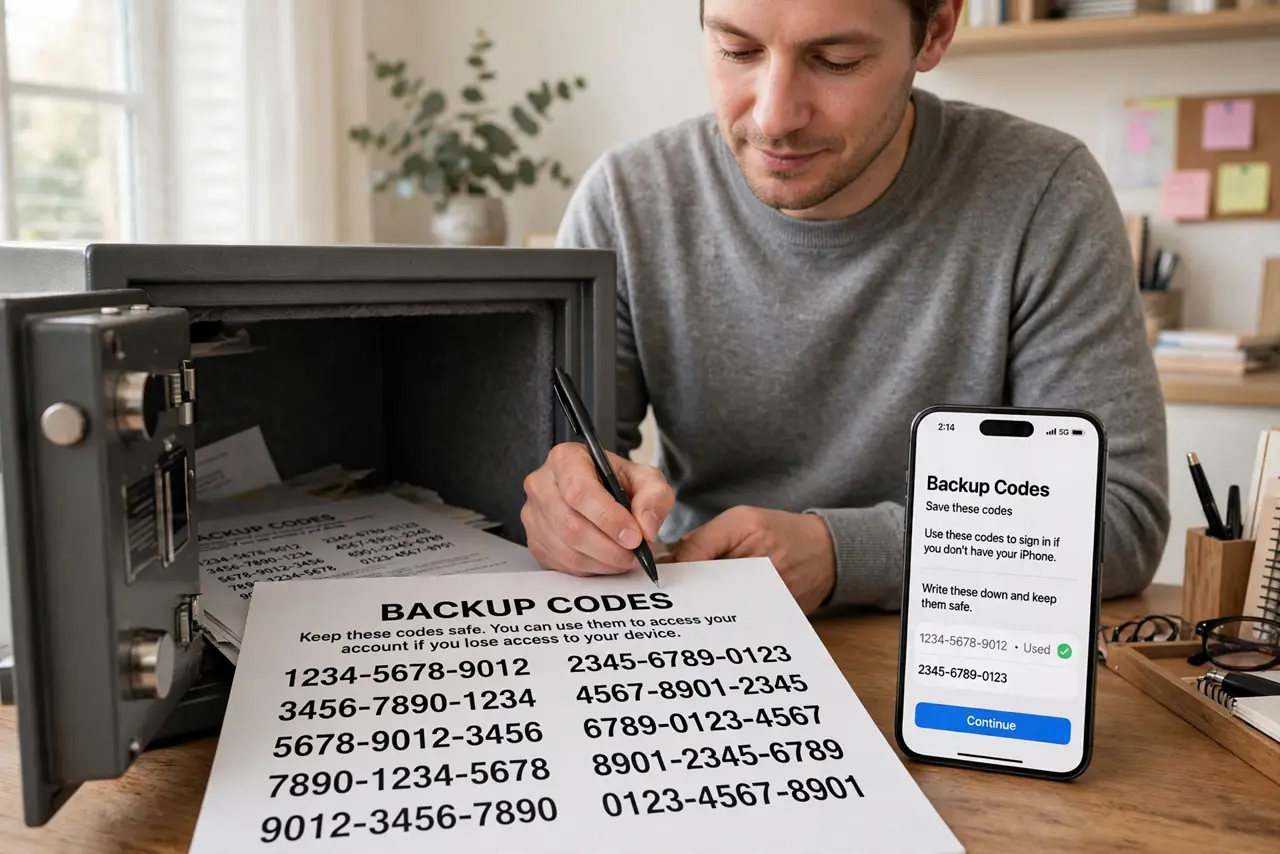
Quick fix: for each important account, generate backup codes now and store them on paper somewhere safe — not on the phone. Switch to an authenticator app with encrypted cloud backup so codes survive a dead phone. Do this today, while the old phone still works.
Follow these steps
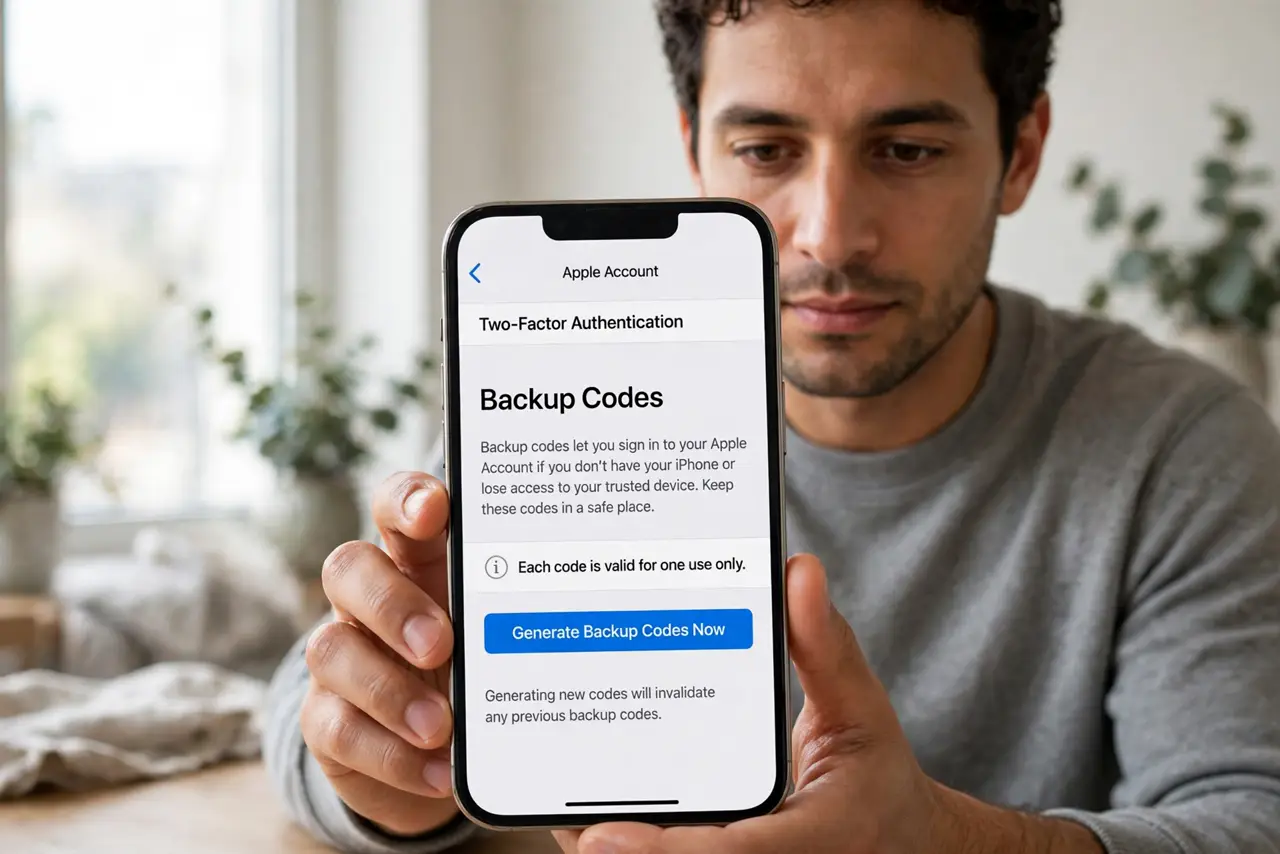
- Generate backup codes now. Go to each important account's security settings and find backup or recovery codes. Generate a set — usually ten one-time codes — while you still have access. This is the step that saves people.
- Print them on paper. Print the codes or write them down, and store the paper somewhere safe at home — a drawer, a safe, a filing cabinet. Paper survives dead phones, dead laptops, and forgotten passwords simultaneously.
- Switch to a cloud-backed authenticator. Move from a device-only authenticator to one with encrypted cloud backup. When the phone dies, you install the app on the new phone, sign in, and the codes return.
- Test the restore before you need it. On a spare moment, verify you can actually get into the backup — open the cloud vault, or confirm the paper codes are where you left them. Untested backups are hopes, not plans.
- Prioritize email first. Your email account's backup codes matter most — password resets for everything else flow through email. If you back up only one thing today, make it email.
- Update backups after changes. When you change phones or rotate codes, regenerate and re-store. A backup from three phones ago, for accounts you have since re-secured, is a false sense of safety.
What NOT to do
- Do not store backup codes only on the phone. The phone is the thing that dies — codes must live somewhere the phone's death cannot reach.
- Do not screenshot codes into your photo roll. Cloud photo backups are convenient and also a juicy target — paper or an encrypted vault, not the camera roll.
- Do not use a device-only authenticator with no backup. One dead phone equals every account locked — the most common 2FA disaster there is.
- Do not wait until the phone breaks. Backup generation requires being logged in — after the lockout, it is too late.
Frequently asked questions
What are backup codes exactly?
One-time codes the site gives you in advance, each usable once instead of the authenticator code. Ten codes, ten emergency logins — spend them wisely and regenerate.
Is cloud backup of authenticator codes safe?
Reputable apps encrypt the backup with your account password — the provider cannot read your codes. It is far safer than no backup at all.
I am already locked out. What now?
Use any backup codes you saved; otherwise start each account's recovery process — ID verification, waiting periods. Then set up proper backups the moment you are back in.