Authenticator Codes Rejected Because Time Is Off
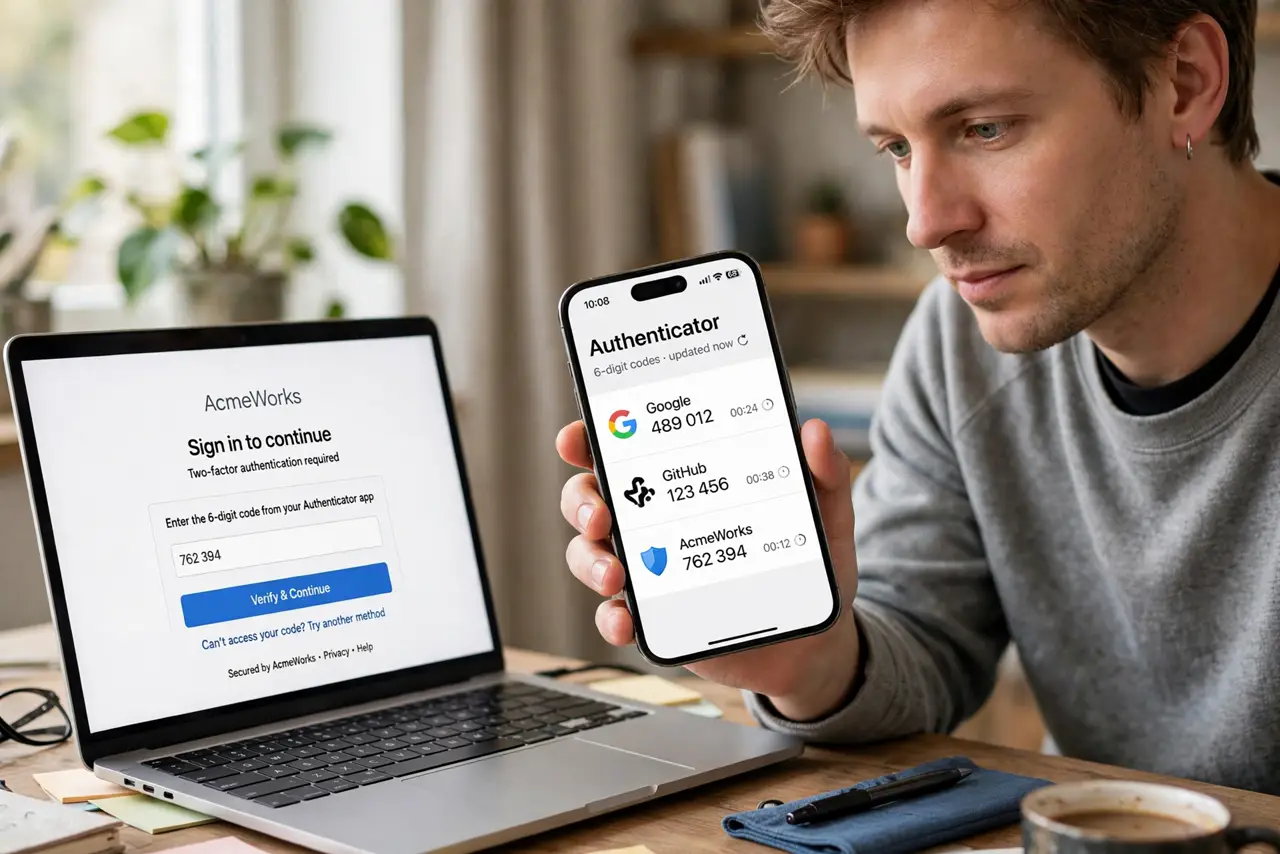
Your authenticator shows a code, the site rejects it, and the next code fails too. The codes are time-based, so a phone clock that drifts even a minute makes every code wrong before you type it.
TL;DR / Quick Fix
Quick fix: turn on automatic date and time in your phone settings, then force-close and reopen the authenticator app. If codes still fail, remove and re-add the account using its setup key or QR code, and store the backup codes this time.
Follow these steps
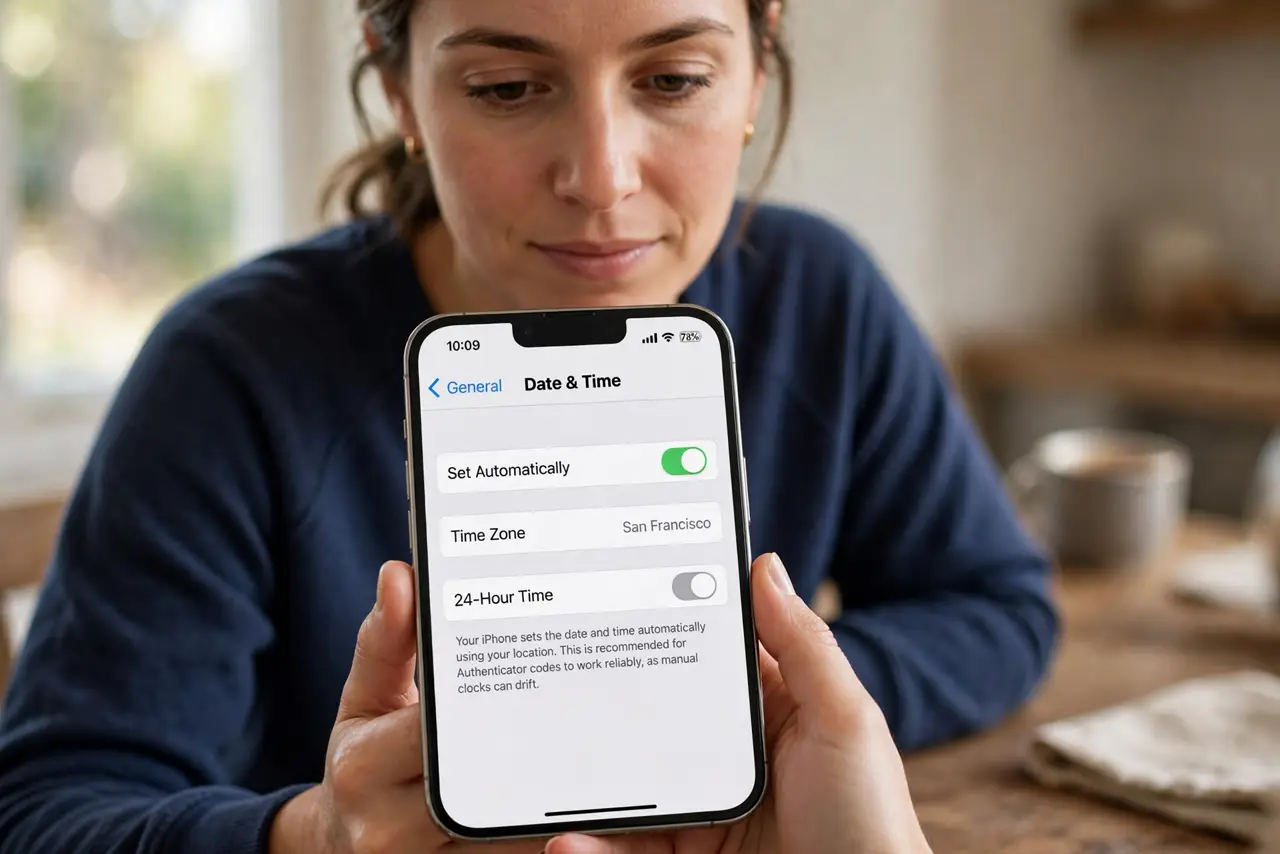
- Turn on automatic date and time. Open the phone's date and time settings and enable Set Automatically. Authenticator codes depend on the clock, and manual clocks drift.
- Force-close and reopen the authenticator. Close the app fully and launch it fresh. A running app can keep using the old wrong time for a while after you fix the clock.
- Try the newest code, typed quickly. Codes rotate every 30 seconds, so enter the current one without delay. A code typed across the rotation boundary fails even when the clock is right.
- Check for a [[single failure pattern|two-factor-app-code-rejected-once]]. If only one account's codes fail while others work, that account's secret is the problem, not the clock. Re-enroll just that account.
- Remove and re-add the failing account. In the account's security settings, disable two-factor and set it up again with the new QR code. A fresh secret ends persistent mismatches.
- Store the backup codes this time. Save the codes the setup shows you, somewhere outside the phone. They are the spare key for the next time codes misbehave.
What NOT to do
- Do not keep typing rejected codes hoping one works. Repeated failures can lock the account, while fixing the clock solves it in seconds.
- Do not change the phone's time manually to match. Manual time drifts again, so automatic time is the real fix.
- Do not delete the authenticator entry before re-enrolling. Keep the old entry until the new one produces accepted codes.
- Do not ignore backup codes during setup. Skipping them feels faster until the day codes fail and no spare exists.
Frequently asked questions
Why are all my codes suddenly wrong?
Because the phone's clock drifted. Time-based codes need the clock accurate within about a minute, and manual time settings drift.
Will automatic time really fix it?
Almost always. The moment the clock syncs, the codes match the server's again.
What if only one account fails?
Then re-enroll that account. Its stored secret, not your clock, is out of sync.