Automate Backups
You mean to back up every Sunday, and then life happens — for eleven months. Manual backups fail for one reason: they depend on remembering. Automatic backups remove the human from the loop entirely, and every major system ships the tools free. Here is how to set them once and never think about them again.
TL;DR / Quick Fix
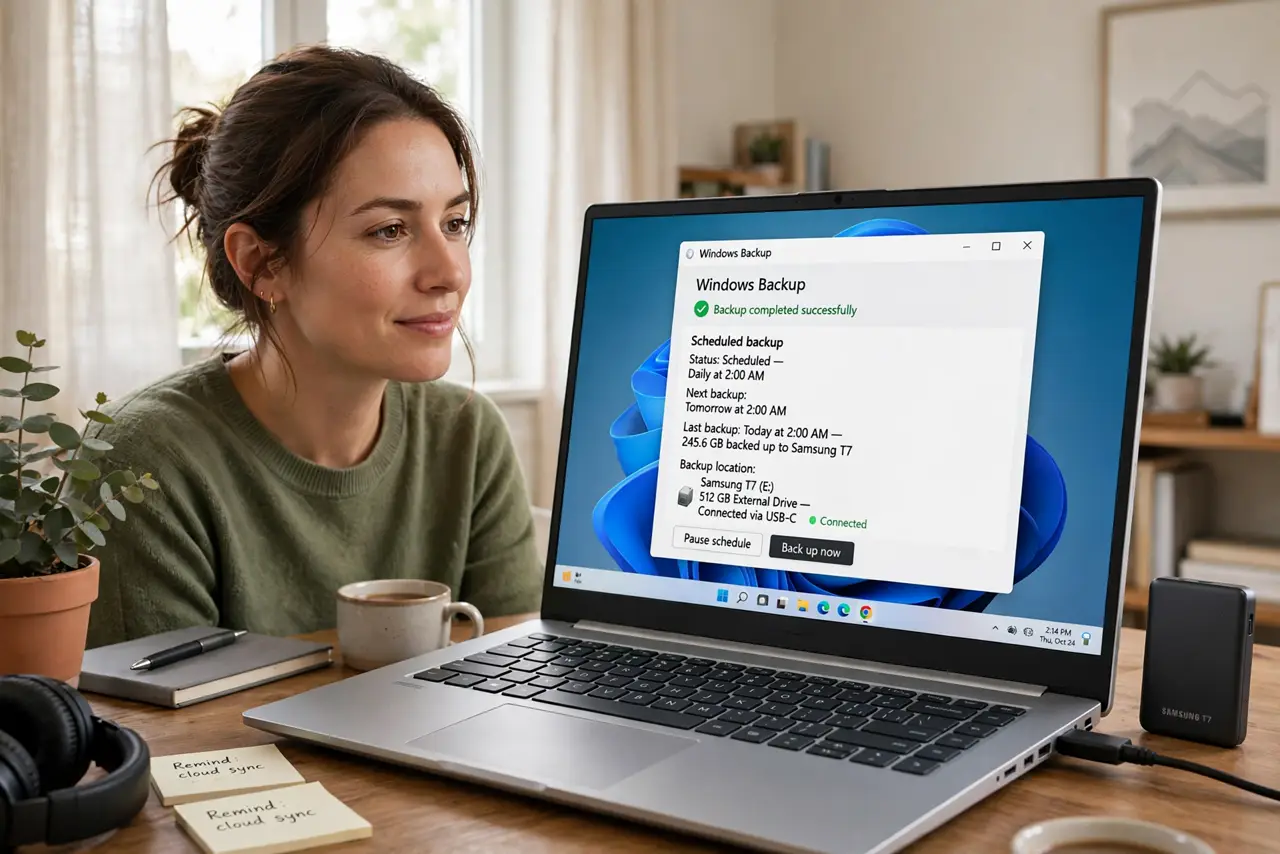
Quick fix: turn on your system's built-in automatic backup — Time Machine on Mac, File History on Windows — and point it at an external drive or cloud storage. Set it once and forget it. Manual backups fail because humans forget; automatic ones protect you while you sleep.
Follow these steps
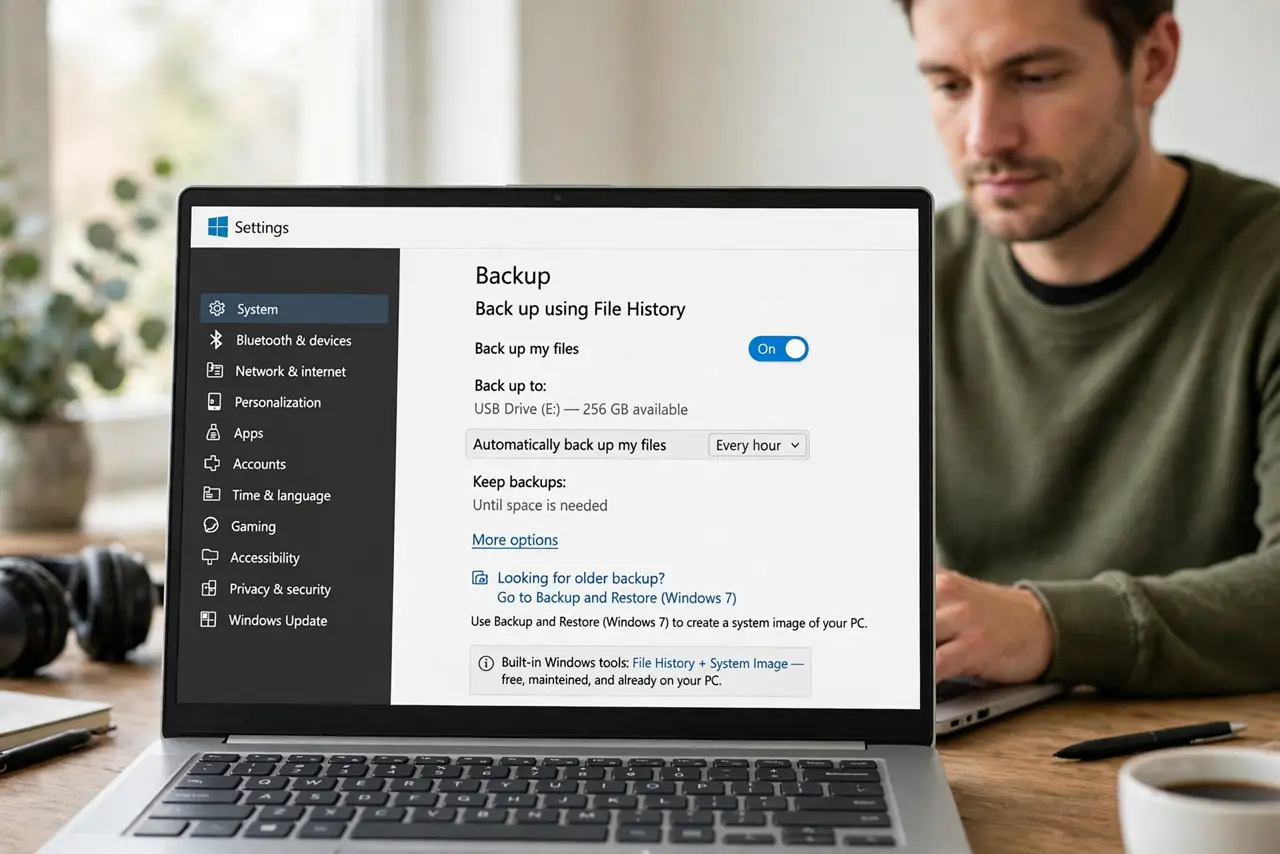
- Pick the built-in tool. Mac: Time Machine. Windows: File History plus system images. Built-in beats third-party for most homes — free, maintained, and already on your computer. See how to automate your backups across systems for the detailed steps.
- Point it at a destination. An external drive for local, a cloud service for offsite — ideally both. The tool needs somewhere to send the copies; give it a drive that stays available.
- Turn on the schedule. Set it to run automatically — hourly or daily. The first backup takes hours; afterward only changed files copy, so it finishes in minutes.
- Include the right folders. Check that Documents, Desktop, and Photos are included. Built-in tools sometimes skip odd locations — verify your important folders are in the set.
- Add a cloud layer. Local automation plus cloud backup is the resilient combo. If the house floods, the cloud copy survives — Android backup covers the phone side automatically too.
- Verify it ran. Once a month, glance at the last-successful date. Automation fails silently when drives fill or disconnect — a thirty-second check catches it.
What NOT to do
- Do not set it up and never check again. Drives fill, cables unplug, and cloud logins expire — verify monthly.
- Do not back up to the same drive you are backing up. A backup on the same physical disk dies with the disk — separate media is the rule.
- Do not exclude folders to save space blindly. That skipped folder is always the one with the important files — include everything, buy a bigger drive.
- Do not forget the phone. Your computer's automation does not cover your phone — turn on its cloud backup separately.
Frequently asked questions
How often should automatic backups run?
Daily is the sweet spot for most homes. Hourly is fine too — incremental backups are quick after the first one.
What if the backup drive fills up?
Built-in tools usually prune old versions automatically. If yours does not, set a reminder to check space quarterly.
Is cloud backup automatic too?
Yes — iCloud, Google One, and similar services back up continuously once enabled. That is the easiest automation of all.