Automate Your Backups
You keep meaning to back up — and you keep forgetting, until the day the drive dies or the laptop vanishes. Manual backups fail because humans are unreliable; automated backups succeed because they remove the human. Set it up once and your files copy themselves on a schedule, forever. Follow the 3-2-1 backup rule for how much redundancy is enough.
TL;DR / Quick Fix
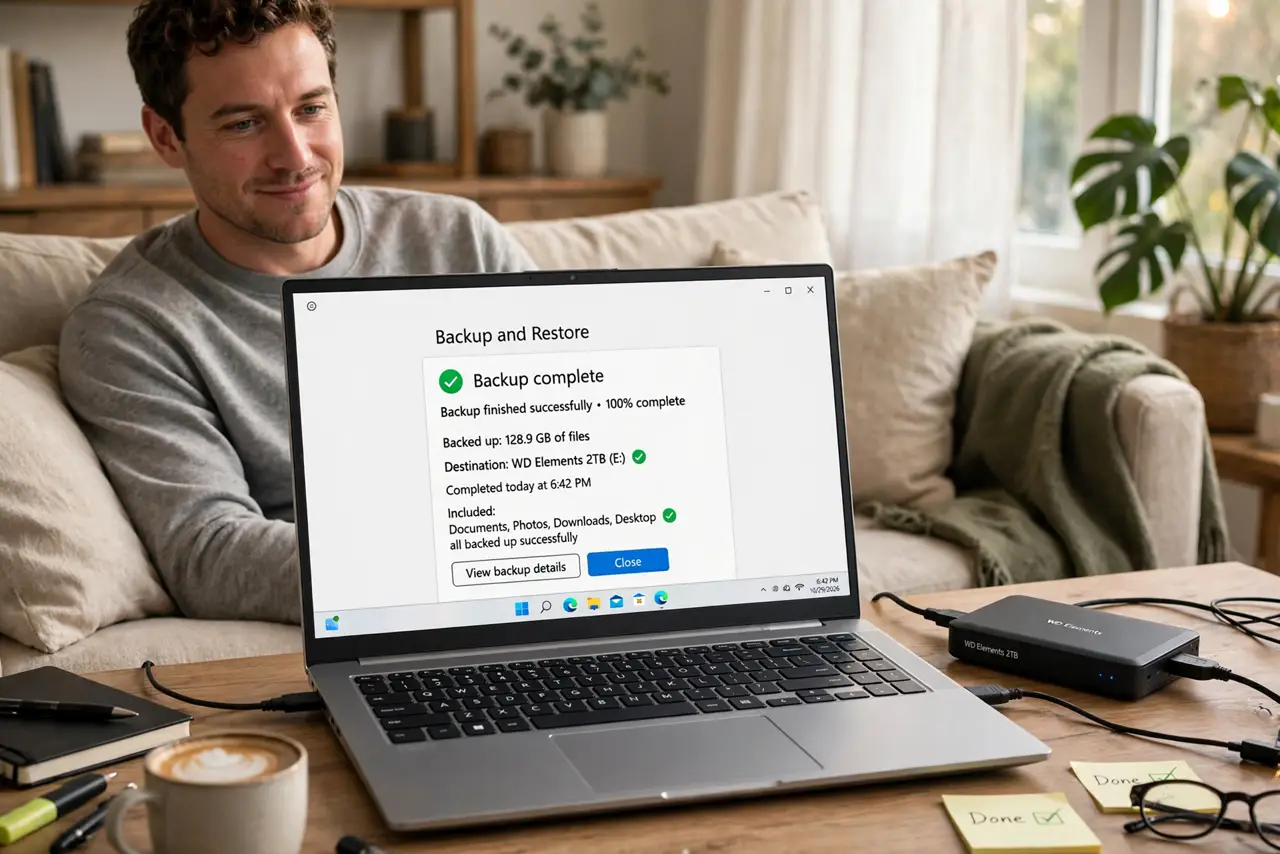
Quick fix: turn on your system's built-in automatic backup — Windows Backup, Mac Time Machine, or your phone's cloud backup — pointed at an external drive or cloud storage. Set it and forget it, but verify the first backup completes and test a file restore once.
Follow these steps
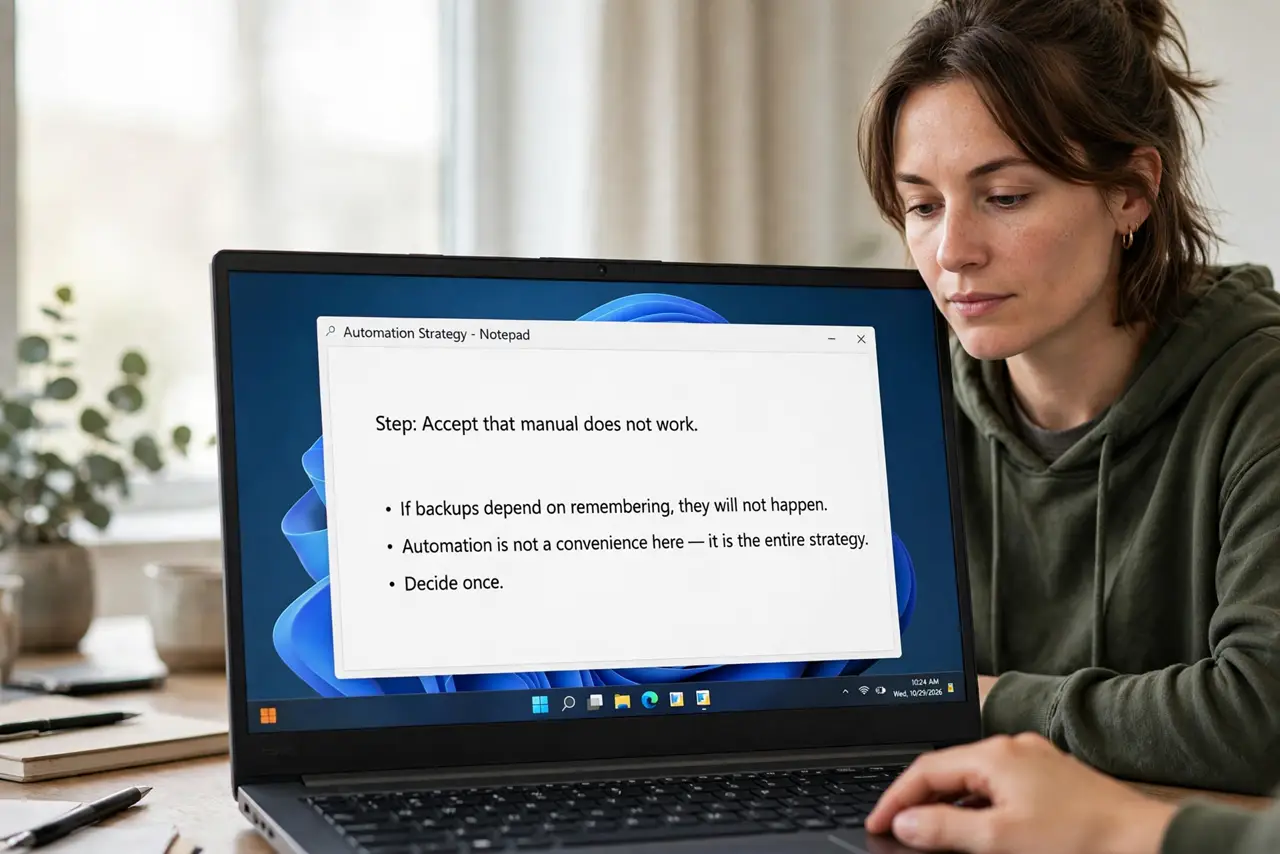
- Accept that manual does not work. If backups depend on remembering, they will not happen. Automation is not a convenience here — it is the entire strategy. Decide once, then let the schedule handle it.
- Pick the built-in tool first. Windows has automatic backup, Macs have Time Machine, phones have cloud backup — all free, all automatic, all good enough to start. Fancy software can wait; an imperfect automatic backup beats a perfect manual one.
- Choose a destination. An external drive for local backups, cloud storage for off-site, ideally both. The drive should stay connected or the schedule should remind you — a backup target that is never attached backs up nothing.
- Turn on the schedule. Enable automatic backups and pick a frequency — daily for active work machines, weekly at minimum. The first backup takes hours; every one after is incremental and fast.
- Verify the first backup. Do not trust it blindly: check that the backup completed and browse it. An untested backup is a hope, not a plan — confirm files are actually there.
- Test a restore. Restore one file to prove the whole chain works. Five minutes now prevents the horrible discovery, mid-crisis, that the backups were empty.
What NOT to do
- Do not rely on remembering to back up. Manual backup plans have a near-perfect failure rate — automate or accept the risk explicitly.
- Do not back up to the same drive. A backup on the disk it protects dies with that disk — separate drive or cloud, no exceptions.
- Do not skip the restore test. Backups that have never been restored are Schrodinger's backups — possibly fine, possibly empty.
- Do not count a synced cloud folder as a backup. Sync mirrors deletions and ransomware too; real backups keep history and versions.
Frequently asked questions
How often should backups run?
Daily for machines with active work, weekly at minimum. The more you would cry over losing a week's work, the more often it should run.
Is cloud backup enough alone?
It covers theft, fire, and drive failure — the big ones. Pairing cloud with a local drive adds speed and a second copy; see cloud vs local for the tradeoff.
What about my phone?
Phones back up automatically to their cloud service once enabled — photos, messages, settings. Check it is actually on; it is the backup most people assume exists.