Backup Codes Printed and Lost? Replace Them
Backup codes rescue you when your phone or authenticator is unavailable. If the printed set is lost, anyone who finds it could use it, and you cannot rely on it either. Generate a fresh set, which invalidates the old one, and store the new set safely.
TL;DR / Quick Fix
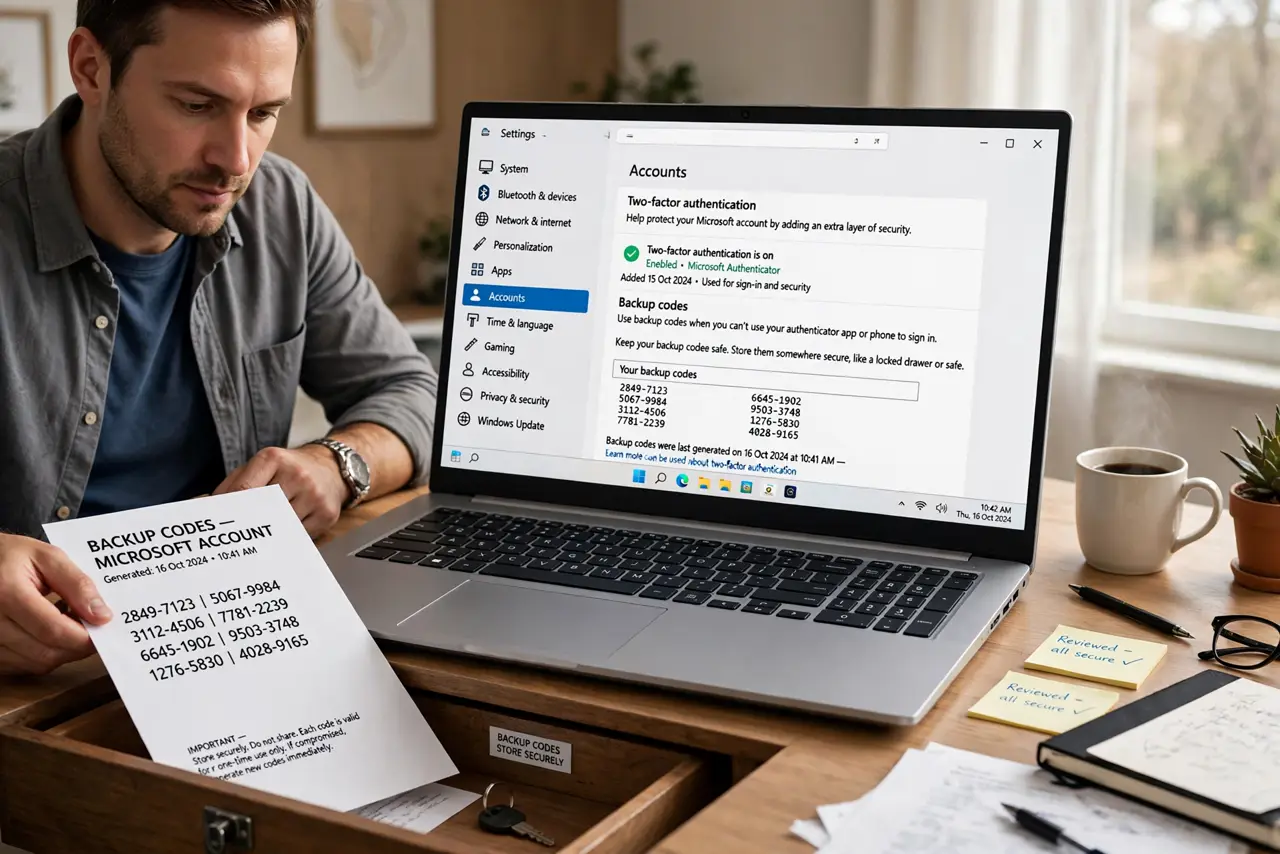
Quick fix: sign in through the official app, open two-factor settings, and generate a new set of backup codes. The old set stops working at once. Store the new set offline, in a safe place only you can reach. Do it today, while you still can.
Follow these steps
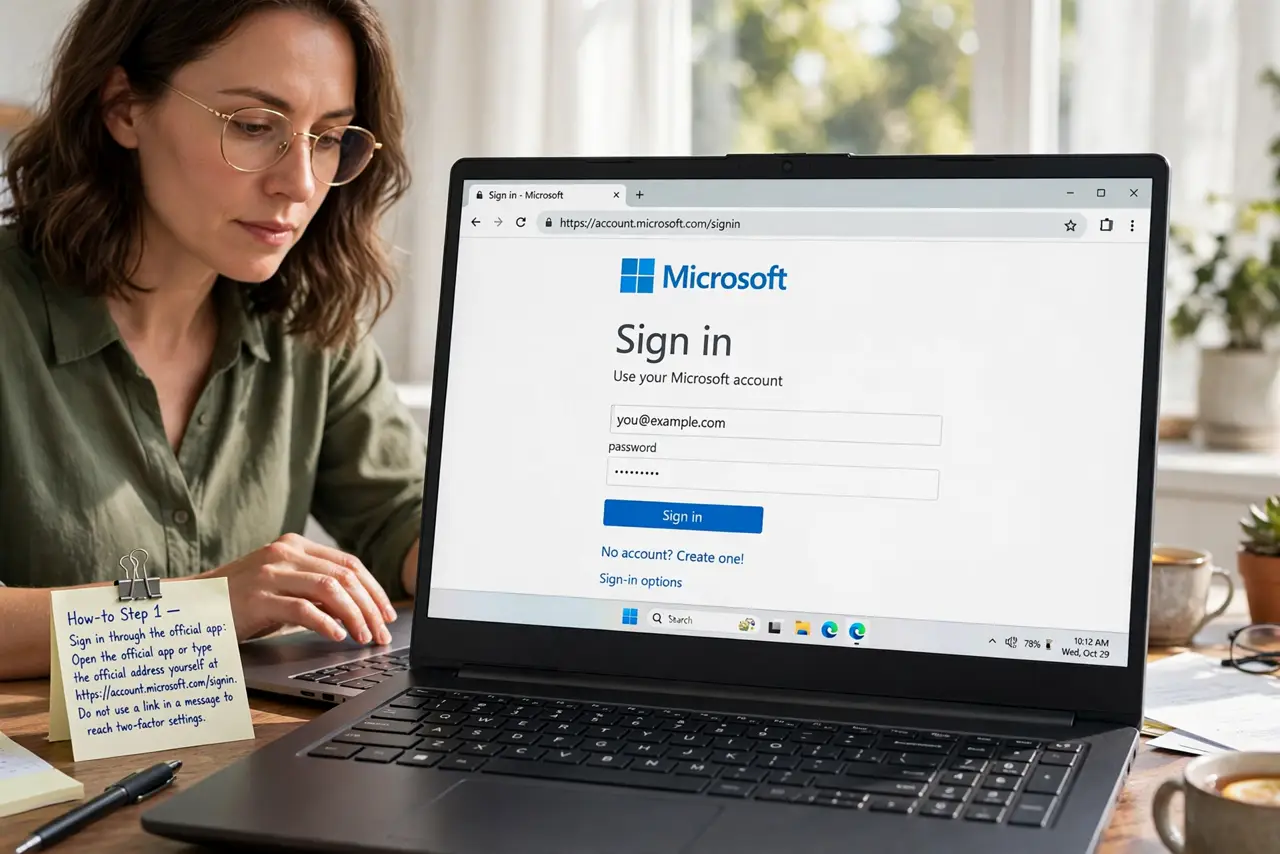
- Sign in through the official app. Open the official app or type the official address yourself, and sign in with your normal second factor. Do not use a link in a message to reach two-factor settings.
- Generate a new set of codes. In two-factor or security settings, choose generate new backup codes, or regenerate. The new set replaces the old one, which stops working immediately.
- Save the new set offline. Print the new codes, or write them down, and store the paper in a safe place at home, such as a locked drawer or safe. Offline storage cannot be leaked from a cloud account.
- Do not store codes in plain photos. Do not photograph the codes and leave them in a shared album or an unprotected notes app. A photo syncs, backs up, and spreads further than paper.
- Test one code if the service allows. Some services let you test a code without using it up. If yours does not, simply confirm the set saved correctly and completely, with no digits missing.
- Tell no one the location casually. Keep the storage location private, even from helpful friends. Backup codes are account keys, and their location deserves the same discretion as a house key.
What NOT to do
- Do not keep using a lost set and hope nobody finds it. Regenerating is fast, and it is the only way to invalidate the lost codes.
- Do not store backup codes in the same email account they protect. If that account is compromised, the codes go with it.
- Do not share backup codes with support staff or anyone offering to help. Genuine support never asks for them.
- Do not print codes and leave them on a desk or in a car. A printed set needs a safe place, not a convenient one.
Frequently asked questions
Does generating new codes really invalidate old ones?
Yes, on most services. The old set stops working as soon as the new set is generated, which is why regenerating is the fix for a lost set.
What if I cannot sign in without the lost codes?
Use another second factor, such as an authenticator app, to sign in. If none works, use official account recovery.
How many backup codes should I keep?
Keep one full set per important account, stored offline. One set is enough, provided it is complete and stored safely.