Back Up to External Drives
Cloud storage is convenient until the account gets locked, the subscription lapses, or the internet dies during a restore. An external drive is your backup that no company controls — fast, private, and yours. Here is how to set one up so it actually protects you instead of gathering dust in a drawer.
TL;DR / Quick Fix
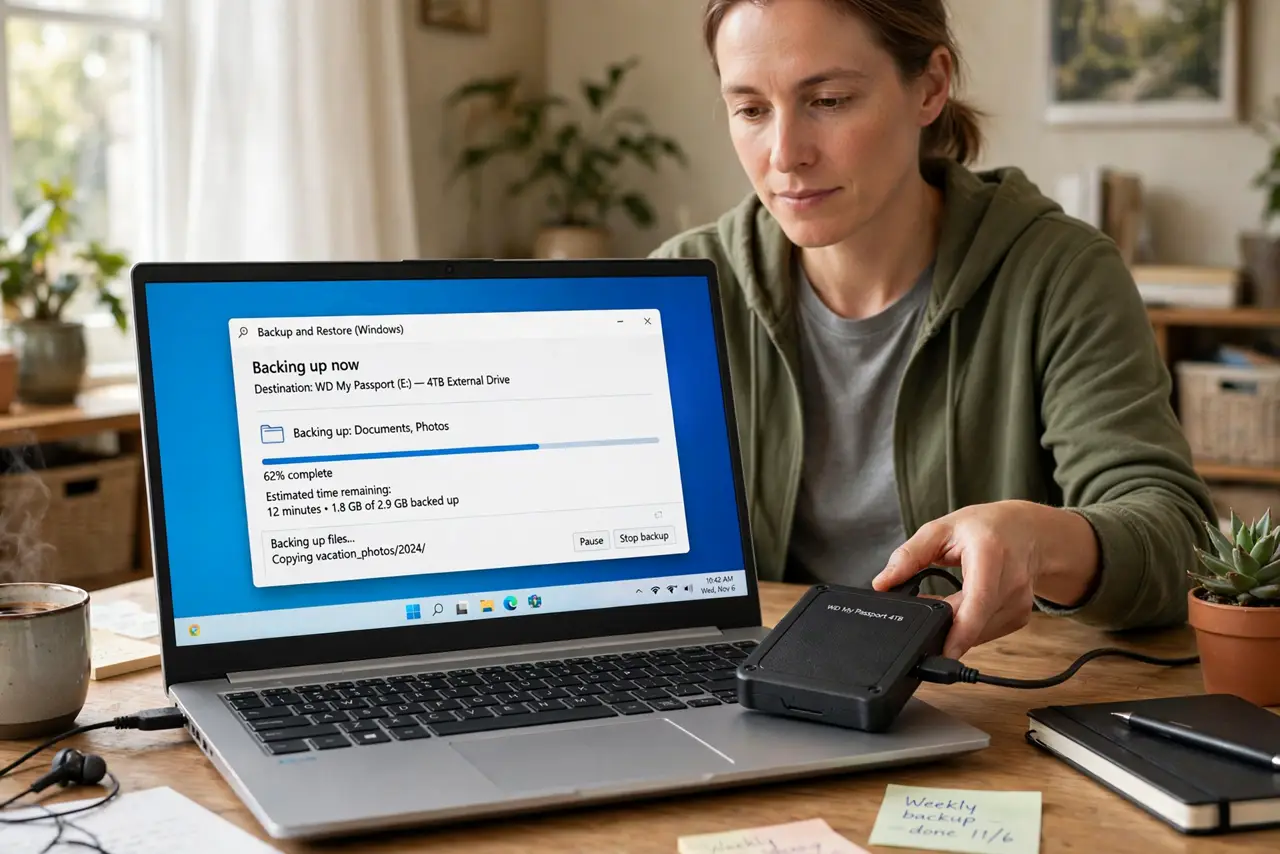
Quick fix: plug in an external drive, turn on your system's built-in backup, and let it run automatically — that is most of the job. Keep the drive unplugged between backups so malware cannot reach it. Pair it with a cloud copy and you have real protection, not just hope.
Follow these steps
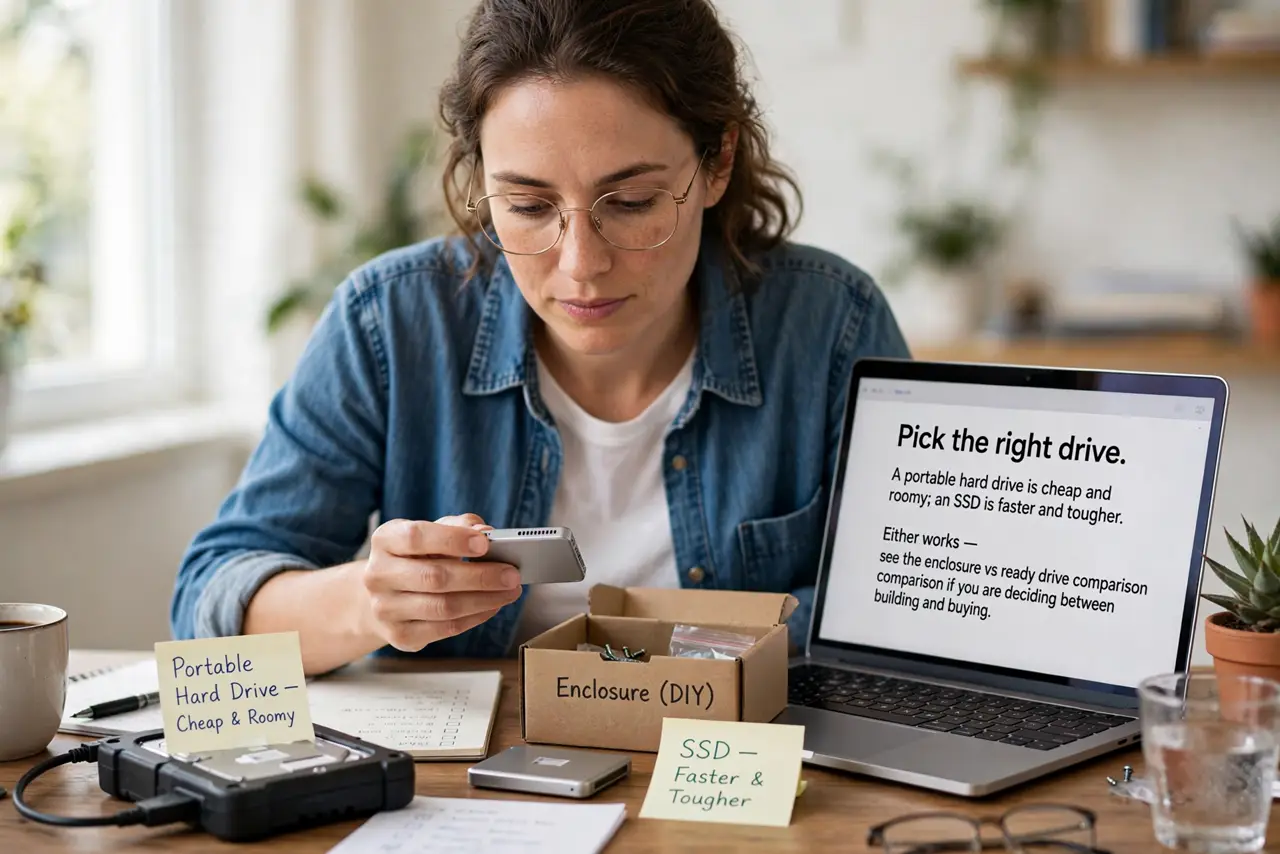
- Pick the right drive. A portable hard drive is cheap and roomy; an SSD is faster and tougher. Either works — see the enclosure vs ready drive comparison if you are deciding between building and buying.
- Use the built-in backup tool. Windows has File History and system images; Mac has Time Machine. Built-in tools are free, reliable, and already tested by millions — no extra software needed.
- Run the first backup fully. The first backup takes hours — let it finish overnight. After that, incremental backups take minutes because only changed files copy over.
- Unplug the drive between backups. Ransomware encrypts every connected drive, including backups. Unplugged between runs is the whole point of a local backup — see the NAS vs external drive tradeoffs if you want always-on storage.
- Format correctly for your system. Mac users: Time Machine wants its own format — see how to format an external drive properly. Windows users can use NTFS or exFAT for cross-system drives.
- Test a restore yearly. Plug the drive in, restore one file, open it. A backup you have never tested is a hope, not a plan.
What NOT to do
- Do not leave the drive plugged in always. Connected backups are the first thing ransomware encrypts — unplug between runs.
- Do not buy the drive and never set it up. A drive in a drawer backs up nothing — schedule the first backup the day you buy it.
- Do not rely on cloud alone. Accounts get locked and subscriptions lapse; the external drive is the copy nobody can take away.
- Do not skip the restore test. Corrupt or incomplete backups are discovered at the worst moment — test before you need it.
Frequently asked questions
How big a drive do I need?
At least twice the data you are backing up, so versions have room. For most homes, 1 to 2 TB is plenty.
SSD or hard drive for backup?
Hard drives give more space per dollar; SSDs survive drops better. For a drive that lives on a desk, a hard drive is fine.
How often should it back up?
Daily for active files, automatic. The built-in tools handle the schedule once you turn them on.