Cap Battery Charge in BIOS
Keeping a laptop plugged in at 100% all day quietly wears the battery — and many laptops let you cap charging at 60 or 80% in the BIOS or a manufacturer app. If your laptop lives on a desk, this one setting can add years to the battery. Here is how.
TL;DR / Quick Fix
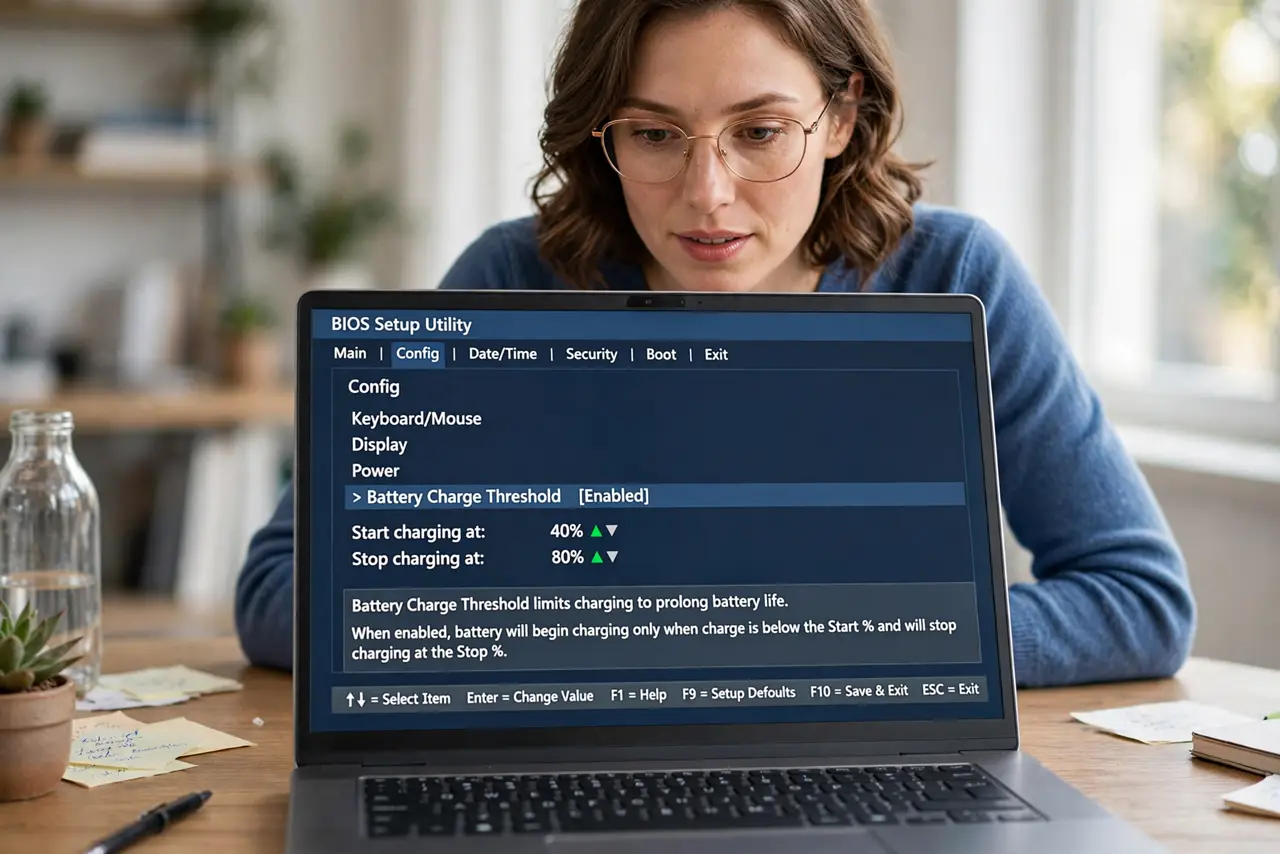
Many laptops let you cap battery charging at 60–80% in the BIOS or a manufacturer utility, reducing wear for desk-bound machines. Enter the BIOS setup at boot, find the battery or power section, and set the charge threshold. Use a full 100% charge only before travel days.
Follow these steps
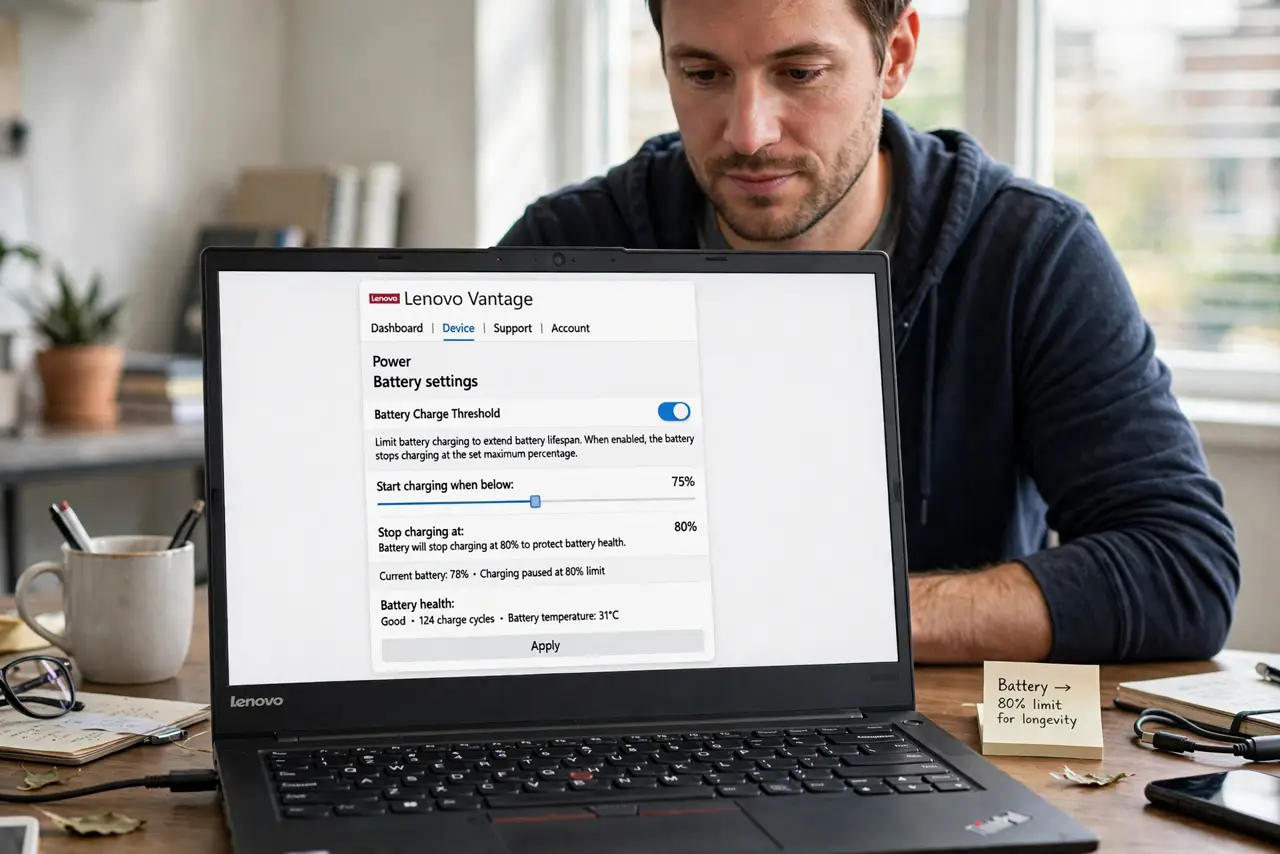
- Check the manufacturer app first. Many brands offer the limiter inside Windows — no BIOS trip needed.
- Enter the BIOS setup. Usually Del, F2, or F12 at boot. Check your model's key; the window is short.
- Find the battery section. Often under Power or Advanced. Names vary: battery care, charge threshold, battery health.
- Set the threshold. 60–80% for desk use; higher if you unplug often. There is no universal perfect number.
- Save and exit. The cap applies from the next charge cycle.
- Override before travel. Charge to 100% the night before a trip, then restore the cap when you return.
What NOT to do
- Do not set 60% and then complain about short unplugged time. That is the trade you chose — raise it if it bothers you.
- Do not confuse an intentional limit with the stuck-at-60% bug. One is a setting; the other is a fault.
- Do not skip this if your laptop is always docked. Always-plugged is exactly the use case this setting exists for.
- Do not expect the setting on every laptop. Budget models may lack it entirely.
Frequently asked questions
Does capping really extend battery life?
Yes. Lithium batteries degrade fastest at full charge combined with heat — the exact state of a docked laptop.
What threshold should I pick?
80% for mixed use, 60% for always-plugged desk machines.
Will it affect performance?
No. Only the maximum charge level changes; performance is untouched.