Laptop Battery Stuck at 60%? It's a Setting
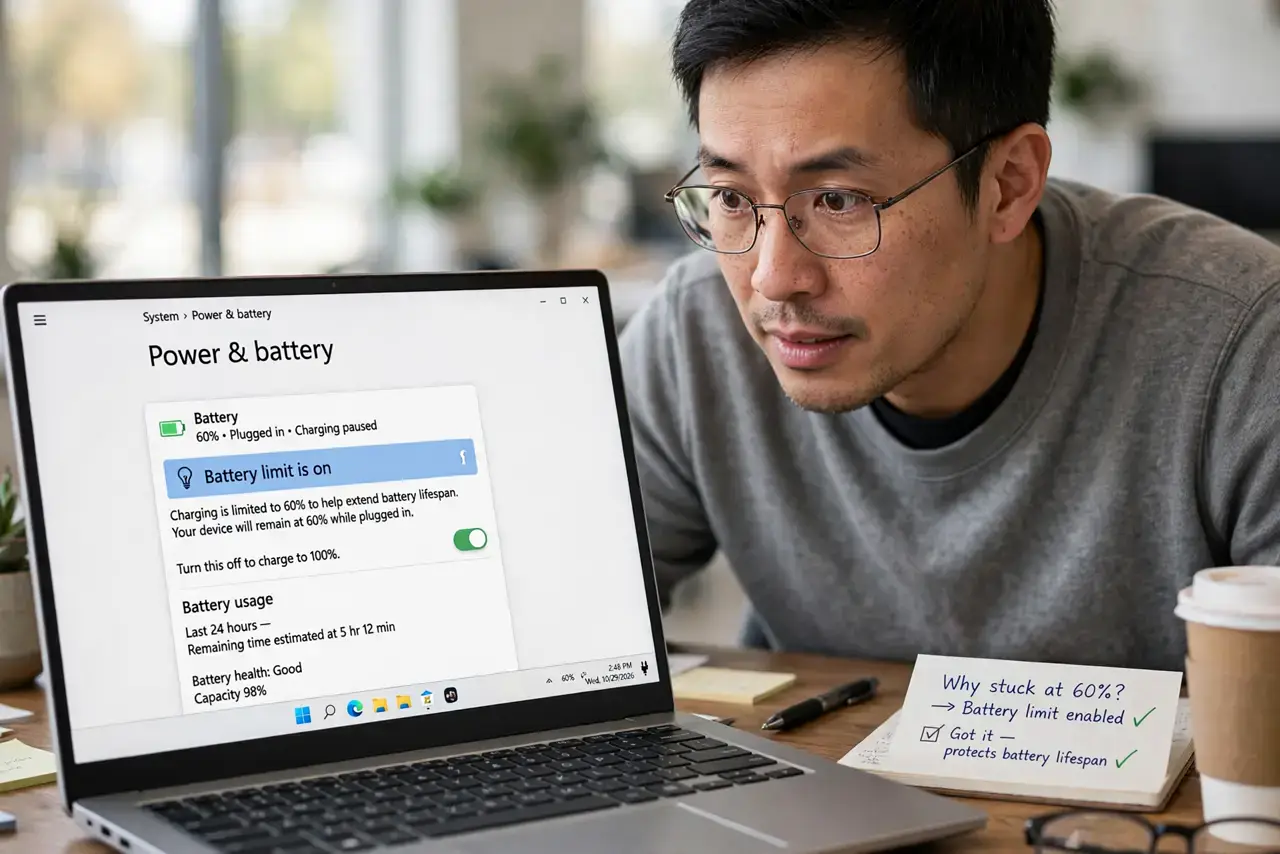
Your laptop charges to 60% (or 80%) and stubbornly stops — not a broken battery, but a feature. Manufacturers cap charging to extend battery lifespan, and the setting hides in your laptop maker's utility app. This guide finds the toggle and explains when to keep the cap on, following the same battery-care logic phones use.
TL;DR / Quick Fix
Quick fix: open your laptop maker's app — Lenovo Vantage, MyASUS, Dell Power Manager, or similar — and look for battery conservation or lifespan mode. Turn it off for a full charge, or leave it on to extend battery lifespan. Disable the cap the night before traveling.
Follow these steps
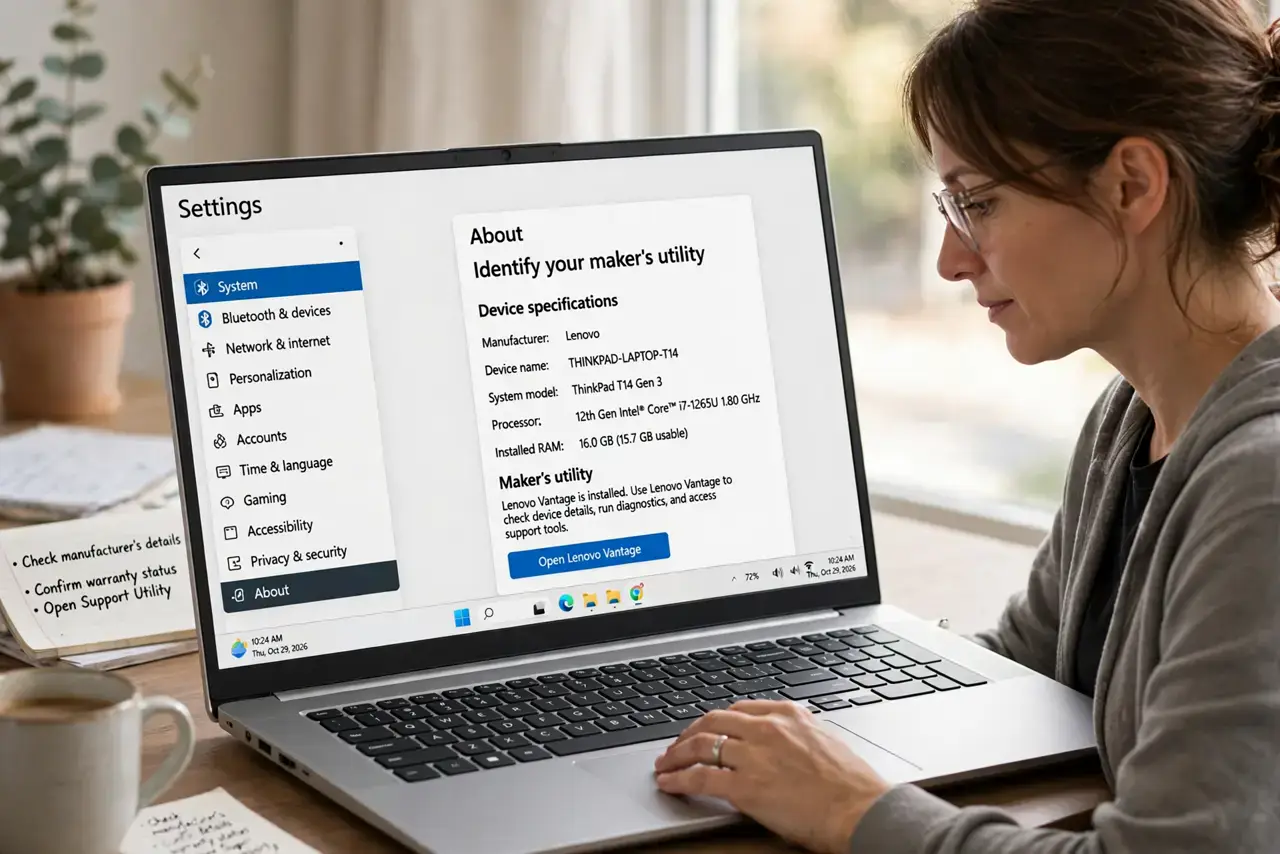
- Identify your maker's utility. Lenovo uses Vantage, ASUS uses MyASUS, Dell uses Power Manager, HP uses its BIOS or app. The charge cap lives in that utility, not in Windows Settings.
- Find the conservation setting. Look for 'Battery Conservation Mode,' 'Battery Health Charging,' or 'Lifespan mode.' It is usually a simple toggle set to cap at 60% or 80%.
- Decide based on your routine. Desk-bound most days? Keep the cap on — it can double the battery's lifespan. Traveling tomorrow? Turn it off tonight for a full charge.
- Check Windows battery settings too. Windows has its own 'smart charging' on some devices. If the maker's app shows no cap, check Settings, then System, then Power and battery.
- Verify with a full cycle. After changing the setting, charge to 100% once to confirm the cap is truly off. Some utilities need a restart to apply the change.
- Do not confuse the cap with a fault. A battery that stops at exactly 60% or 80% every time is a setting, not damage. Random stopping points would suggest a real problem.
What NOT to do
- Do not replace the battery over this. A clean stop at 60% or 80% is the conservation feature working exactly as designed.
- Do not turn the cap off permanently if you rarely travel. The lifespan benefit is real — most desk users should leave it on.
- Do not hunt for the setting in Windows alone. The toggle belongs to the manufacturer's utility, and Windows Settings will not show it.
- Do not panic if the percentage jumps after toggling. The battery meter recalibrates when the cap changes; one full charge cycle settles it.
Frequently asked questions
Why 60% and not 100%?
Lithium batteries degrade fastest at high charge levels and heat. Capping at 60-80% dramatically slows that chemical wear.
Will the cap hurt my battery?
The opposite — it protects it. The cap exists specifically to extend the battery's useful life.
My laptop has no such setting — now what?
Some models lack the feature entirely. In that case, simply unplugging at 80% when you remember gives a partial benefit.