Update BIOS From a USB Stick
A BIOS update can fix hardware bugs, add CPU support, and patch security flaws — and the USB method is the most reliable way to do it. It is straightforward, but one interruption can brick the board. Here is the careful path.
TL;DR / Quick Fix
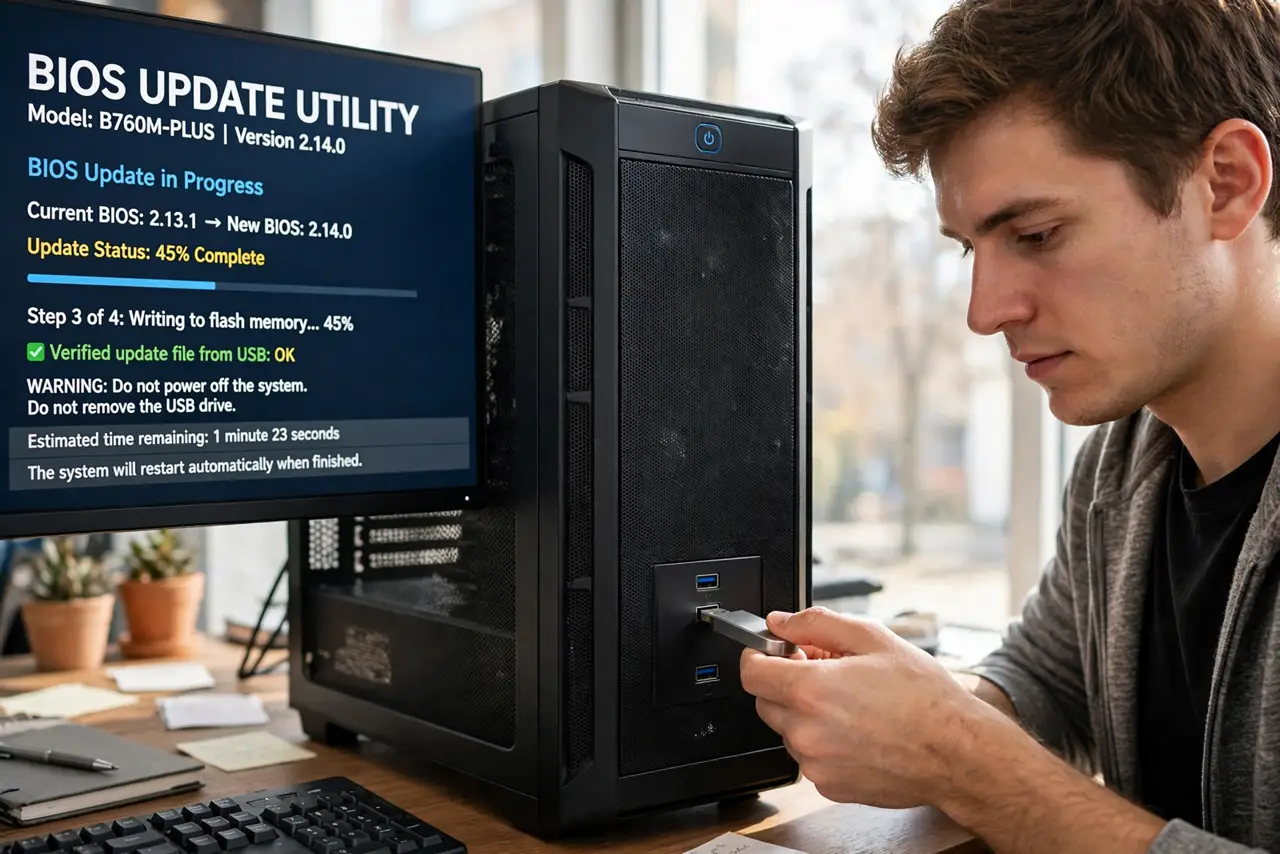
Update the BIOS from USB by downloading the exact BIOS file for your motherboard model, copying it to a FAT32 flash drive, and launching the updater from the BIOS setup. Never interrupt the process — no power loss, no rebooting. Verify the new version afterward and reload your settings.
Follow these steps
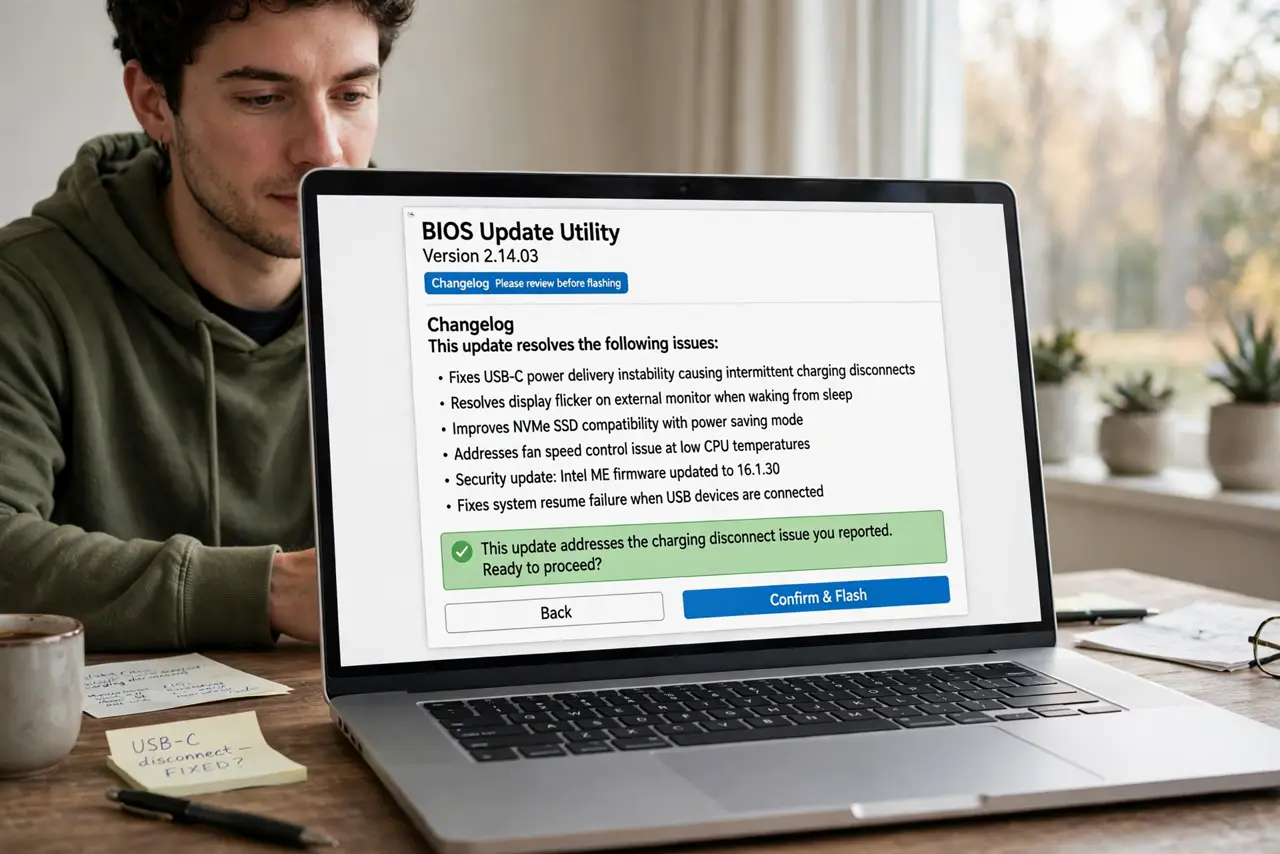
- Confirm you actually need the update. Check the changelog for your issue. Do not update for fun — every flash carries risk.
- Download the exact file for your board. Model and revision must match precisely. Close does not count.
- Prepare a FAT32 USB stick. Small, freshly formatted, with only the BIOS file on it. Exotic formats cause silent failures.
- Launch the updater from the BIOS. The built-in flash tool is safer than any Windows-based updater.
- Do not touch anything during the flash. No power loss, no buttons, no impatience. Walk away and let it finish.
- Verify and reconfigure. Check the reported version, then restore boot order, XMP, and fan settings.
What NOT to do
- Do not update the BIOS during a storm or on a shaky outlet. Use a UPS if you have one.
- Do not use a BIOS file for a similar-but-different board revision. It must match exactly.
- Do not interrupt the flash for any reason. Interruption is how boards get bricked — see the failed update recovery guide.
- Do not skip the changelog. Some updates are irreversible, and you should know that beforehand.
Frequently asked questions
Can a BIOS update really brick my board?
Yes, if interrupted — which is exactly why every precaution above matters.
How long does it take?
Usually a few minutes. The waiting feels much longer than it is.
Should I update the BIOS regularly?
No. Update only when the changelog fixes your issue or patches a security flaw.