Browser Extension Asks for All Sites? Think Twice
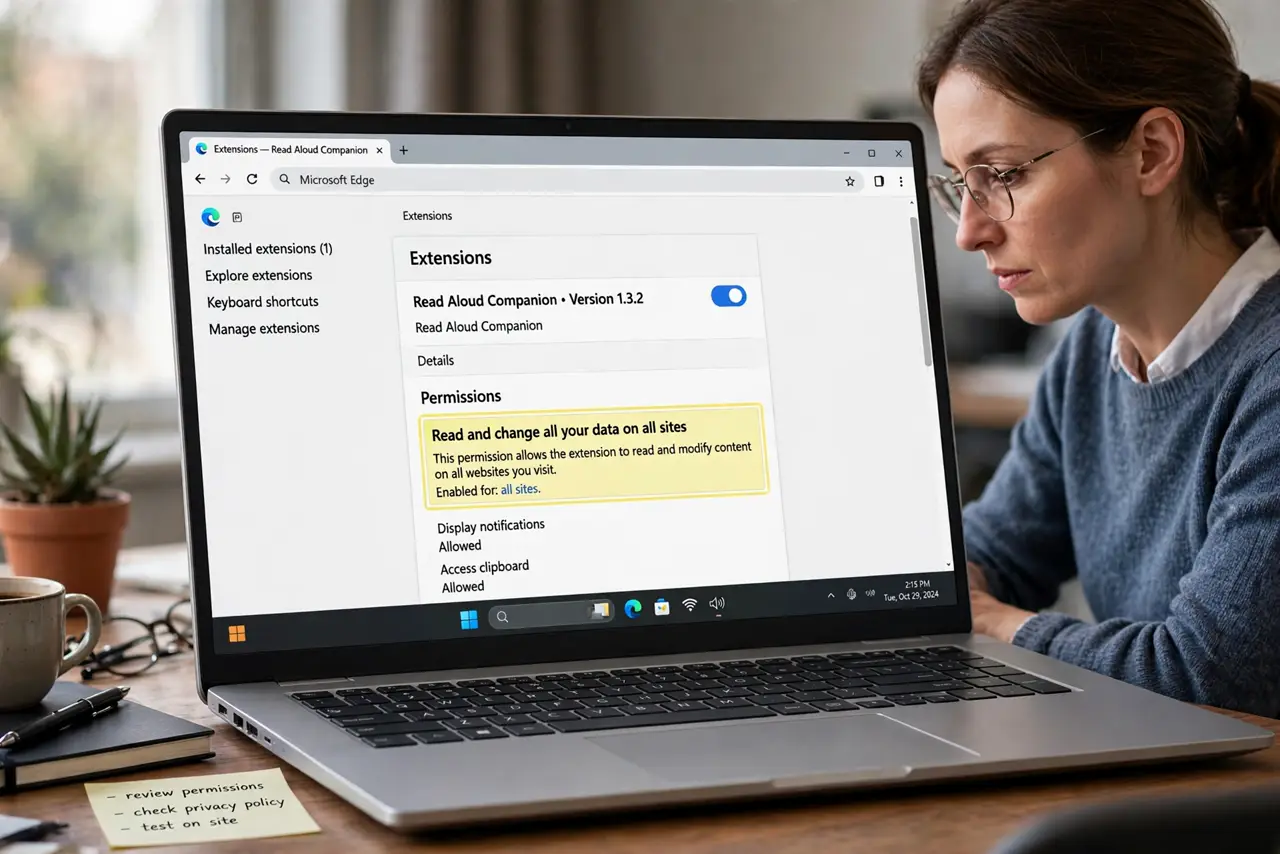
An extension that can read and change data on all websites can see passwords, messages, and banking pages as you use them. Some extensions genuinely need wide access, but many do not. Check the permission against what the extension actually does.
TL;DR / Quick Fix
Quick fix: open extension details and read exactly what it can access. If it asks for all sites but only does one small job, remove it or find an alternative. Keep only extensions from makers you trust, and review them regularly.
Follow these steps
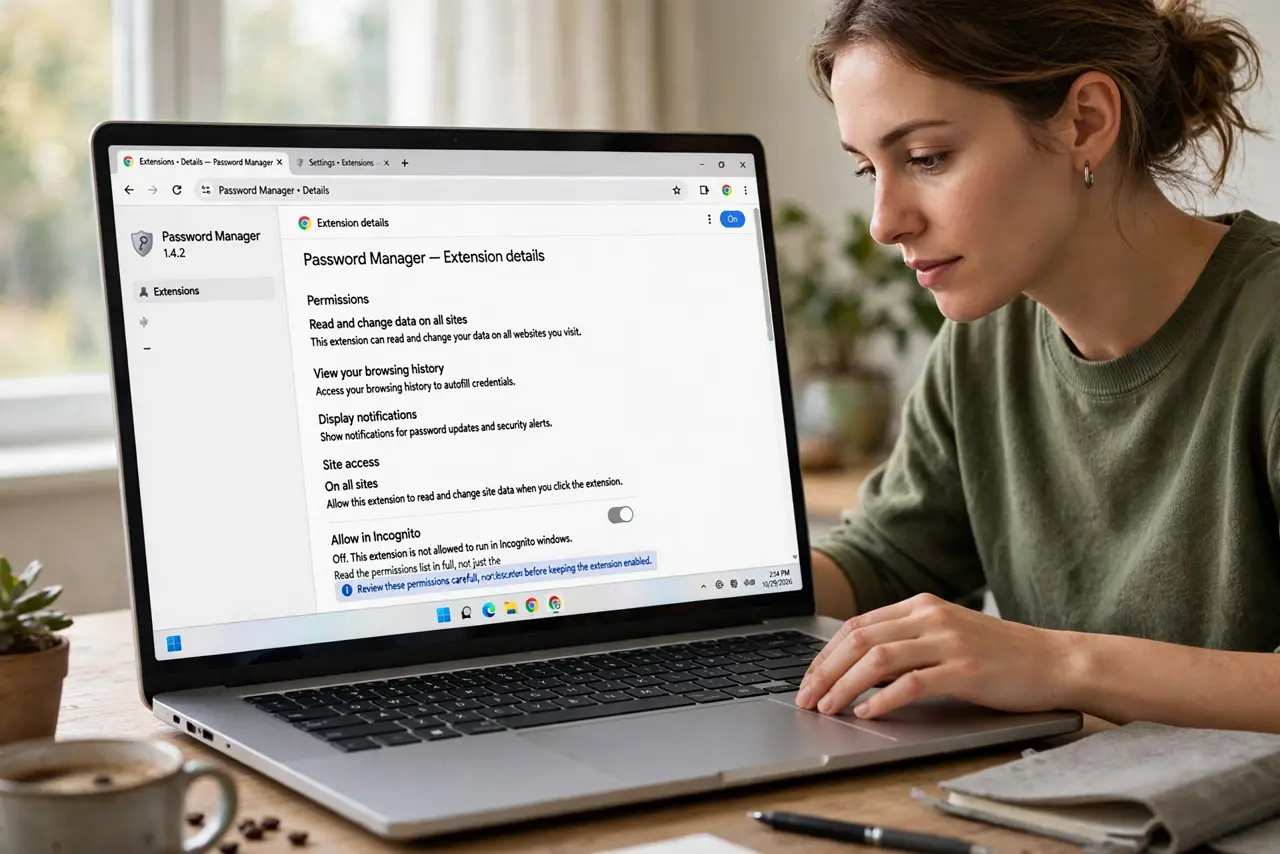
- Open the extension details. In browser settings, open extensions, then the details for the extension in question. Read the permissions list in full, not just the short description.
- Match permission to function. Ask whether the job needs that access. A coupon tool does not need to read banking pages, and a theme does not need to read every site you visit.
- Remove extensions you do not use. Remove any extension you installed and forgot, or that you use rarely. Each installed extension is ongoing access, not a one-time install.
- Prefer narrow alternatives. Look for an alternative that asks only for the sites it serves, or that works when you click it, rather than on every page automatically.
- Check the maker and reviews. Check who made the extension, when it was last updated, and what recent reviews say. A long-unupdated extension from an unknown maker deserves removal.
- Review extensions regularly. Set a regular reminder to review extensions every few months. Remove anything you no longer recognize or trust, and recheck permissions after updates.
What NOT to do
- Do not grant all-sites access to an extension just to try it. Try it with narrower permission, or not at all, if it insists.
- Do not install extensions from links in messages or pop-ups. Install only from the official browser store, after reading permissions.
- Do not keep ten extensions for jobs you do once a year. Each one is a standing permission over your browsing.
- Do not ignore a permission change after an update. An update can widen access, and you should reapprove it deliberately.
Frequently asked questions
Do legitimate extensions ever need all sites?
Yes, some do, such as password managers and accessibility tools. The test is whether the maker is trusted and the job genuinely spans sites.
What if I already granted all-sites access?
Remove the extension if you do not trust it, change passwords for sensitive accounts used while it was installed, and review recent activity.
Can I limit an extension to one site?
Many browsers let you set site access to on click, or to specific sites. Use the narrowest setting that still lets the extension do its job.