Extension Changed Your Search Engine? Undo It
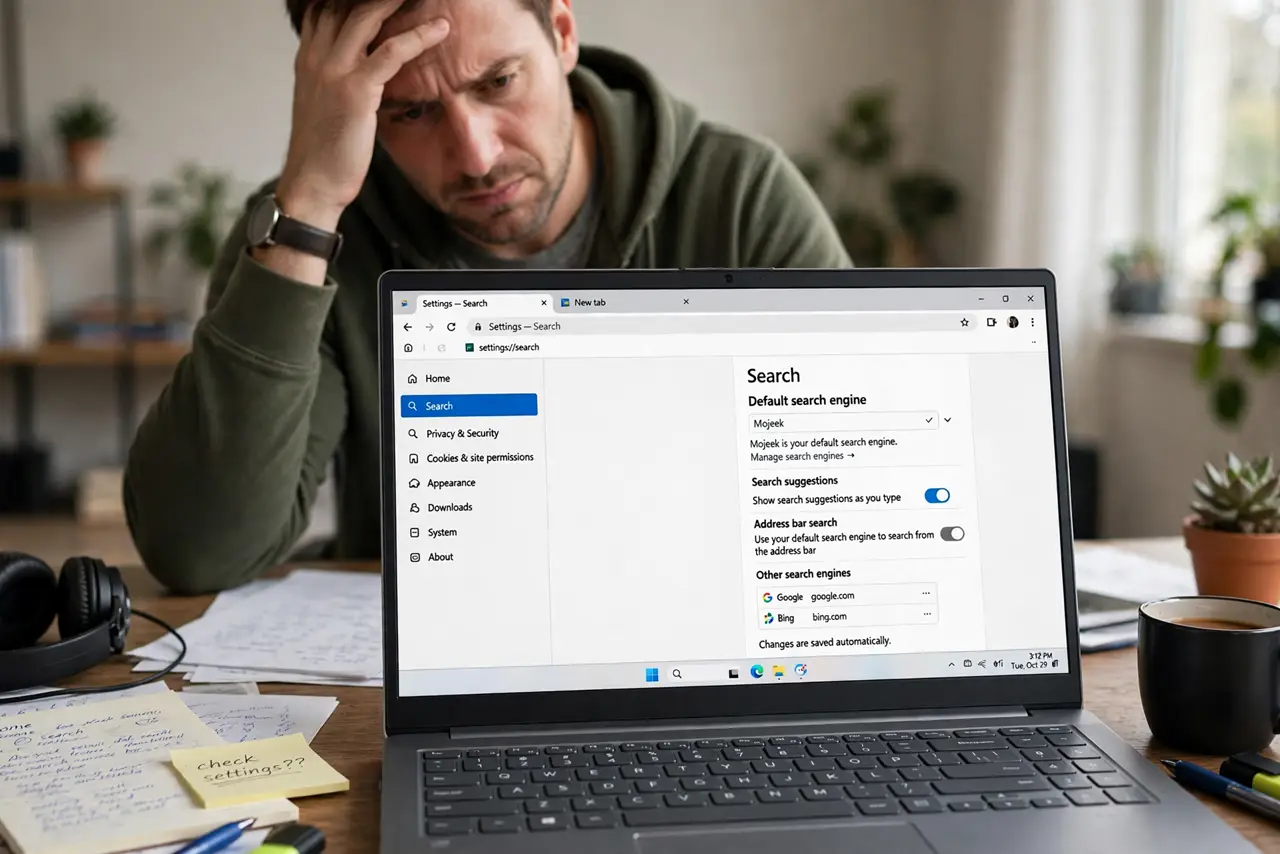
If your searches suddenly go through an unfamiliar search site, an extension or program likely changed the setting. The unfamiliar site may show extra ads or track searches. Remove the cause first, then restore your preferred search engine.
TL;DR / Quick Fix
Quick fix: open extensions, disable or remove anything unfamiliar or recently added, then restore your search engine in browser settings. Check homepage and new tab too, restart the browser, and test a search. Remove the cause first, then restore your settings.
Follow these steps
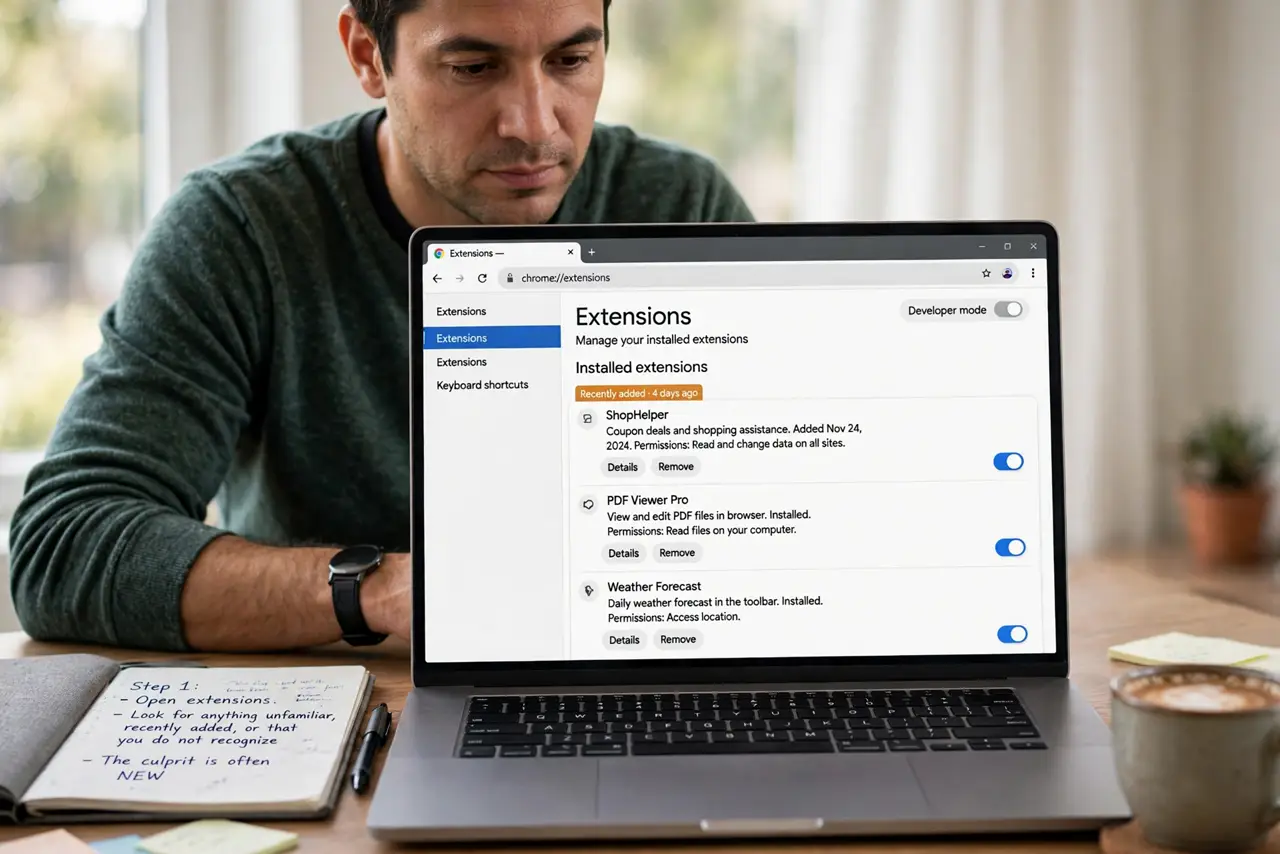
- Open extensions and look for the culprit. In browser settings, open extensions and look for anything unfamiliar, recently added, or that you do not remember installing. The culprit is often new.
- Remove the suspicious extension. Remove the extension entirely, not just disable it. Disabling leaves it installed, and it can be re-enabled by another change later.
- Restore your search engine. In browser settings, open search settings and set your preferred search engine again. Save the change and confirm it stays set.
- Check homepage and new tab. Check homepage, startup pages, and new tab settings in the same settings area. The same extension often changes those too, so restore each one.
- Restart the browser and test. Close the browser fully, reopen it, and run a test search. If results still go through the unfamiliar site, repeat the extension check.
- Run a security scan. Run a scan with your built-in security software. Some search hijacks come with a program outside the browser, and the scan catches that case.
What NOT to do
- Do not just change the search engine back without removing the extension. The extension will change it again.
- Do not install a cleaner offered by the unfamiliar search site. It is often part of the same hijack.
- Do not accept a search change prompt during a free download without reading it. Bundled installers often hide the change in a checkbox.
- Do not ignore extra ads or odd results after restoring settings. Recheck extensions and run a scan if they persist.
Frequently asked questions
Why did my search engine change?
Usually an extension or a bundled installer changed it, sometimes with a pre-checked box during another install. It is rarely a choice you made deliberately.
What if it changes back again?
Another extension or program is still installed. Remove extensions one by one, newest first, and scan the computer.
Is the unfamiliar search site dangerous?
Not always, but it may track searches and show extra ads. Restore a search engine you trust, and do not enter sensitive queries there.