Extension Shows Extra Ads? Find and Remove It
If pages suddenly show pop-ups, banners, or highlighted words that were not there before, an extension is often injecting them. The fix is systematic: disable extensions one by one until the ads stop, then remove the culprit.
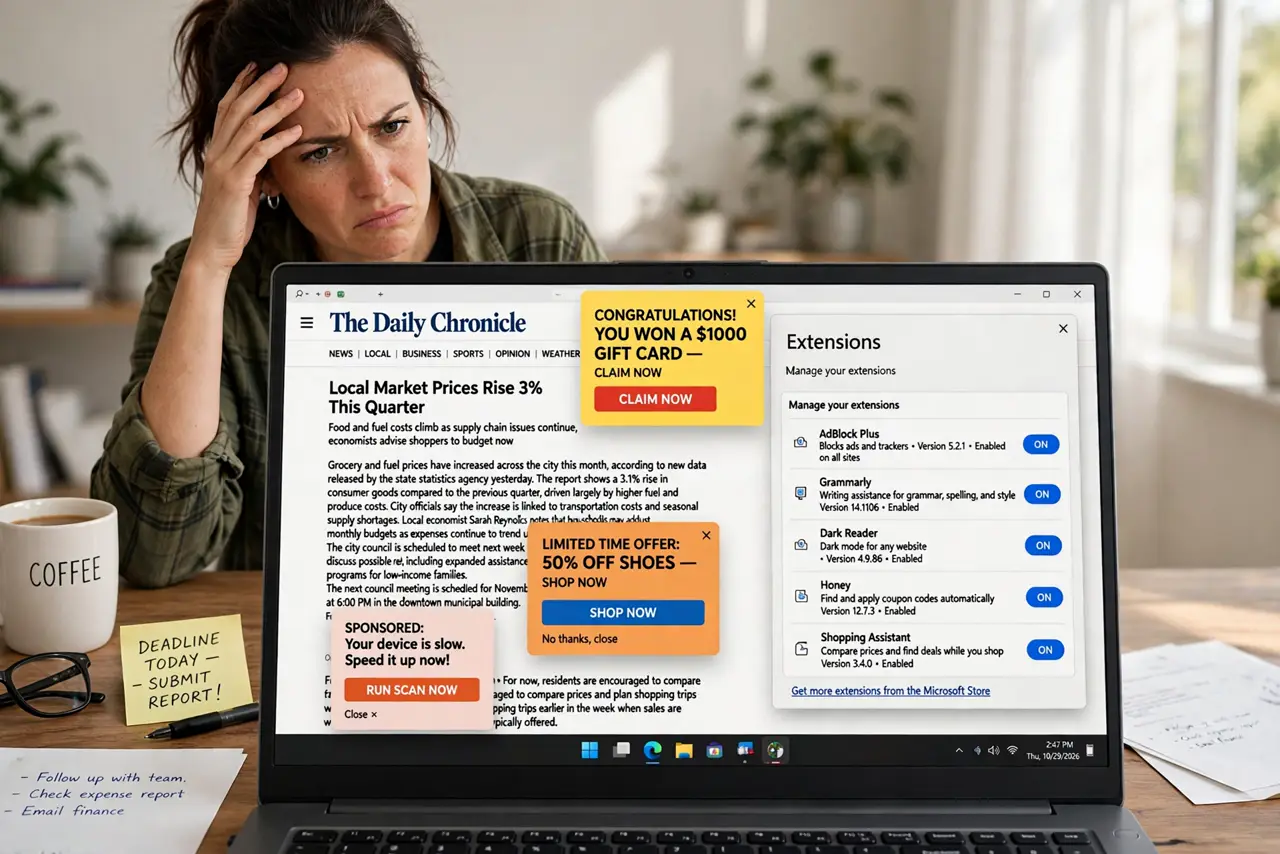
TL;DR / Quick Fix
Quick fix: open extensions and disable them one by one, reloading a test page after each. When the extra ads stop, you found the culprit: remove it completely, restart the browser, and check that pages look normal again. Remove it, restart, and browse normally again.
Follow these steps
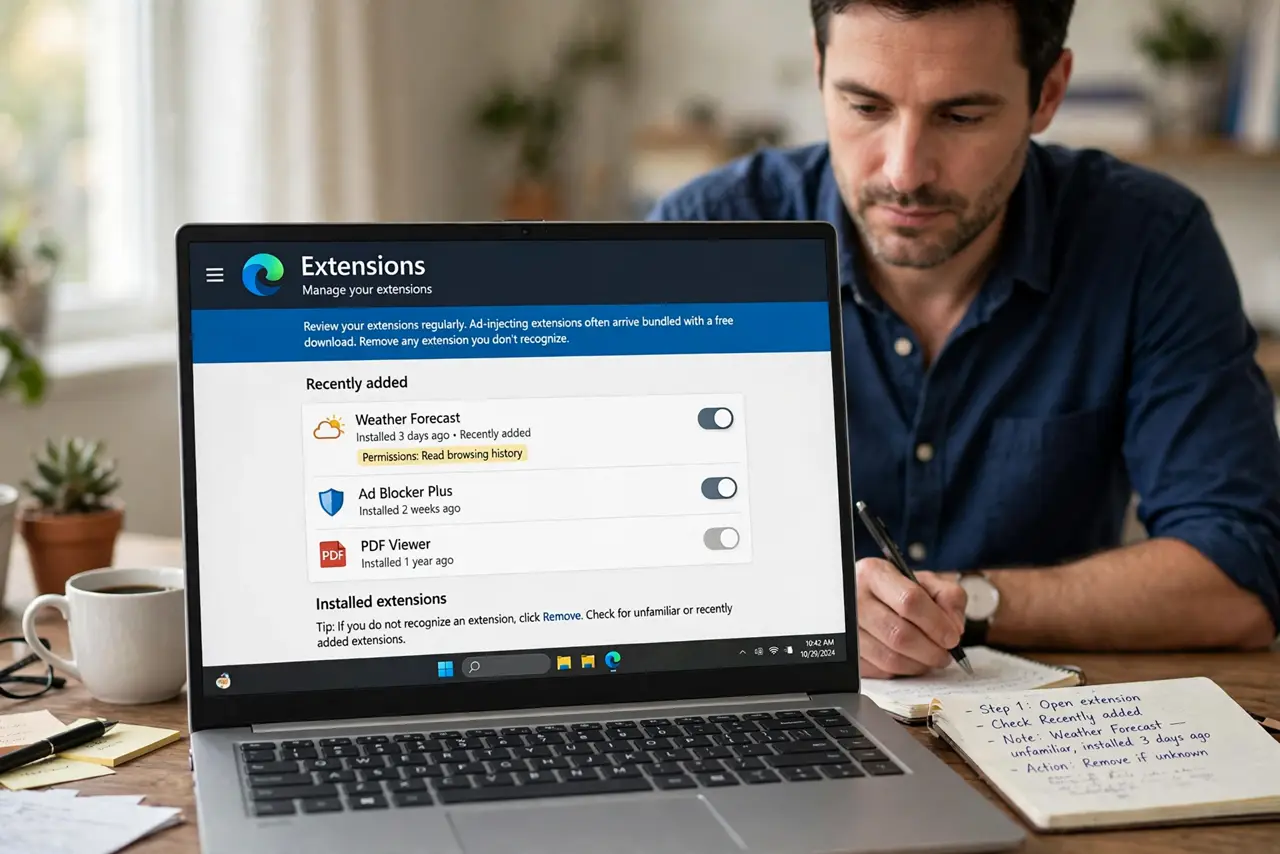
- Open extensions and note recent additions. In browser settings, open extensions and note anything unfamiliar or recently added. Ad-injecting extensions often arrive bundled with a free download.
- Disable extensions one by one. Disable the first extension, reload a page that showed extra ads, and see whether they stop. Repeat with the next extension until the ads disappear.
- Remove the culprit completely. Once the ads stop, remove that extension entirely. Disabling alone leaves it installed, and it can return after an update.
- Restart the browser and retest. Close the browser fully, reopen it, and visit the same pages. Confirm the extra ads, pop-ups, and highlighted words are gone.
- Check for other changes. Check search engine, homepage, and new tab settings for changes the same extension may have made, and restore each one.
- Run a security scan. Run a scan with your built-in security software. If a program outside the browser caused the extension, the scan helps catch it.
What NOT to do
- Do not click the extra ads to see what they sell. Clicking can lead to fake downloads or further unwanted installs.
- Do not install an ad remover offered by one of the extra ads. That is often the same kind of extension in disguise.
- Do not disable all extensions and re-enable them blindly. Re-enable one at a time, so you know which one caused the problem.
- Do not ignore ads that appear only on some sites. An injecting extension can target popular sites while leaving others clean.
Frequently asked questions
How do I know ads are injected, not normal?
If the same site shows far more ads than usual, with pop-ups or highlighted words you never saw before, and other devices show the site cleanly, an extension is likely.
What if disabling extensions does not stop the ads?
Check installed programs for ad software, run a security scan, and check whether the ads appear in a different browser too.
Can I keep the extension if I like its feature?
Only if you trust its maker and its ads are clearly disclosed. An extension that injects ads secretly is not worth keeping for any feature.