Browser Passwords vs a Manager? Choose
Your browser offers to save every password, and a password manager app wants to do the same job. They overlap a lot, but the details matter for security and convenience. This guide compares them head to head.
TL;DR / Quick Fix
Quick fix: if you use one browser on one computer, its password saver is fine — just protect it with a strong device password. If you use several browsers or phones, switch to a manager for syncing. Never use both at once, and never save passwords on a shared computer.
Follow these steps
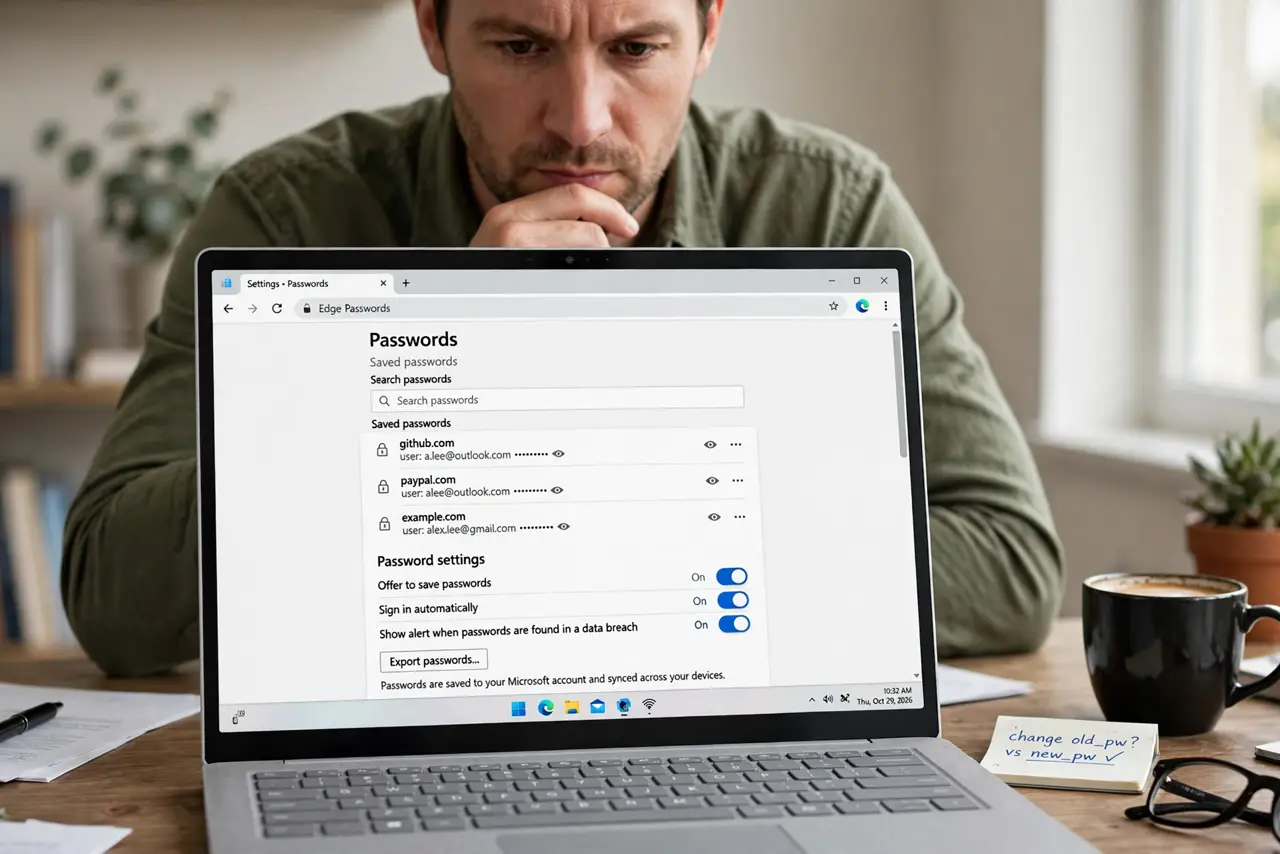
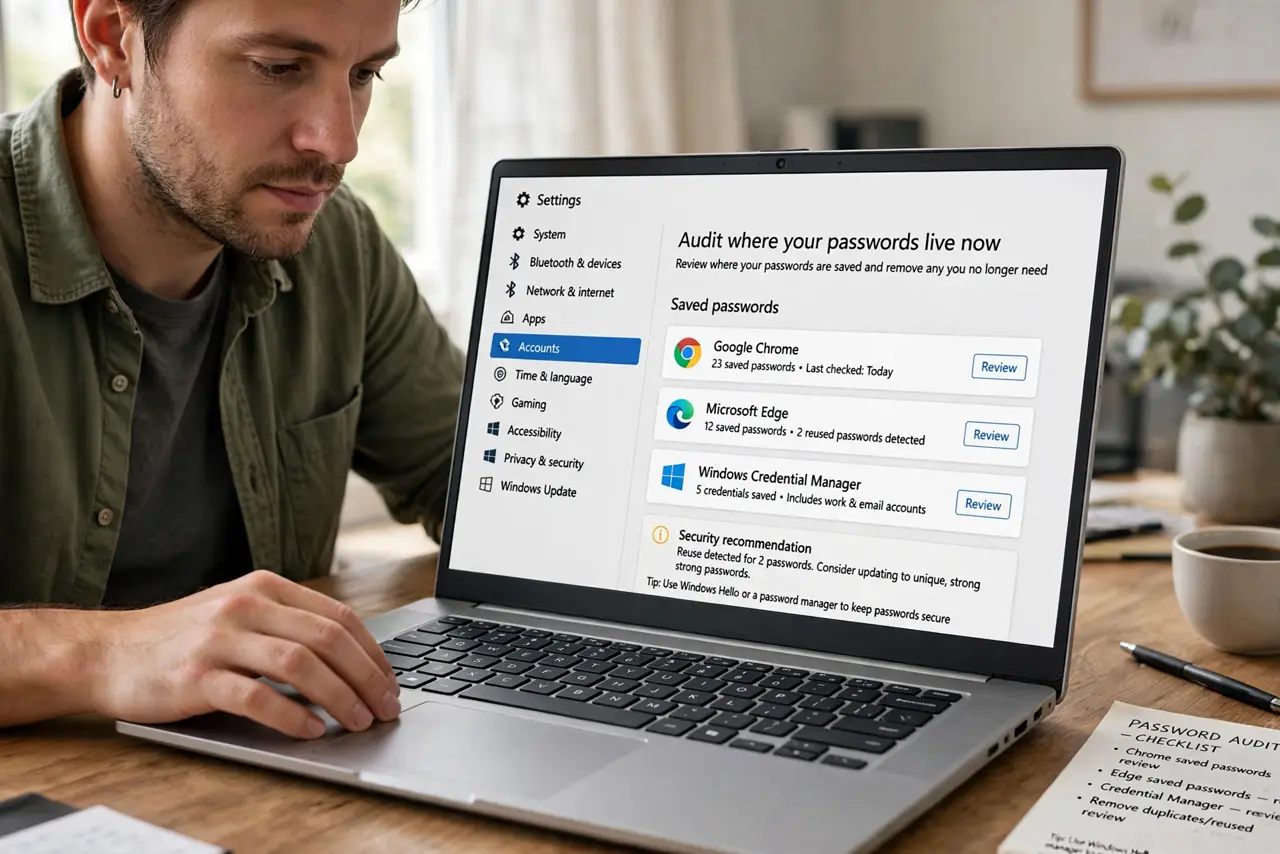
- Audit where your passwords live now. Check your browser's saved passwords list. Most people find logins scattered across two browsers and an old phone — that sprawl is the real problem.
- Weigh the browser's strengths. It is free, already installed, and fills logins fast. For a simple one-browser life, it is genuinely enough — see the full autofill comparison for the details.
- Weigh the manager's strengths. A manager syncs across every browser and phone, stores notes and cards, and usually audits your passwords for reuse and leaks.
- Compare what happens if the device is lost. Browser passwords often rely on the device login alone. A manager adds a master password, so a stolen unlocked laptop does not mean stolen logins.
- Move passwords in one session. Export from the browser and import into the manager, or let the manager capture logins as you browse for a week. Then delete the exported file immediately.
- Turn off the loser. Disable the browser's password saving once the manager is in charge. Two fillers fighting over every login box is the most common post-switch annoyance.
What NOT to do
- Do not keep saving new passwords in the browser after switching. Split storage means you never know where a login lives.
- Do not export passwords and leave the file on your desktop. The export is unprotected plain text — delete it the moment the import finishes.
- Do not use the browser saver without a device password. Without a login on the computer, anyone who opens the browser owns your accounts.
- Do not save passwords in the browser on someone else's computer. Use your phone or skip the login instead.
Frequently asked questions
Which is safer overall?
Roughly equal for encryption; the manager wins on the master password and cross-device design. Your habits matter more than the tool.
Can a manager fill passwords in apps too?
Yes, on phones. Managers plug into iOS and Android autofill, so they fill app logins the browser could never reach.
What if I forget my manager's master password?
That is the one password you must not lose. Save the recovery code during setup, or you can be locked out of the whole vault.