Browser Translate Gets Stuck in a Loop
You ask the browser to translate a page, and it flickers between languages or reloads forever. The loop is usually a confused language setting or stale site data, not a broken translator.
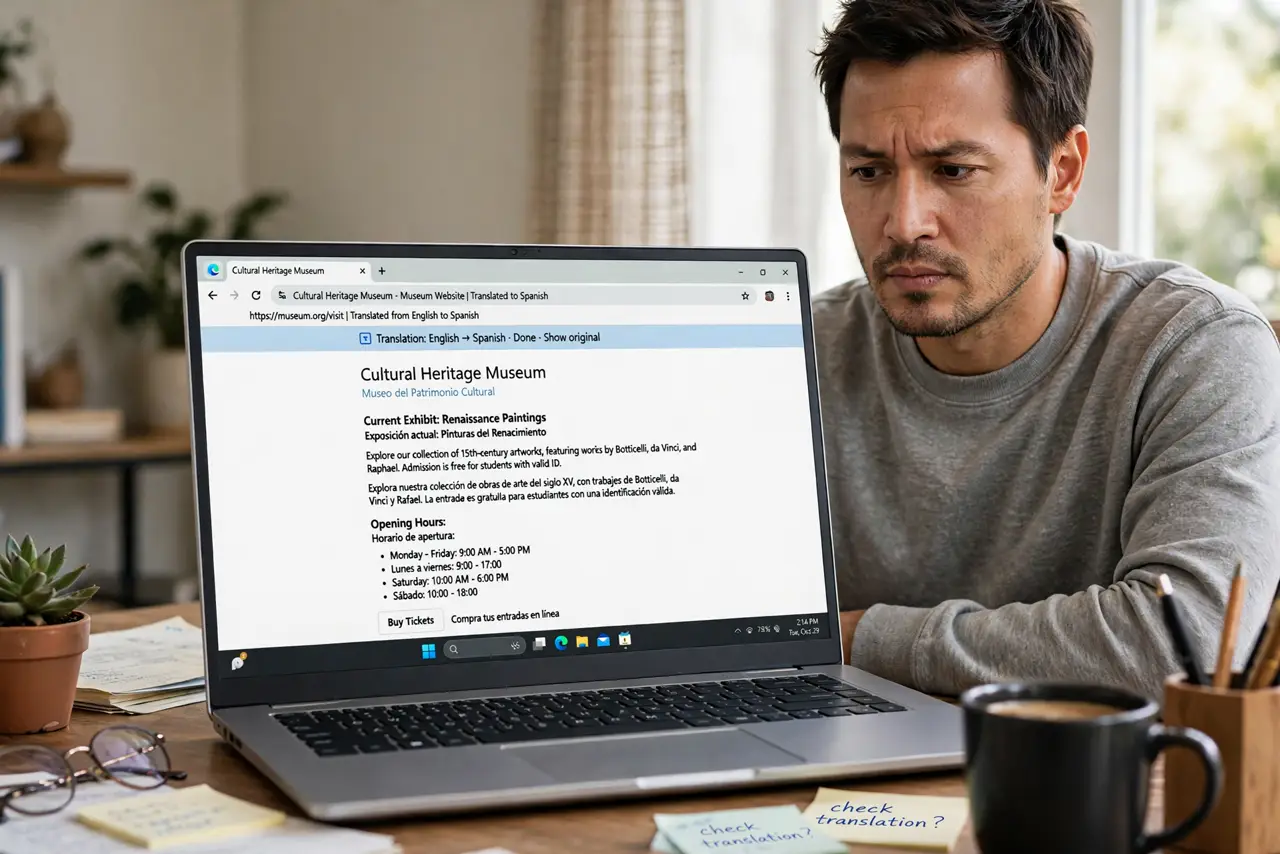
TL;DR / Quick Fix
Quick fix: turn the page translation off and back on for that site, then reload the page. If it still loops, clear the site's cookies and data, check the browser's language preferences, and try the page in a different browser.
Follow these steps
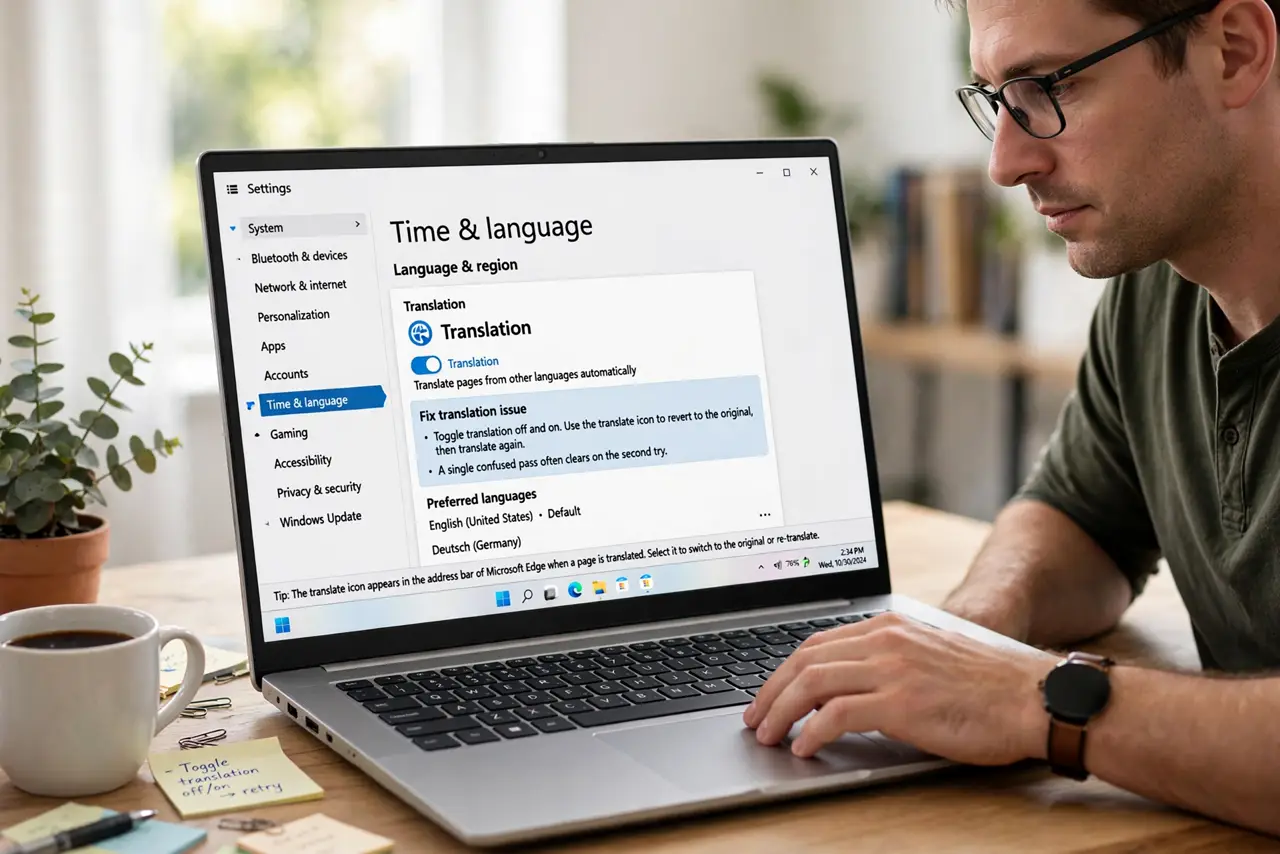
- Toggle translation off and on. Use the translate icon to revert to the original, then translate again. A single confused pass often clears on the second try.
- Reload with a hard refresh. A normal reload can reuse the broken translated copy. A hard refresh forces the browser to fetch and translate the page fresh.
- Clear the site's cookies and data. Stale site data can trap the translator in a half-done state. Clearing data for that site alone — not the whole browser — usually breaks the loop.
- Check the language preferences. If the browser thinks the page is already in your language, it fights itself. Confirm the language preferences match what you actually read.
- Try another browser. Translate the same page elsewhere. If it works there, the problem is your main browser's state, and a settings reset for translation may be due.
- Check for page scripts fighting back. Some pages auto-detect location and rewrite themselves, which looks like a translate loop. If the page changes language on its own without translating, the site is the cause.
What NOT to do
- Do not clear all browser data in a panic. Clearing one site's data fixes the loop, while clearing everything logs you out of the whole internet.
- Do not keep clicking translate harder. Each click restarts the confused pass, so pause, reset the state, and try once cleanly.
- Do not assume the translator is broken. A loop on one page with a confused language setting is a configuration issue, not a dead feature.
- Do not install three translator extensions to fix it. One more translator cannot fix a loop, and extensions that read every page add risk.
Frequently asked questions
Why does translation flicker between languages?
The browser cannot decide what language the page is in, often because of mixed-language content or a wrong language preference.
Will clearing site data log me out everywhere?
No, if you clear data for that site only. Use the site-specific option, not the clear-everything button.
Does this happen on phones too?
Yes, mobile browsers can loop the same way, and the same fix — reset the translation state and clear the site's data — applies.