Appointment Slots? How To
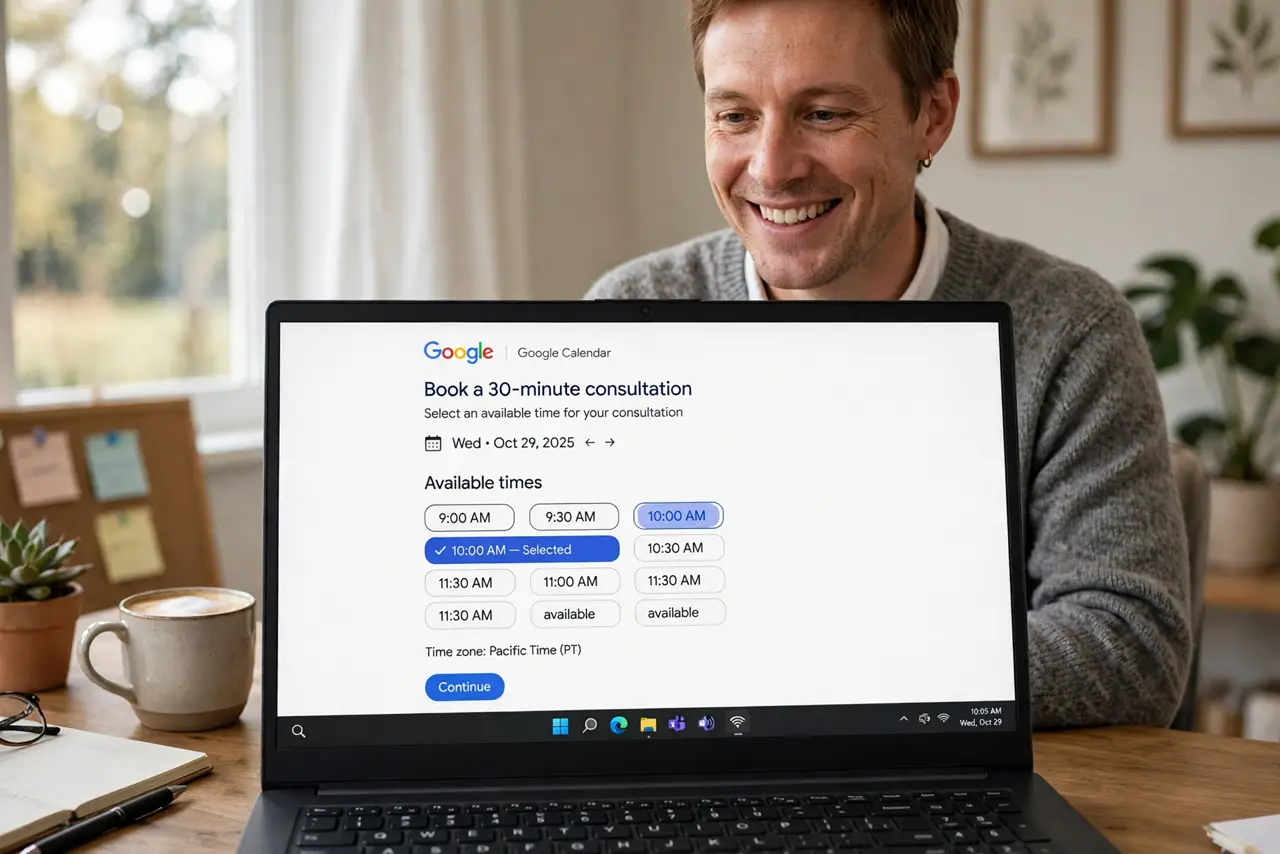
Book time with me should not require five emails. Appointment slots — now appointment schedules — publish your open hours as a booking page anyone can use. Here is how to set one up and the settings that prevent calendar chaos.
TL;DR / Quick Fix
Quick fix: in Google Calendar click Create > Appointment schedule, set your bookable hours, meeting length, and buffers, then share the booking link. Guests pick a slot; it lands on your calendar automatically. Set a minimum notice (e.g., 12 hours) so nobody books your tomorrow at midnight.
Follow these steps
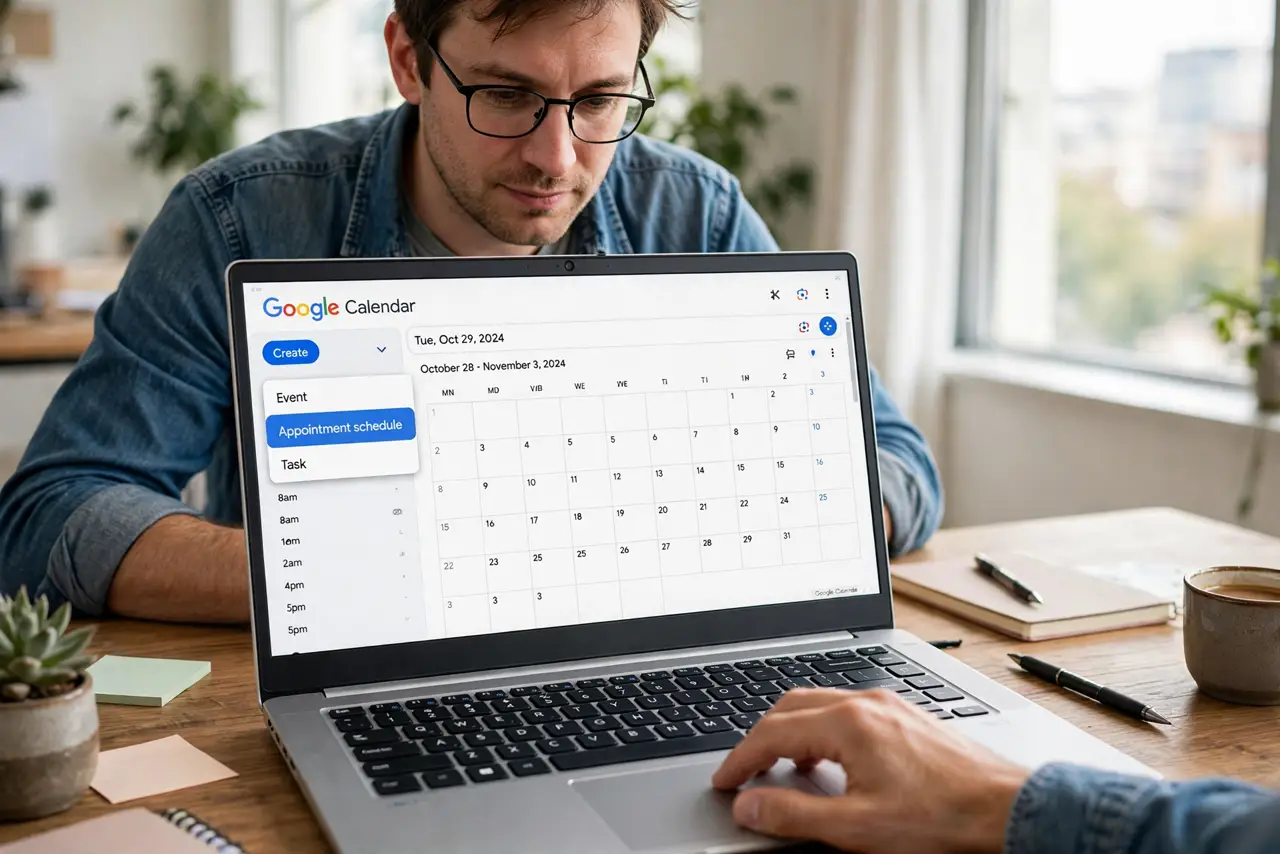
- Create the appointment schedule. Calendar > Create > Appointment schedule. Name it by purpose — Office hours, Interviews — not just your name.
- Set your bookable hours. Define the days and hours you are actually available. Be honest — fake availability creates real resentment.
- Set length and buffers. Meeting length plus buffer before and after — 30-min meetings, 15-min buffers. Buffers are what keep back-to-back days survivable.
- Require the right details. Ask for name, email, and one what is this about field. Enough to prepare, not so much they abandon the form.
- Set booking limits. Minimum notice — 12 to 24 hours — maximum advance booking, and cap bookings per day. Limits are professionalism, not rudeness.
- Share the link. Put the booking link in your email signature, profile, and away messages. A booking page nobody finds books nothing.
What NOT to do
- Do not publish 24/7 availability. Boundaries are the feature — set hours you would actually keep.
- Do not skip buffers. Back-to-back bookings with no breathing room collapse by Wednesday.
- Do not forget to pause it for vacations. An open booking page during your time off is an invitation to disappointment.
- Do not ask for life stories on the form. Every extra field loses bookings.
Frequently asked questions
Appointment slots vs appointment schedule — which?
Google renamed slots to appointment schedules with more options — buffers, limits, multiple calendars. Use the schedule version.
Do I need a paid Google account?
Appointment schedules need a Google Workspace or qualifying personal account — free basic accounts may lack it.
Can guests reschedule themselves?
Yes — the confirmation email includes reschedule and cancel links. Let the system handle the churn.