Importing a Calendar Duplicates Every Event
You import a calendar file and suddenly every event appears twice. The import added a copy on top of events that were already there, instead of merging them.
TL;DR / Quick Fix
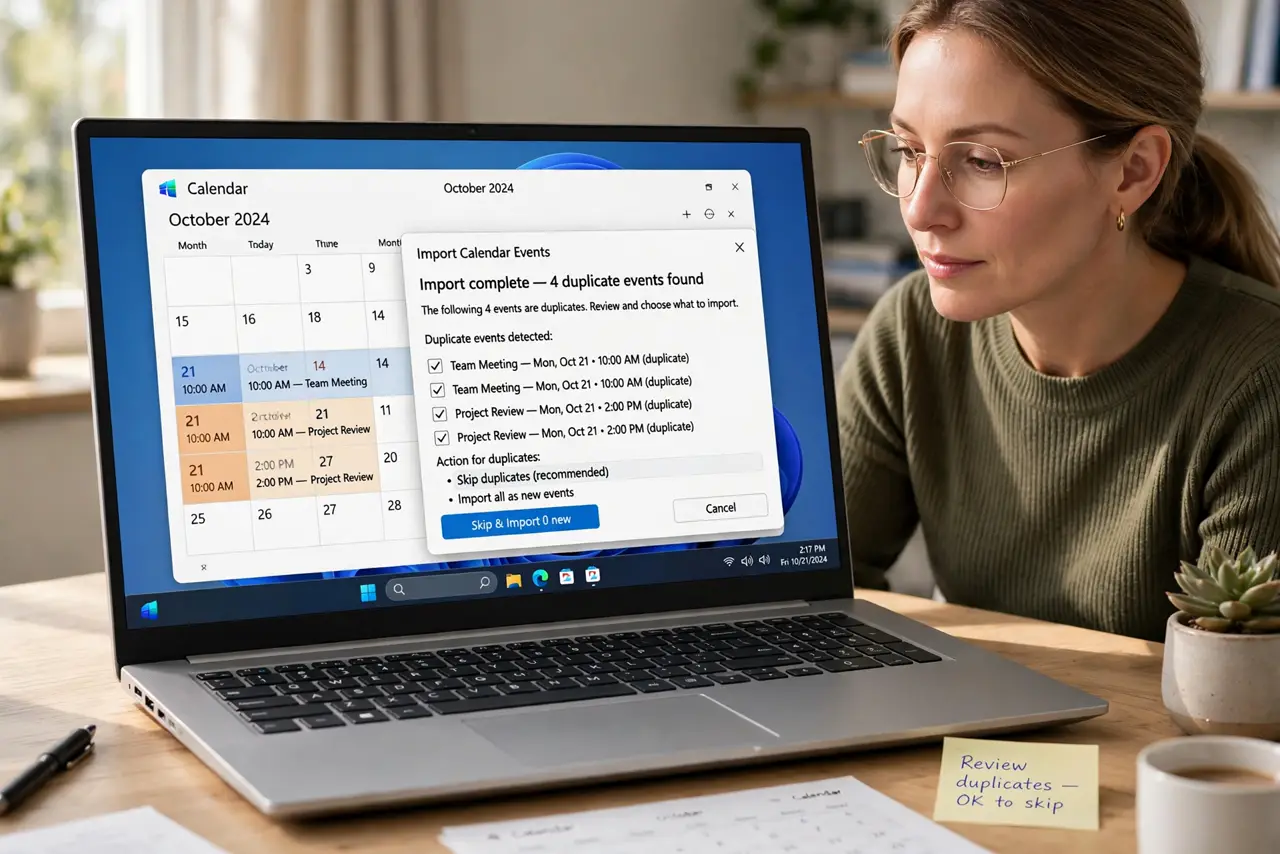
Quick fix: delete the imported calendar or its events in one undo step if the app offers it. Then re-import with the merge or skip duplicates option on, and confirm each event appears only once and keep the original import file as backup.
Follow these steps
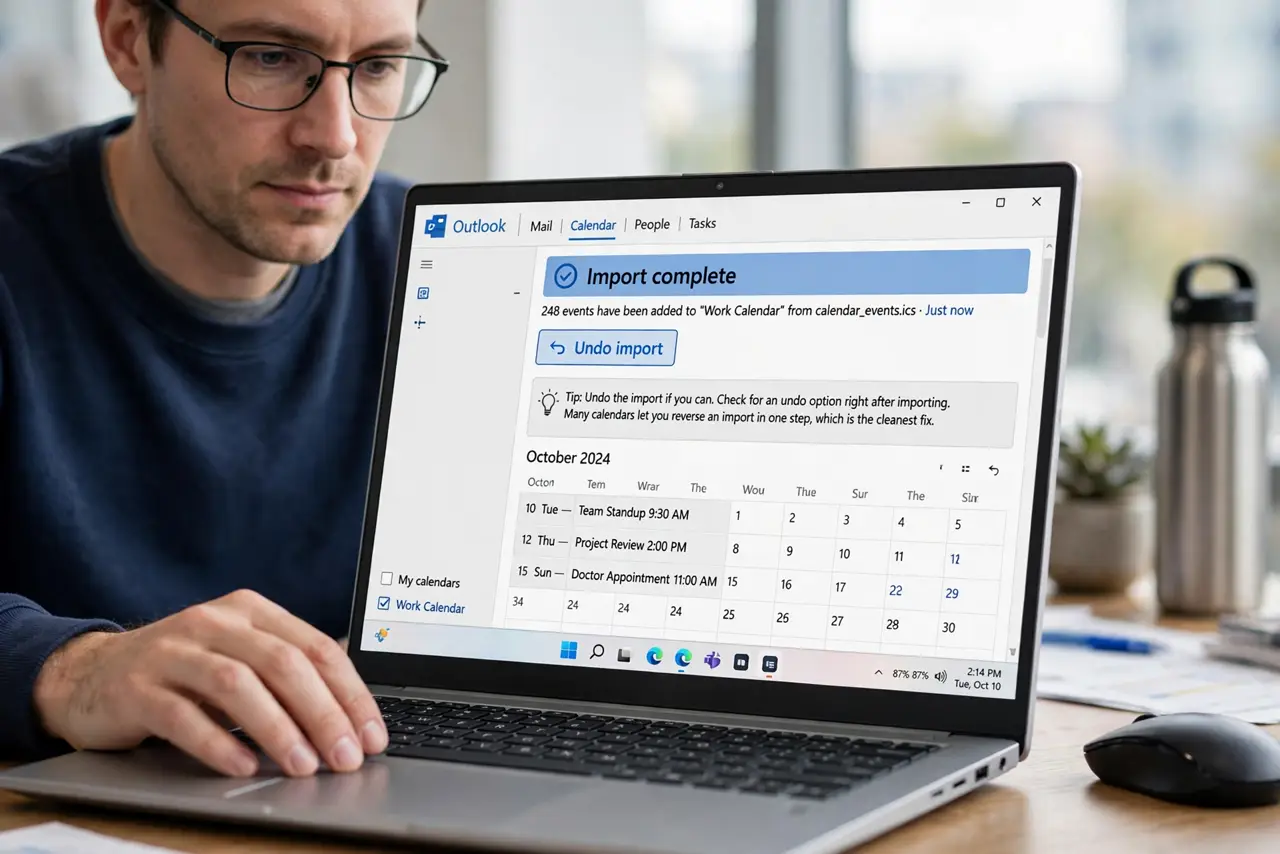
- Undo the import if you can. Check for an undo option right after importing. Many calendars let you reverse an import in one step, which is the cleanest fix.
- Delete the imported copy as a set. If the import created its own calendar, delete that whole calendar. Removing the set beats deleting hundreds of duplicates one by one.
- Find the duplicate-handling option. Before re-importing, look for options like skip duplicates or merge. Turning that on is what prevents the second copy.
- Re-import once, carefully. Import the file a single time with the right option on. Repeated imports without the option just stack more copies.
- Confirm no duplicates remain. Search for one event you know and check it appears once. A quick spot check beats scrolling the whole year.
- Keep the original file until it is clean. Do not delete the import file until the calendar looks right. The file is your backup if the cleanup goes wrong.
What NOT to do
- Do not delete duplicates one by one first. Look for an undo or a delete-the-imported-calendar option, which clears them all at once.
- Do not import the same file twice. Each import adds another copy, so fix the options before importing again.
- Do not assume the app merges by default. Most imports add, so the merge or skip option must be turned on deliberately.
- Do not mix the imported events with your real ones before cleaning. Keep the import separate until you confirm it is clean.
Frequently asked questions
Why did importing duplicate everything?
Because the events already existed and the import added copies on top, instead of merging with what was there.
How do I remove hundreds of duplicates fast?
Undo the import, or delete the imported calendar as a set, instead of deleting events one by one.
How do I prevent it next time?
Turn on the skip duplicates or merge option in the import dialog before importing.