Subscribe to a Calendar by URL
Holiday schedules, sports fixtures, school terms, release calendars — many exist as public calendar feeds you can subscribe to instead of typing every date by hand. Subscribing by URL adds a live, read-only copy that updates itself when the source changes. It is the closest thing to a calendar that maintains itself. Here is how to subscribe.
TL;DR / Quick Fix
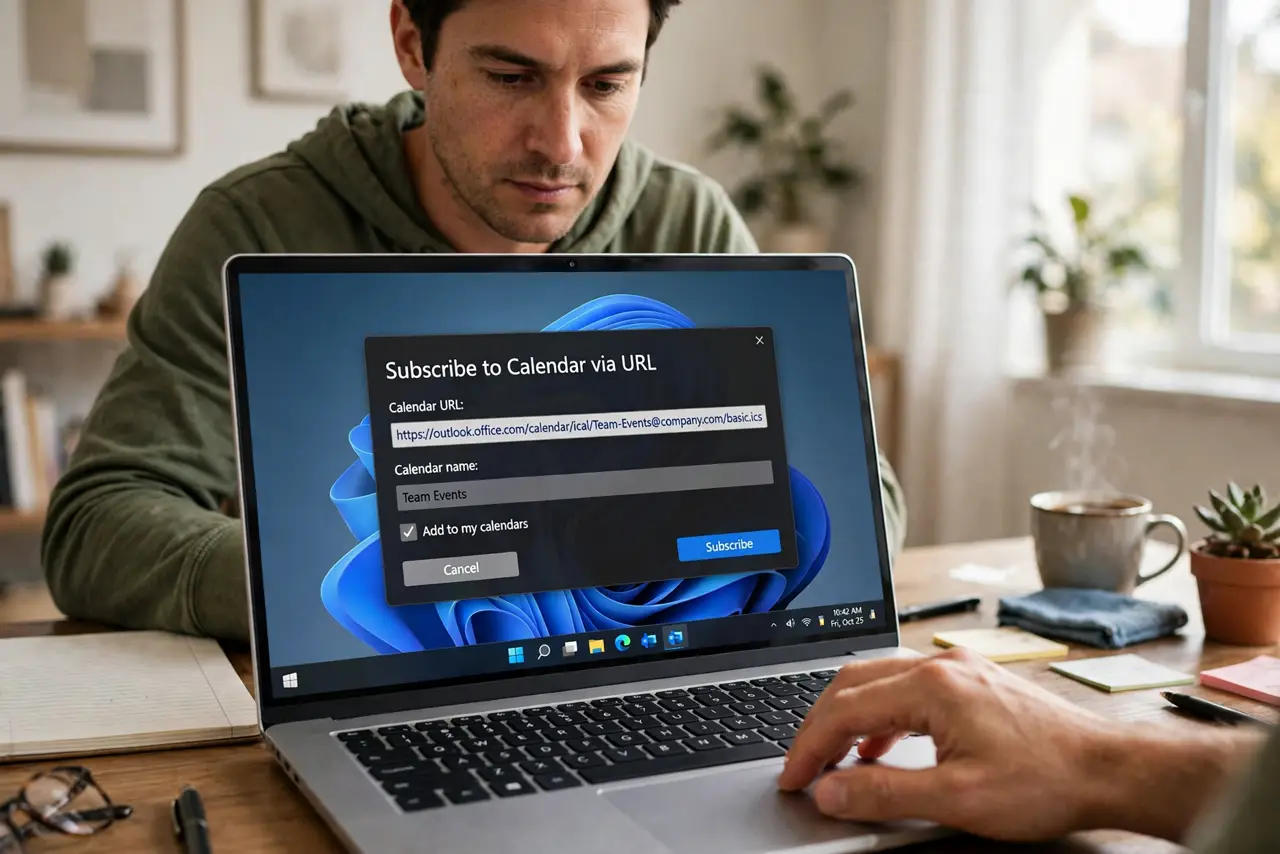
Quick fix: subscribing to a calendar by URL adds a self-updating read-only copy — holidays, sports fixtures, or a shared schedule. In your calendar app choose Add Calendar > From URL and paste the link. If events stop updating, remove and re-add the subscription; the source feed may have changed.
Follow these steps
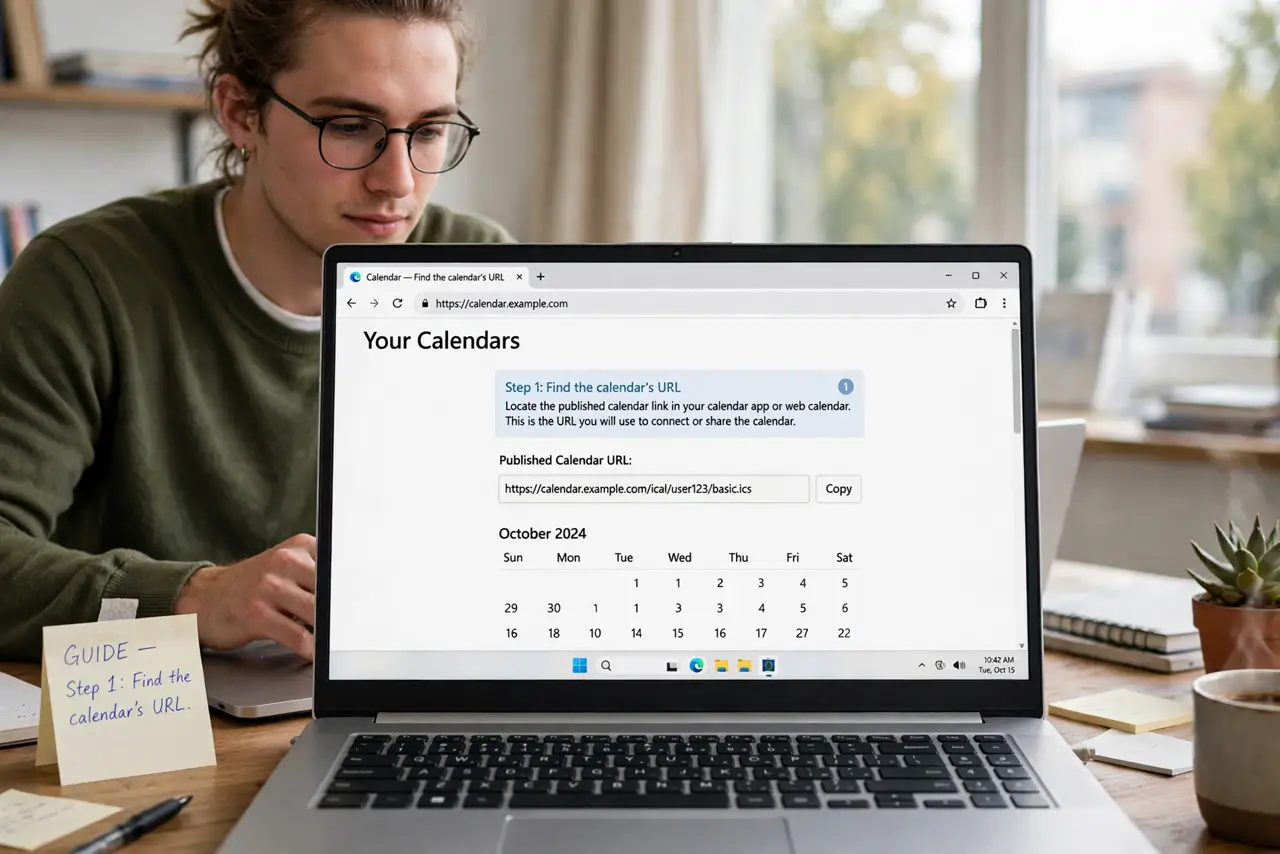
- Find the calendar's URL. Public calendars publish a link or feed address — often labeled 'subscribe,' 'iCal feed,' or 'add to calendar.' Copy the full URL.
- Choose Add Calendar > From URL. In your calendar app's add-calendar options, pick the URL/subscribe choice (not import — import is a one-time copy).
- Paste the URL and confirm. Paste the link and subscribe. The calendar appears in your list, usually with the source's name and its own color.
- Understand it is read-only. You cannot edit subscribed events — they belong to the source. Your own notes go on your own calendar layered alongside.
- Give it time to sync. First sync can take several minutes for big calendars. Events trickle in; do not re-add the URL thinking it failed.
- Re-subscribe if updates stall. If the feed goes stale, remove the subscription and add it again. Sources change URLs more often than you would think.
What NOT to do
- Do not subscribe to random calendar URLs from untrusted sites. A malicious feed can inject phishing events with scam links — stick to official sources.
- Do not confuse subscribe with import. Import copies events once; subscribe keeps them live. Pick subscribe for anything that changes.
- Do not subscribe to ten feeds at once. Each adds visual noise — subscribe to the few you actually consult.
- Do not edit a subscribed calendar in frustration. It is read-only by design; your changes would be overwritten on the next sync anyway.
Frequently asked questions
The subscribed calendar stopped updating — what now?
Remove it and re-subscribe with a fresh URL from the source. Feeds change addresses, and old subscriptions quietly die.
Can I share a subscribed calendar with someone else?
Share the source URL, not your subscription. They subscribe directly and get the same live feed.
Will subscribed events trigger my notifications?
Usually you can toggle notifications per calendar. Turn them off for feeds like holidays unless you want an alert for every one.