Set Working Hours
Someone books you for 7 AM. Another for 9 PM. Your calendar accepts everything because it never learned your hours. Setting working hours tells your calendar — and everyone who books you — when you exist professionally. Midnight meetings stop arriving; the boundary holds itself.
TL;DR / Quick Fix
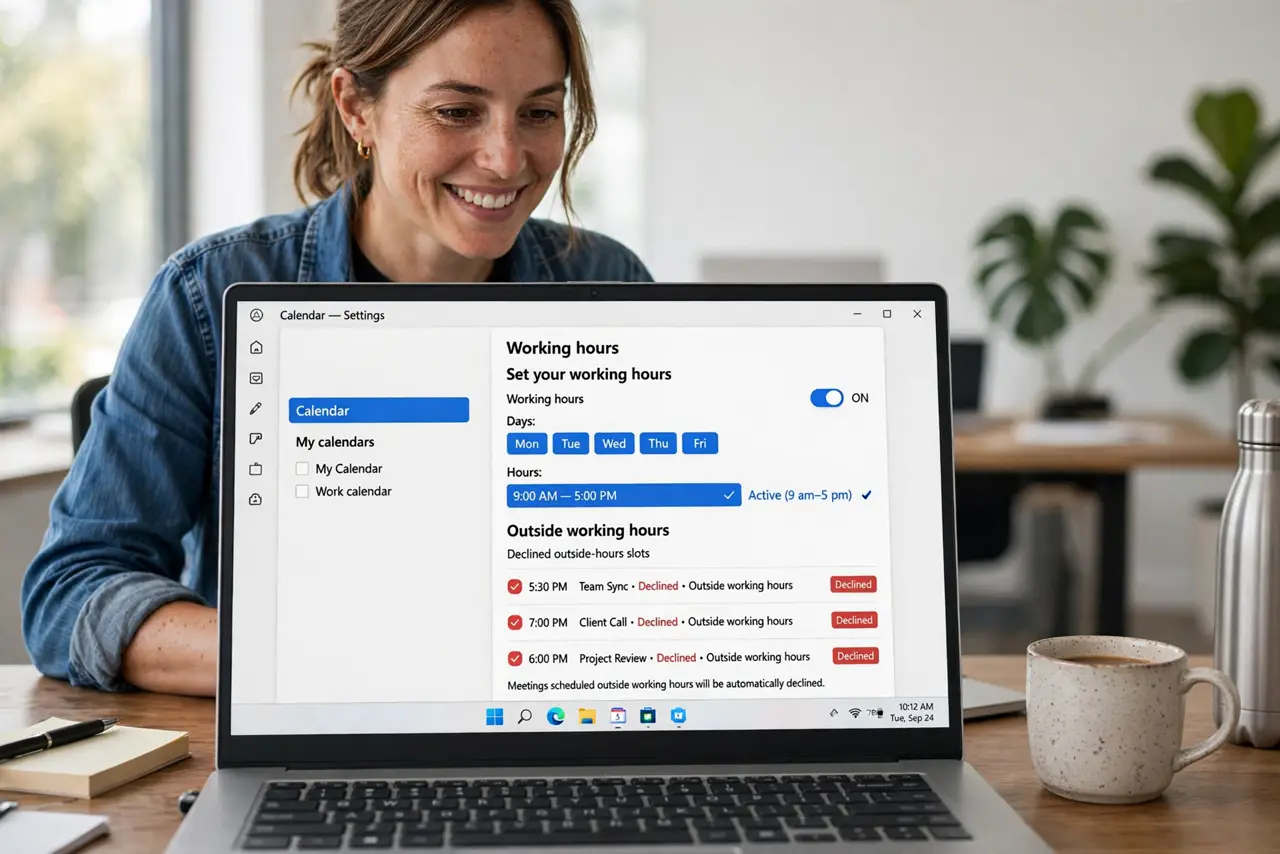
Quick fix: in Google Calendar settings, set your working hours — say 9 to 5, Monday to Friday. Booking links and coworkers now see only those slots. Decline or auto-decline anything outside. One setting, permanent boundary. Your evenings are yours again.
Follow these steps
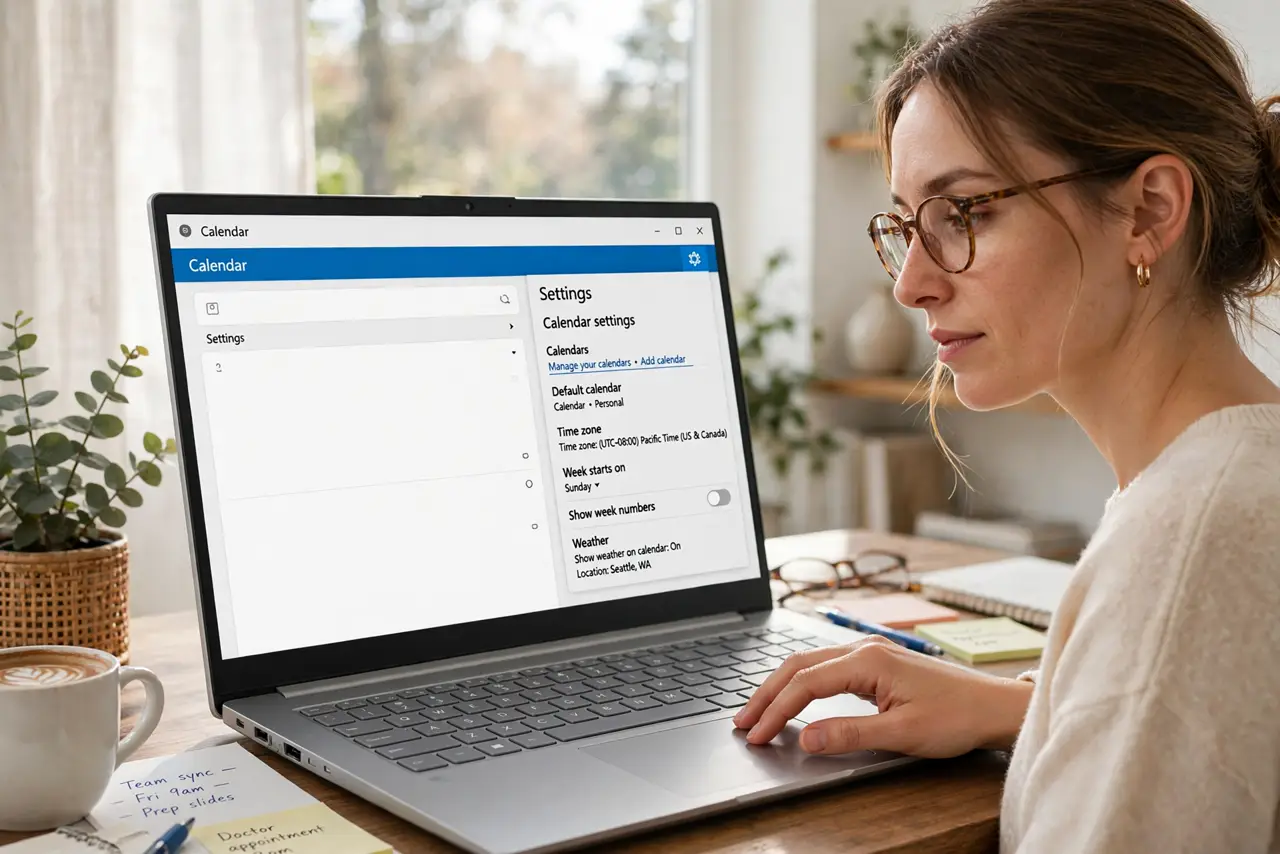
- Open calendar settings. In Google Calendar, open Settings and find Working hours and location. This is the master control for when the calendar considers you available.
- Set your hours. Enter your real hours — 9 to 5, or whatever yours are. Be honest, not aspirational: hours you will actually defend are hours that work.
- Set your days. Choose which days the hours apply to — weekdays for most. Weekends stay fully blocked unless your work genuinely includes them.
- Enable decline for outsiders. Turn on auto-decline for new events outside working hours. The calendar politely refuses on your behalf — no awkward conversation needed.
- Share the signal. With hours set, your free-busy visibility and booking links reflect them automatically. Colleagues see the boundary without you announcing it.
- Defend the exceptions. True emergencies override — that is fine. The point is that overrides become conscious choices, not the default drift into midnight meetings.
What NOT to do
- Do not set aspirational hours. 7 AM to 9 PM 'to look dedicated' just moves the boundary to nowhere — set hours you will keep.
- Do not forget to update them. Role changes, new schedules — stale working hours defend a life you no longer live.
- Do not rely on hours alone. Culture beats settings — pair the calendar boundary with actually declining.
- Do not hide the hours. They only protect you if others can see them — keep visibility on for colleagues.
Frequently asked questions
Do working hours block my own bookings?
No — you can always book over them yourself. They guide others' bookings and auto-decline, not your own agency.
What about different hours per day?
Most calendar apps allow per-day hours — late Mondays, early Fridays. Set the real pattern, not the average.
Will this decline existing meetings?
No — it affects new bookings going forward. Existing events stay; have the conversation about those directly.