Watch the Dots
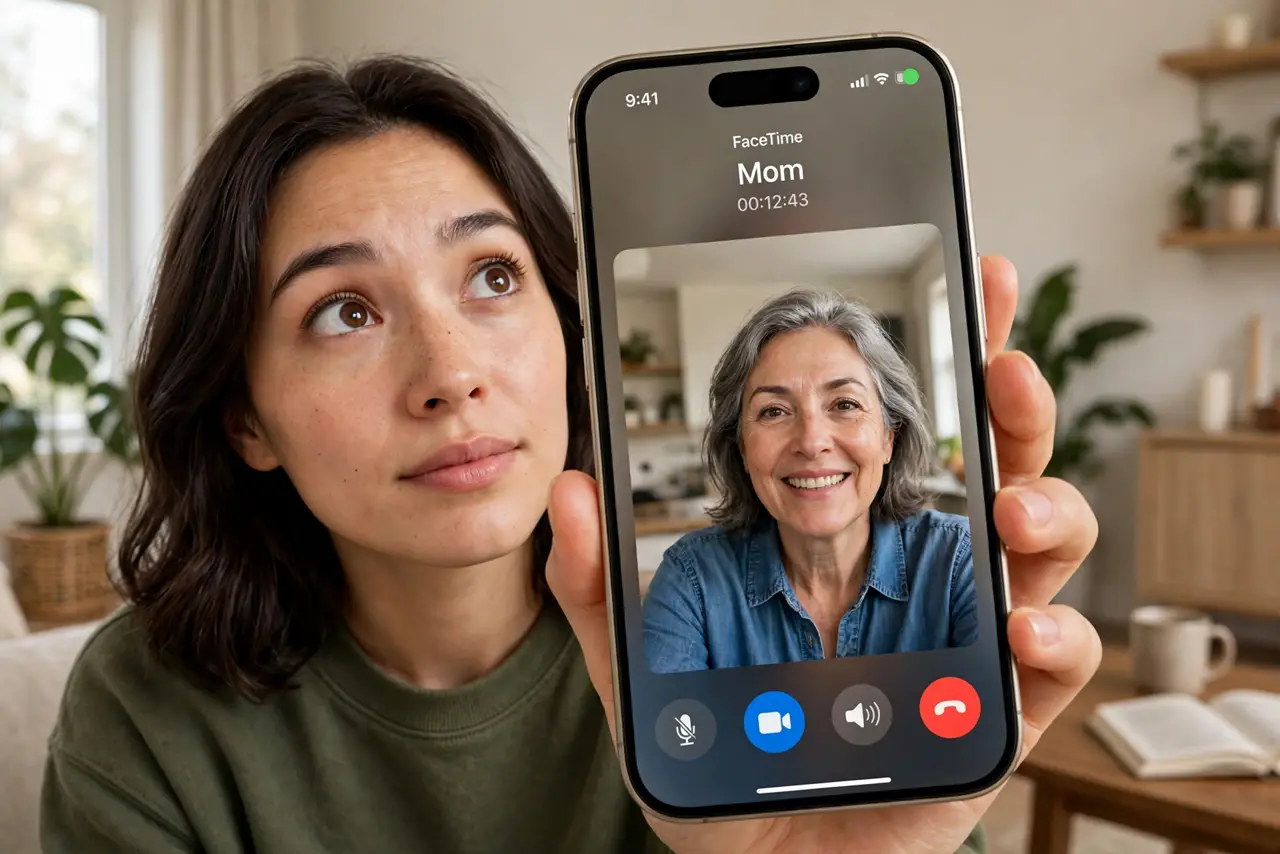
That little green or orange dot at the top of your screen is your phone telling you an app is watching or listening. Green means camera, orange means microphone — and if a dot appears when you are doing nothing, something deserves a look. Learning to glance at the dots is the cheapest privacy habit you own. Pair with the App Privacy Report and background location awareness.
TL;DR / Quick Fix
Quick fix: the green dot means an app is using your camera; orange means the microphone. If a dot appears when you are not recording anything, check which app triggered it in Control Center and revoke its access. The dots are your warning system — learn to glance at them.
Follow these steps
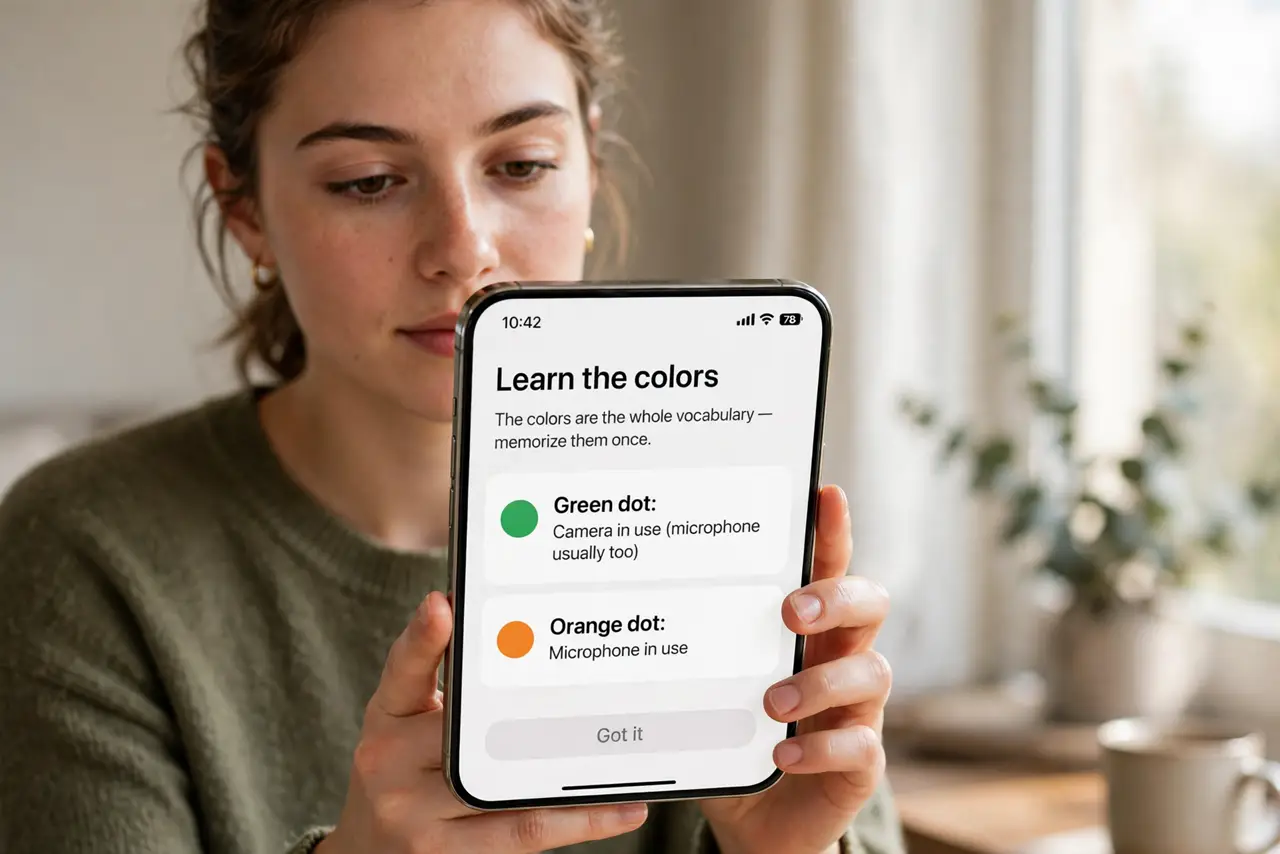
- Learn the colors. Green dot: camera in use (microphone usually too). Orange dot: microphone in use. The colors are the whole vocabulary — memorize them once.
- Glance during calls. On video calls the green dot is expected. Its job is the unexpected appearance — build the habit of noticing it.
- Check Control Center. When a dot surprises you, open Control Center — it names the app that triggered the indicator. No guessing needed.
- Revoke the offender. If the app has no business with your camera or mic, remove the permission in settings. The dot did its job; now do yours.
- Audit the quiet ones. Some apps access sensors briefly and the dot flashes by. The privacy report shows the full history — check it monthly.
- Keep software updated. The indicator system itself improves with updates. An old OS may lack protections newer ones take for granted.
What NOT to do
- Do not ignore a mystery dot. An unexplained indicator is always worth thirty seconds in Control Center.
- Do not assume green means video call. Any app can trigger it — the dot tells you what, not why.
- Do not cover it with tape mentally. The dot is information; wishing it away does not revoke the permission.
- Do not forget the microphone. Orange gets less attention than green but is arguably the more sensitive sensor.
Frequently asked questions
What if the dot will not go away?
Some app is holding the camera or mic open. Check Control Center for the name, then force-close or revoke that app.
Do these dots exist on Android?
Yes — Android shows similar camera and microphone indicators in recent versions.
Can apps bypass the dot?
On a healthy, updated phone, no — the indicator is enforced by the system, not the app.