Fix No Signal on Capture Card
Your capture card is plugged in, OBS is open, and the source shows... no signal. The card isn't necessarily dead — this message almost always means the video isn't reaching the card: wrong port, sleeping source, HDCP protection, or a USB port that can't carry video. Check in this order.
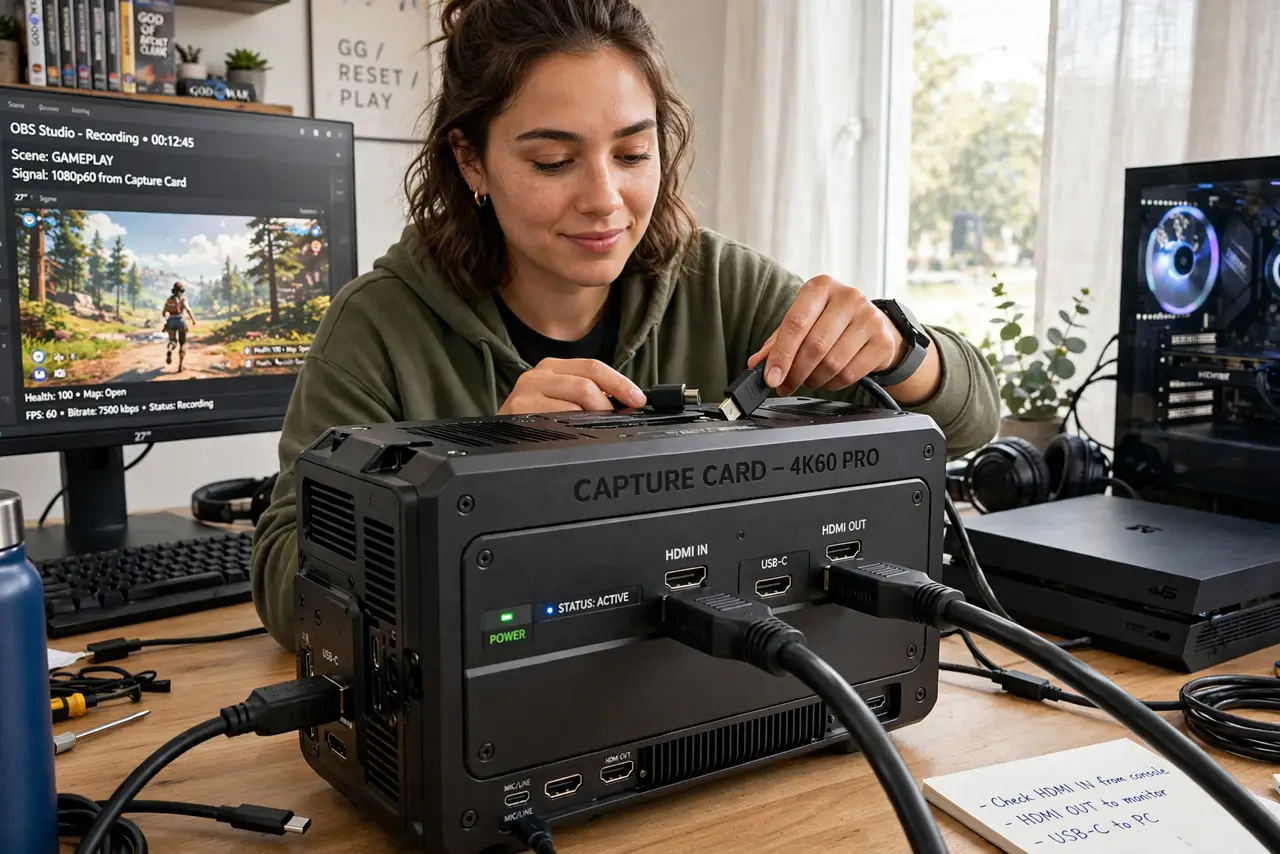
TL;DR / Quick Fix
Quick fix: confirm the source is on and outputting video, and you're plugged into the card's input — not its output. Use a USB 3 port; USB 2 can't carry the signal. On consoles, turn off HDCP in system settings — copy protection blocks capture cards by design.
Follow these steps
- Confirm the source is actually outputting video. Power on the console or camera and check it displays on a real TV or monitor first. A sleeping or misconfigured source sends nothing — the card can't capture silence.
- Plug into the card's INPUT, not its output. Capture cards have an HDMI in and an HDMI out (passthrough). The source goes to IN; the out goes to your monitor. Swapped cables are the most common 'no signal' of all.
- Use a USB 3 port on the computer. Most capture cards need USB 3 bandwidth — a USB 2 port silently fails to carry the video. Try a different port, preferably one directly on the machine, not a hub.
- Turn off HDCP on consoles. PlayStation and similar consoles enable HDCP copy protection, which capture cards must refuse. Disable HDCP in the console's system settings — that's what it's for when capturing your own gameplay.
- Match the resolution the card supports. If the source outputs 4K120 but the card tops out at 1080p60, you get no signal. Lower the source's output resolution to something the card accepts.
- Test with a different source and cable. Swap in another HDMI cable and, if possible, another source device. This isolates whether the card, the cable, or the source is at fault — replace only the guilty part.
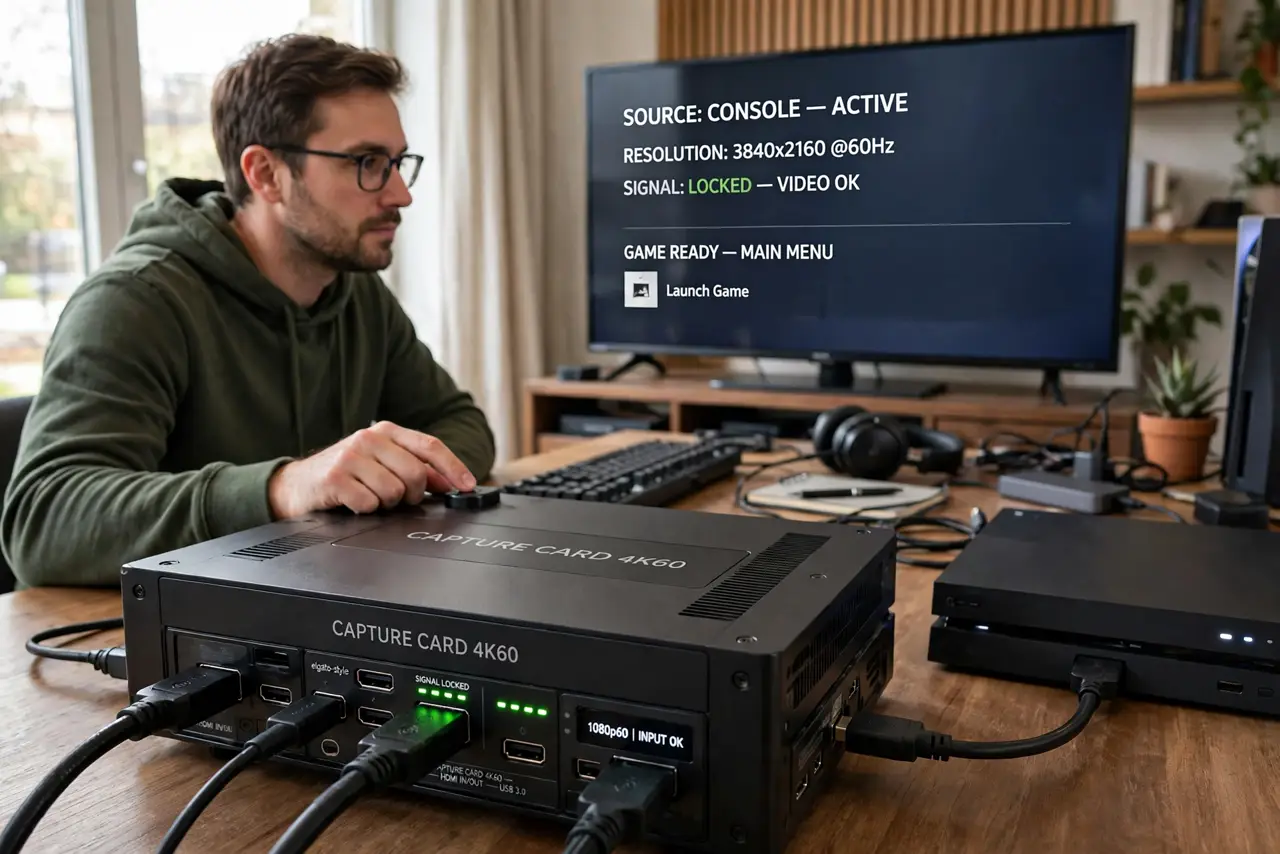
What NOT to do
- Do not assume the capture card is dead on first 'no signal.' Wrong port, HDCP, and USB 2 are far more common — the card is usually fine.
- Do not try to capture HDCP-protected content anyway. The block is legal copy protection; disable HDCP on your own console instead of fighting it.
- Do not run the card through a cheap USB hub. Hubs starve capture cards of bandwidth and power — plug directly into the computer.
- Do not ignore the in/out labels. They look similar in dim light behind a desk, and swapped cables explain an embarrassing number of support tickets.
Frequently asked questions
Why does my PS5 show no signal but my Switch works?
The PS5 has HDCP enabled by default and the Switch doesn't. Turn off HDCP in the PS5's system settings.
Can I capture 4K with my card?
Only if the card's specs say so — check its maximum input resolution. Many affordable cards top out at 1080p60 capture with 4K passthrough.
Why is there video but no audio?
Check the audio input in your capture software — it's often a separate setting from video. Also confirm the source actually outputs audio over HDMI.