Fix Case Airflow
Your PC sounds like a hair dryer and the fans never calm down, even at idle. Before you buy new coolers, check the airflow: most hot-and-loud PCs are just breathing badly — blocked intakes, fans fighting each other, cables choking the path. Fixing airflow is free, and it often beats buying hardware.
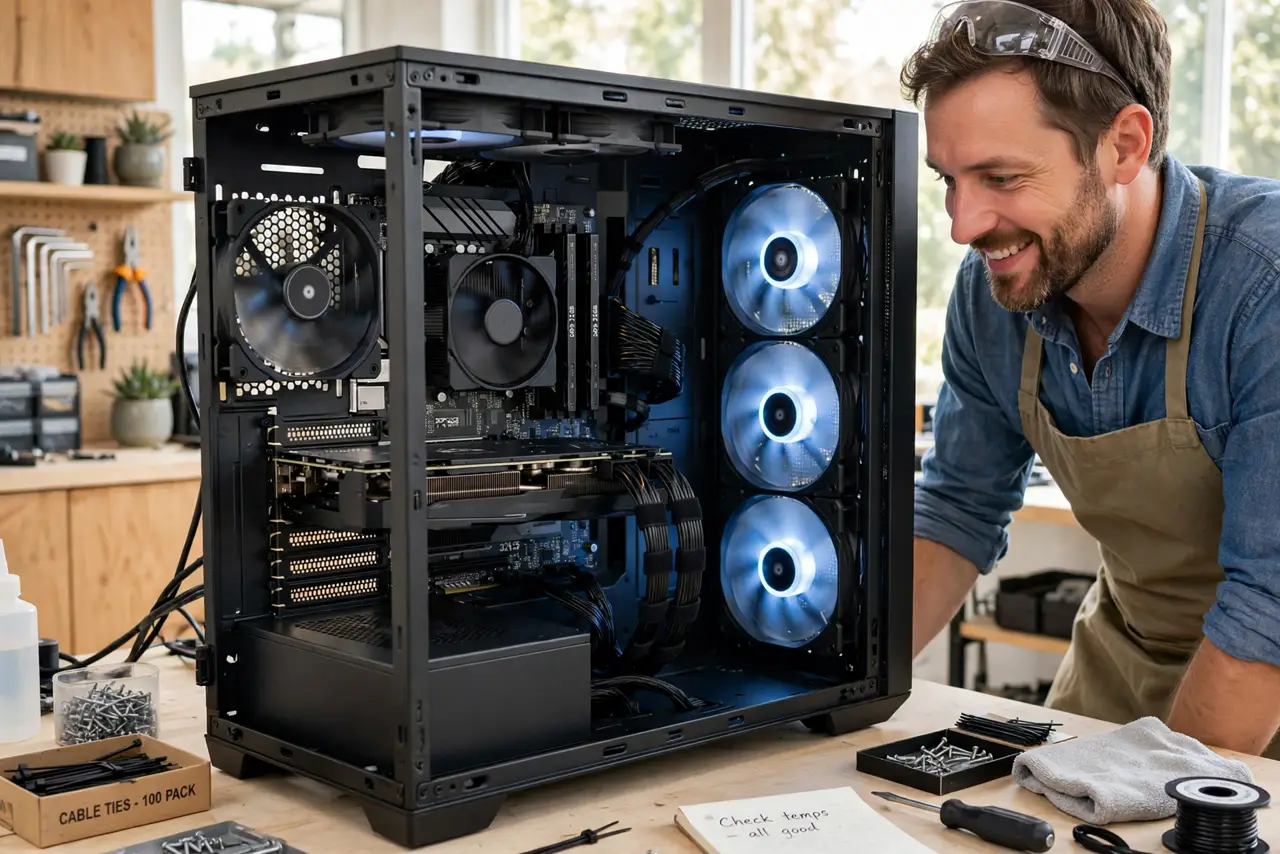
TL;DR / Quick Fix
Quick fix: make sure front fans pull cool air in and rear and top fans push hot air out — front-to-back, bottom-to-top. Clear dust from intakes, tidy cables away from the path, and remove anything blocking the front panel. Test temperatures before buying any new cooler.
Follow these steps
- Learn the golden path. Cool air enters low and front; hot air exits high and back. Every fan should serve that one river of air — front and bottom intake, rear and top exhaust. Fans fighting this pattern just stir hot air around.
- Check every fan's direction. Fans have a direction arrow on the frame, or blow toward the sticker side. Verify each one: intakes facing in at front, exhausts facing out at back and top. One backwards fan can wreck the whole pattern.
- Clear the intakes. Pull off the front panel and check the dust filters — clogged filters starve the case of air and the fans scream to compensate. Wash or vacuum them; the temperature drop is immediate.
- Tidy the cables. Route cables behind the motherboard tray, not across the airflow path. A nest of cables in the middle of the case is a dam in the river — see the cable guide for routing ideas. Air must move freely.
- Mind the case placement. Pull the PC out of the enclosed desk cubby and away from the wall — intakes need a few inches of breathing room. A case suffocating in a cabinet will never cool well, whatever the fans do.
- Test before buying. Run a stress test and note CPU and GPU temperatures before and after your fixes. If temperatures dropped twenty degrees, you just saved the cost of a cooler — data beats shopping.

What NOT to do
- Do not buy a new cooler before fixing airflow. A premium cooler in a choked case performs like a cheap one — airflow first, hardware second.
- Do not set all fans to exhaust. Negative pressure pulls dusty air through every crack; balanced or slightly positive pressure stays cleaner.
- Do not block the front panel. Decorative covers and flush desk placement look tidy and cook components — the front needs to breathe.
- Do not ignore dust. A PC that was quiet a year ago and roars now is usually just dusty — clean before you spend.
Frequently asked questions
How many fans do I need?
Two or three good fans in the right pattern beat six fighting each other. Start with front intake and rear exhaust; add more only if temperatures say so.
Is positive or negative pressure better?
Slightly positive — more intake than exhaust — keeps dust out through the filtered intakes. All-exhaust setups suck dust through every unfiltered gap.
Why is my PC loud at idle?
Check background tasks first — a runaway process keeps the CPU hot. If the CPU is truly idle and fans still roar, the fan curve needs tuning.