Change Default IoT Passwords
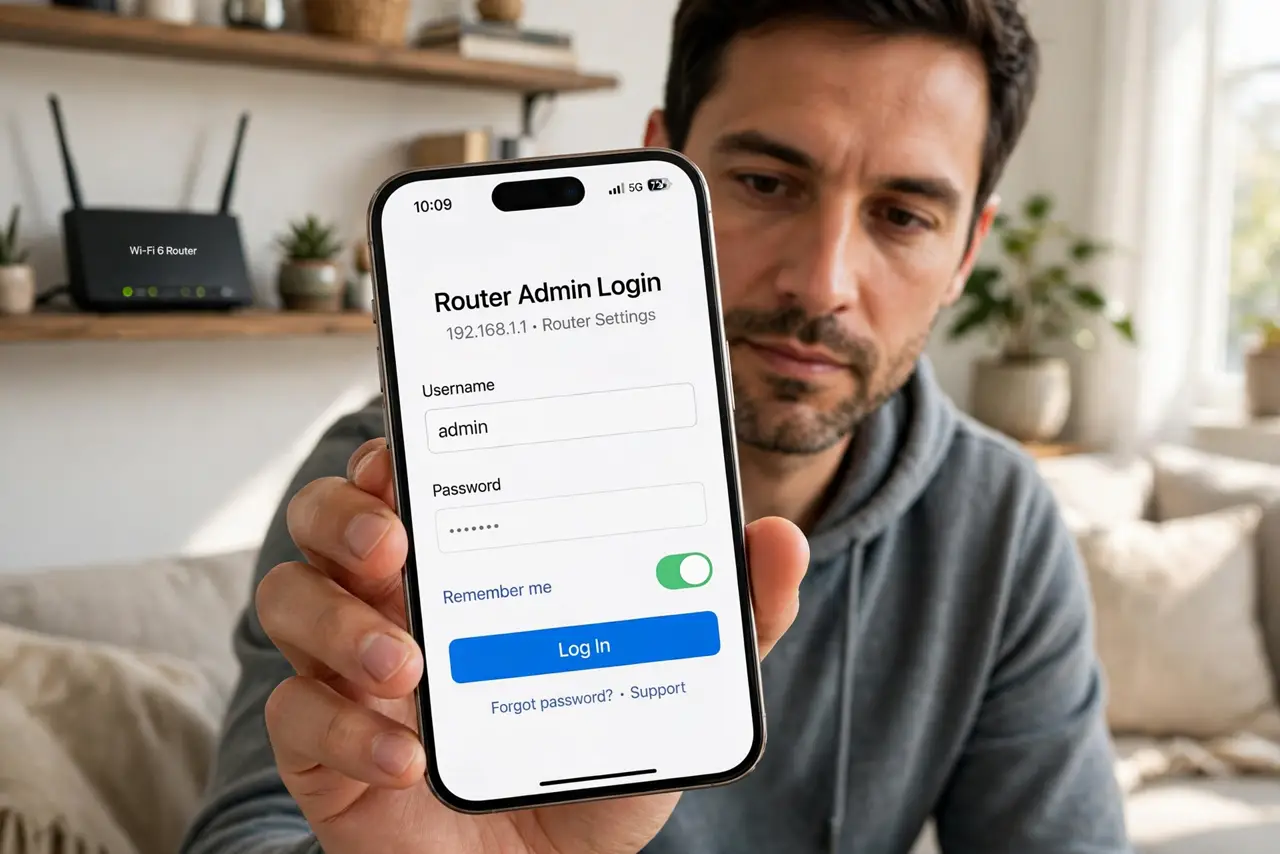
Your smart camera, your router, your doorbell — most shipped with a default login like admin/admin, printed in the manual and mirrored on password lists all over the internet. Automated scanners try these defaults against every device they can reach, thousands per minute, and they succeed depressingly often. Changing each default password to something unique is the single highest-value security chore in a smart home. Pair it with securing the cameras themselves for the full picture.
TL;DR / Quick Fix
Quick fix: log in to each smart gadget's settings page and replace the default password with a unique one — default logins are public knowledge and the first thing attackers try. Do cameras and routers first, then the rest. One changed password per device closes the easiest break-in of all.
Follow these steps
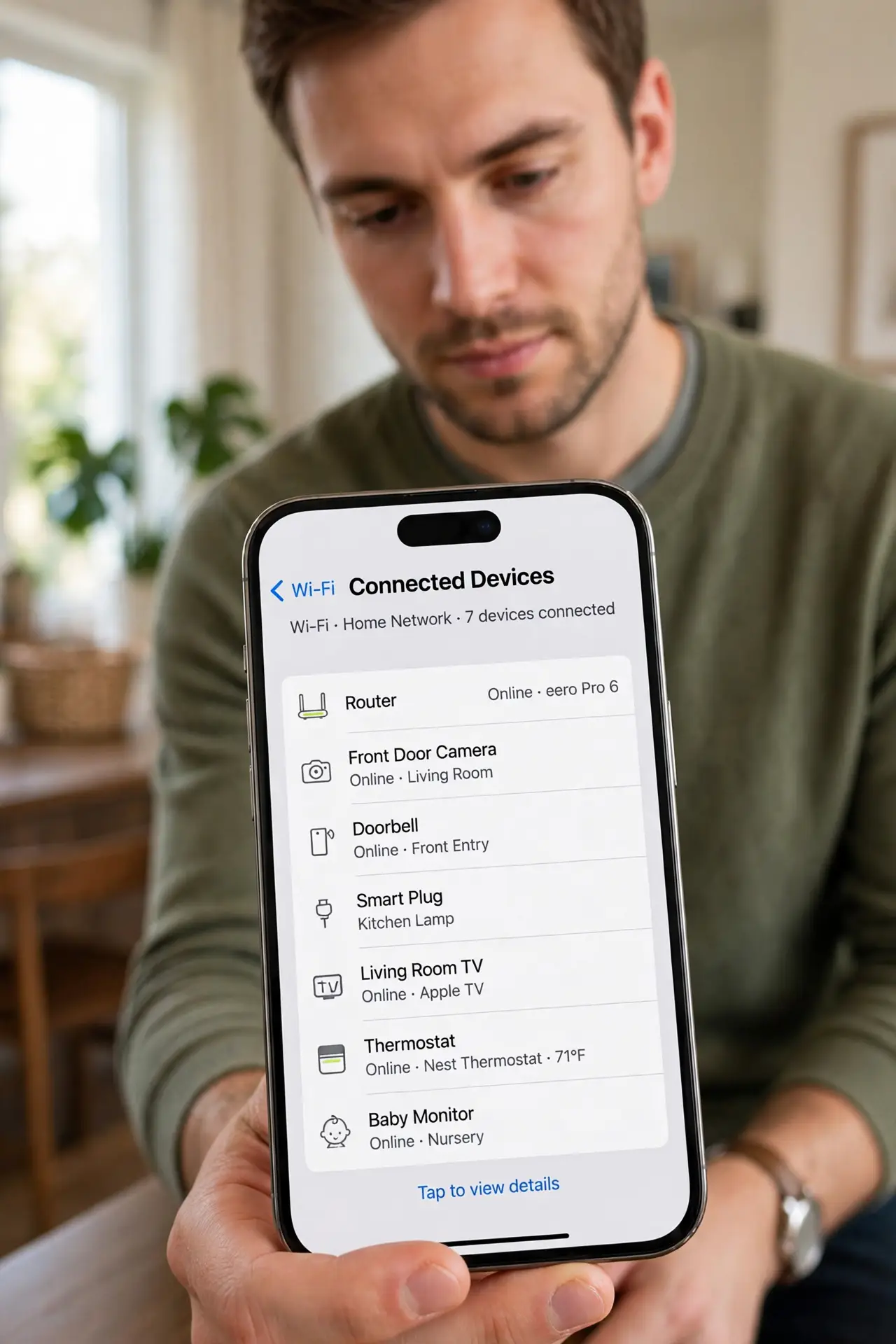
- List every connected gadget. Walk the house mentally: cameras, router, doorbell, smart plugs, TV, thermostat, baby monitor. Check your router's connected-devices list too — forgotten gadgets are the ones still on defaults.
- Find each device's settings page. Usually via the maker's app, or by typing the device's IP address into a browser (the router's device list shows these). The manual or a quick search names the default login — that is the point: everyone knows it.
- Change the password to something unique. Use your password manager to generate a long random password per device. Unique matters — one breached gadget must not hand over the keys to all the others.
- Do cameras and the router first. The router guards everything and cameras watch your home — these two are the highest stakes. Then work down the list: doorbell, NAS, smart TV, and the long tail of plugs and bulbs.
- Check for extra default accounts. Some devices ship with more than one login — a 'user' account alongside 'admin', or a service account. Change or disable every default credential, not just the obvious one.
- Note what you changed, securely. Store the new passwords in your password manager with the device name. Future-you, resetting a camera at midnight, will be grateful past-you wrote it down properly.
What NOT to do
- Do not reuse one password across all gadgets. One leak then compromises every device — unique per device is the rule.
- Do not assume 'I changed the Wi-Fi password' covers it. The Wi-Fi password and the device admin password are different logins — both need changing.
- Do not leave the old default written on a sticky note on the device. An attacker with brief physical access thanks you for the label.
- Do not skip the gadgets you 'never use.' An unused smart plug on default credentials is still a reachable computer on your network.
Frequently asked questions
What if I cannot find the settings page?
Check the maker's support site for the default address and login — it is public by design. If the device is truly ancient with no way to change credentials, consider replacing it.
Is a long password enough without two-factor?
For gadgets, yes — most do not offer two-factor. A unique 20+ character password that nobody can guess is the practical maximum here.
Should I change passwords regularly?
No — changing a strong unique password on a schedule adds nothing. Change it once from the default, and again only if you suspect exposure.