Chromecast Basics
You want the video from your phone on the big TV screen and someone mentions Chromecast — but is it a device, an app, a button? Casting is simply sending video from your phone, tablet, or computer to the TV over Wi-Fi, and Chromecast is Google's way of doing it. Many TVs have it built in now, no dongle needed. If your TV is not found, see Chromecast not showing up.
TL;DR / Quick Fix
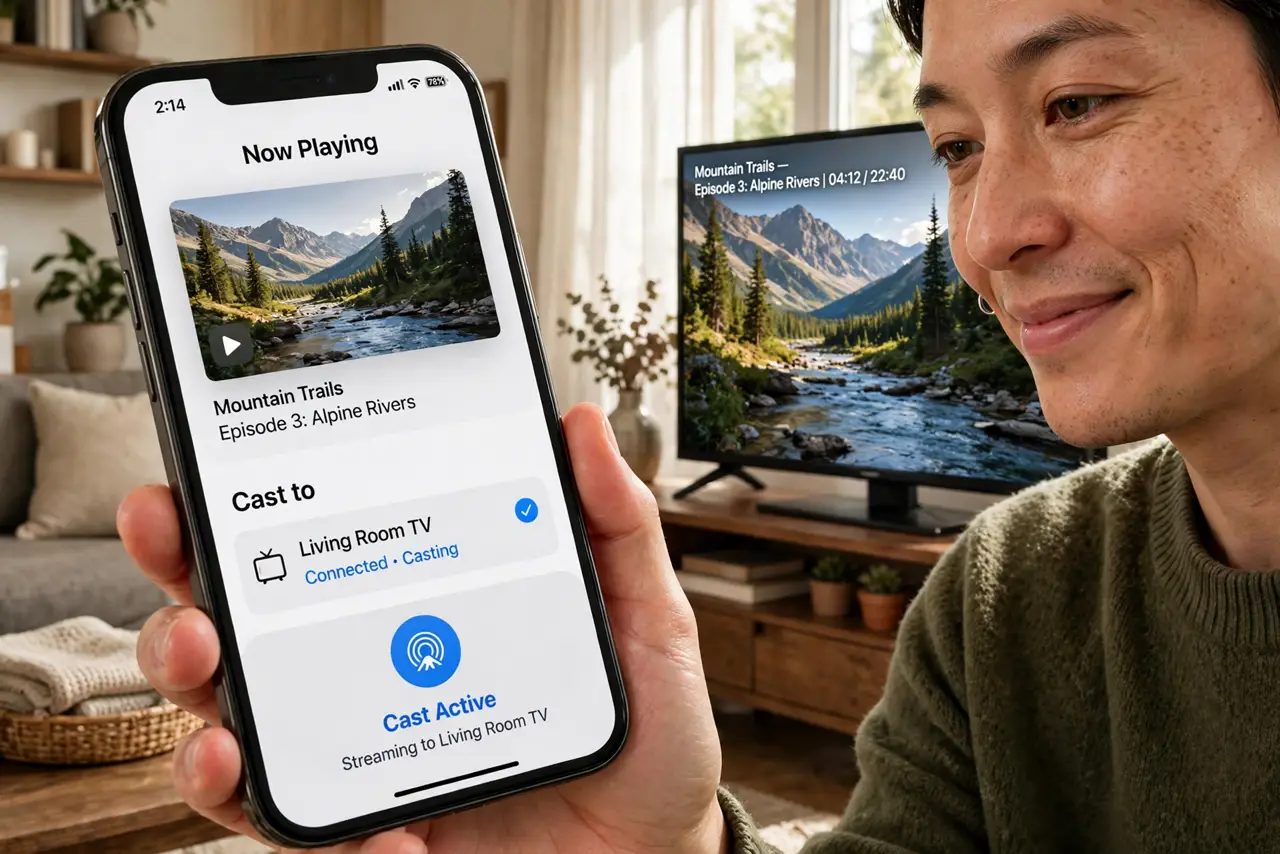
Quick fix: to cast, connect your phone and TV to the same Wi-Fi, open a video app, tap the cast icon, and pick your TV — the video plays on the big screen while your phone becomes the remote. Many modern TVs have Chromecast built in.
Follow these steps
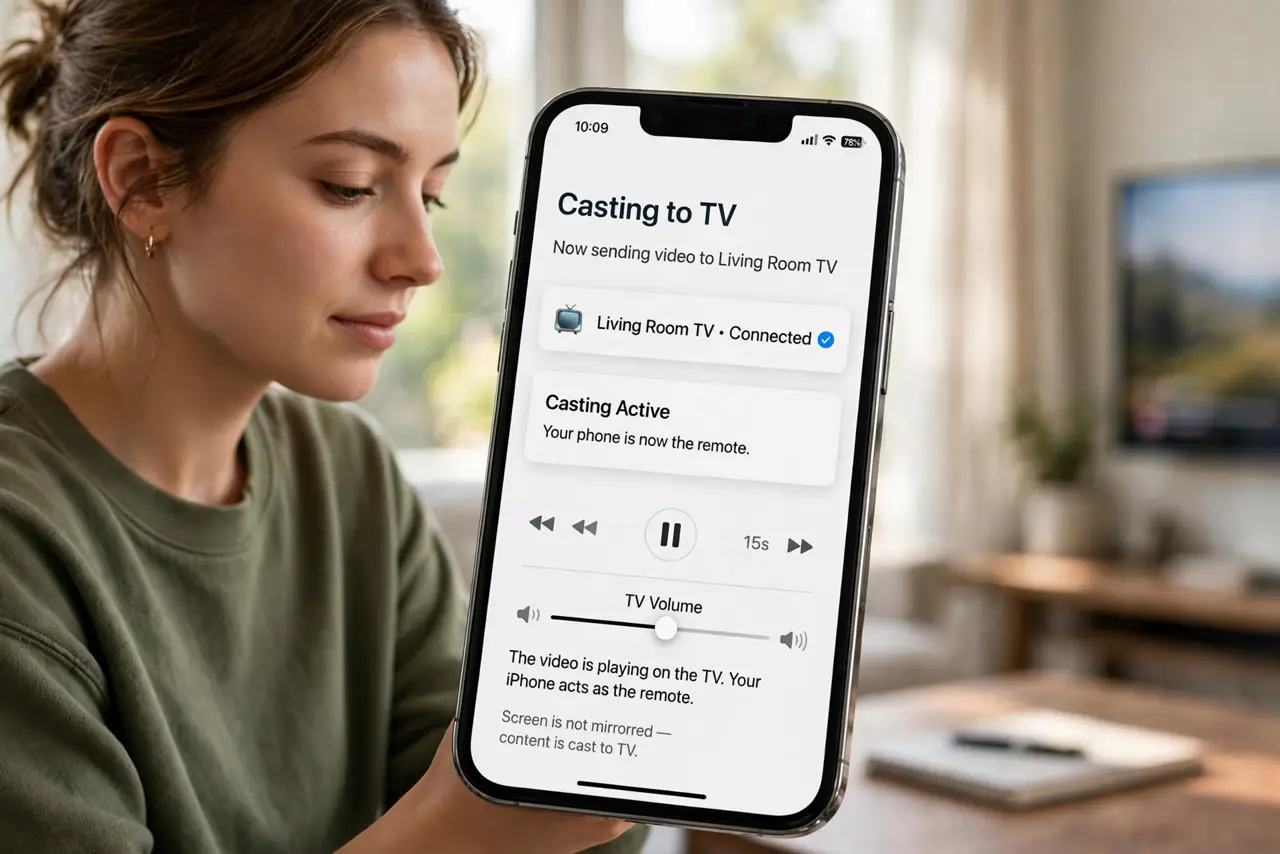
- Understand what casting is. Casting sends the video stream to the TV while your phone acts as the remote. The phone does not mirror its screen the whole time — it hands the TV a link and steps back, so calls and texts do not interrupt.
- Check for built-in support. Many TVs from recent years have Chromecast built in — look for the cast option in the TV's apps or input menu before buying anything.
- Set up the dongle if needed. For TVs without it built in, plug the Chromecast into an HDMI port and USB power, then follow the setup in the Google Home app to join it to your Wi-Fi.
- Put everything on the same Wi-Fi. Phone and TV must share the same network — same SSID, same band ideally. Different networks or a guest network is the number one reason casting fails.
- Cast from an app. Open a supported video app, tap the cast icon, choose the TV, and press play. Playback controls stay on the phone; the video plays on the TV.
- Stop casting when done. Tap the cast icon again and choose disconnect, or just close the app. The TV returns to normal — casting does not take over the TV permanently.
What NOT to do
- Do not buy a dongle before checking the TV. Built-in Chromecast is common now; the dongle may be redundant.
- Do not cast over a guest network. Guest isolation blocks device discovery — phone and TV need the main network together.
- Do not mirror the whole screen for video. In-app casting is smoother and saves battery; full mirroring is the fallback, not the method.
- Do not leave the dongle unpowered. A Chromecast plugged into HDMI but not USB power does nothing — both connections matter.
Frequently asked questions
Why can't I see the cast icon?
The app may not support casting, or the phone and TV are on different networks. Confirm both are on the same Wi-Fi first.
Does casting use my phone's data?
No — the TV streams directly from the internet over Wi-Fi. Your phone just controls it, so the battery barely notices.
Can I cast from a laptop?
Yes — the Chrome browser has casting built in for tabs and files, using the same same-network rule.