Clean Your Laptop Fans
Your laptop's fans used to whisper; now they roar through video calls and the machine runs hot enough to be uncomfortable. Dust is the usual culprit — it clogs the intake vents and coats the fan blades until cooling collapses. A careful cleaning restores airflow and can drop temperatures noticeably, and it costs nothing but twenty minutes and a can of compressed air.
TL;DR / Quick Fix
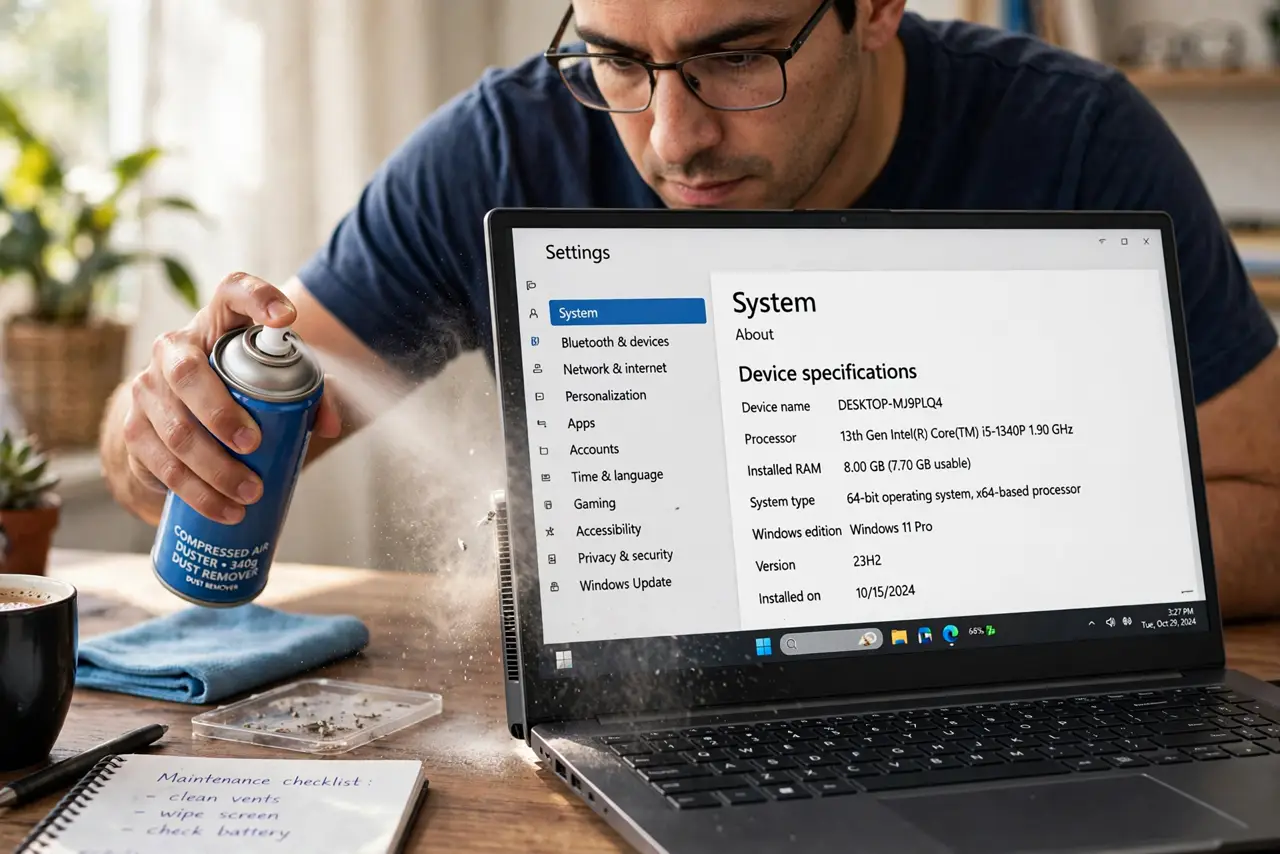
Quick fix: shut the laptop down, blast short bursts of compressed air through the intake and exhaust vents, and wipe the vents with a dry cloth. Keep the can upright so no liquid sprays out. If the fans still roar after cleaning, check for background processes before assuming hardware failure.
Follow these steps
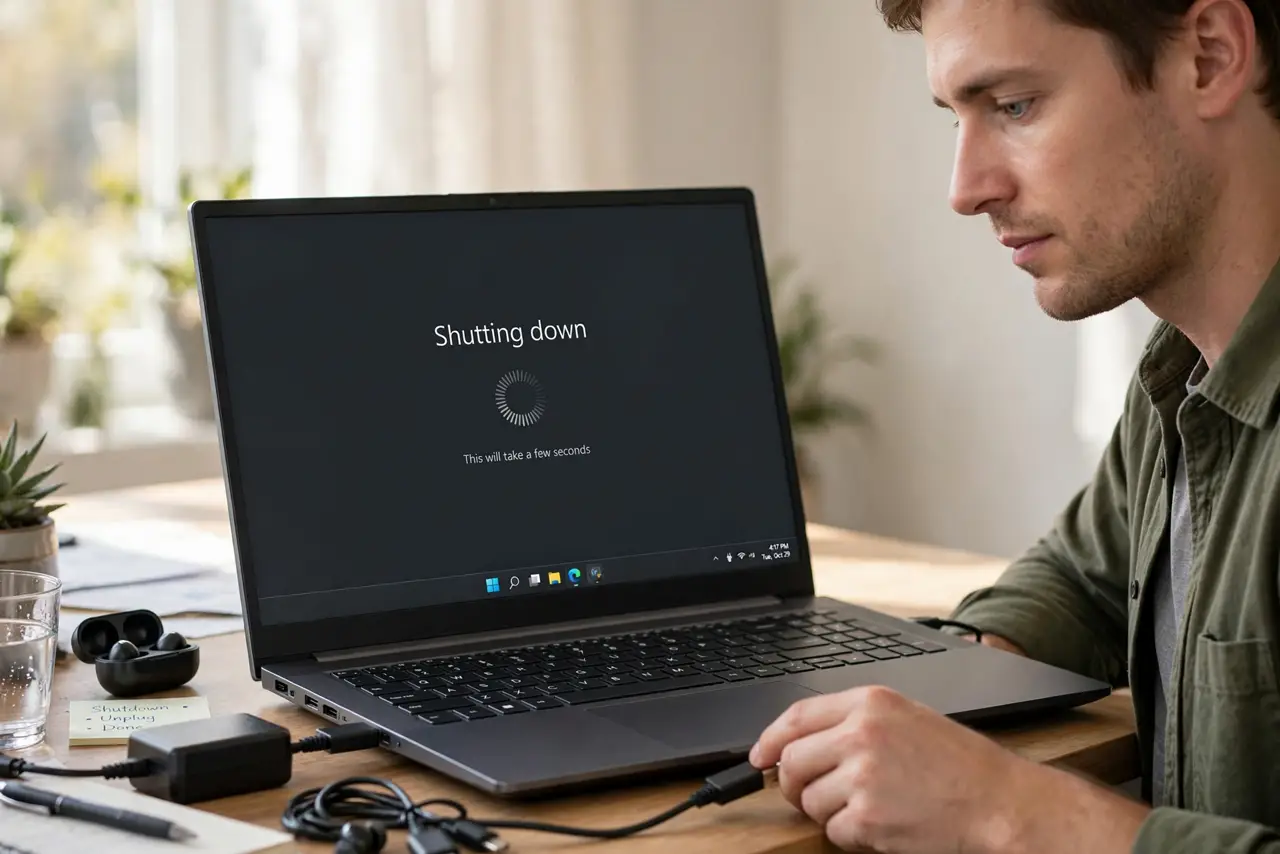
- Shut down and unplug everything. Power the laptop fully off — not sleep — and disconnect the charger and all cables. You are about to blow air into the machine; it must be dead still and unpowered.
- Find the intake and exhaust vents. Intakes are usually on the bottom; exhausts sit at the rear or sides. If you have been using the laptop on a bed or couch, those intakes have been breathing lint — which explains the fan screaming on idle.
- Blast short bursts of compressed air. Hold the can upright and fire short bursts into the vents — intake first, then exhaust. Short bursts spin the fans without overspinning them; a long continuous blast can damage the bearings.
- Keep the can upright, always. Tilting the can sprays freezing liquid propellant instead of air, which can shock components. If liquid does escape, stop and let everything dry completely before powering on.
- Wipe the vent grilles. A dry microfiber cloth or soft brush clears the dust mat that air alone leaves behind. Do not push grime deeper — wipe outward, away from the openings.
- Test under load. Power on and run something demanding for a few minutes. Quieter fans and lower temperatures mean the cleaning worked. If nothing changed, a background process may be the real culprit — or the thermal paste has aged.
What NOT to do
- Do not use a vacuum cleaner on the vents. Static discharge from a vacuum can kill components — compressed air only.
- Do not blast one long continuous stream. Overspinning the fan wears its bearings; short bursts are the rule.
- Do not open the laptop if you are not comfortable. Many cleanings succeed through the vents alone — internal disassembly risks cables and warranty stickers.
- Do not spray with the can tilted or upside down. Liquid propellant on a live board is how a cleaning becomes a repair bill.
Frequently asked questions
How often should I clean laptop fans?
Roughly every six to twelve months for normal use; more often if you have pets or use the laptop on soft surfaces.
Can I use a hair dryer instead of compressed air?
No — hair dryers blow hot air and can build static. A can of compressed air is cheap and made for this.
The fans are clean but still loud — now what?
Check Task Manager or Activity Monitor for a process hogging the CPU. Persistent heat under light load can also mean dried thermal paste, which is a repair-shop job.