ClickUp? Plain Basics
ClickUp tries to be every productivity app at once — tasks, docs, calendars, goals, time tracking — which is either thrilling or terrifying depending on your tolerance for settings. Underneath the sprawl, it is a task manager: work broken into tasks inside projects (called Spaces and Lists). Start with the task core and ignore the rest until you need it.
TL;DR / Quick Fix
Quick fix: ClickUp is a task manager wearing many costumes — start with one Space, one List, and simple tasks, ignoring docs and dashboards for now. Every task needs one assignee and a due date. Resist turning on every feature on day one.
Follow these steps
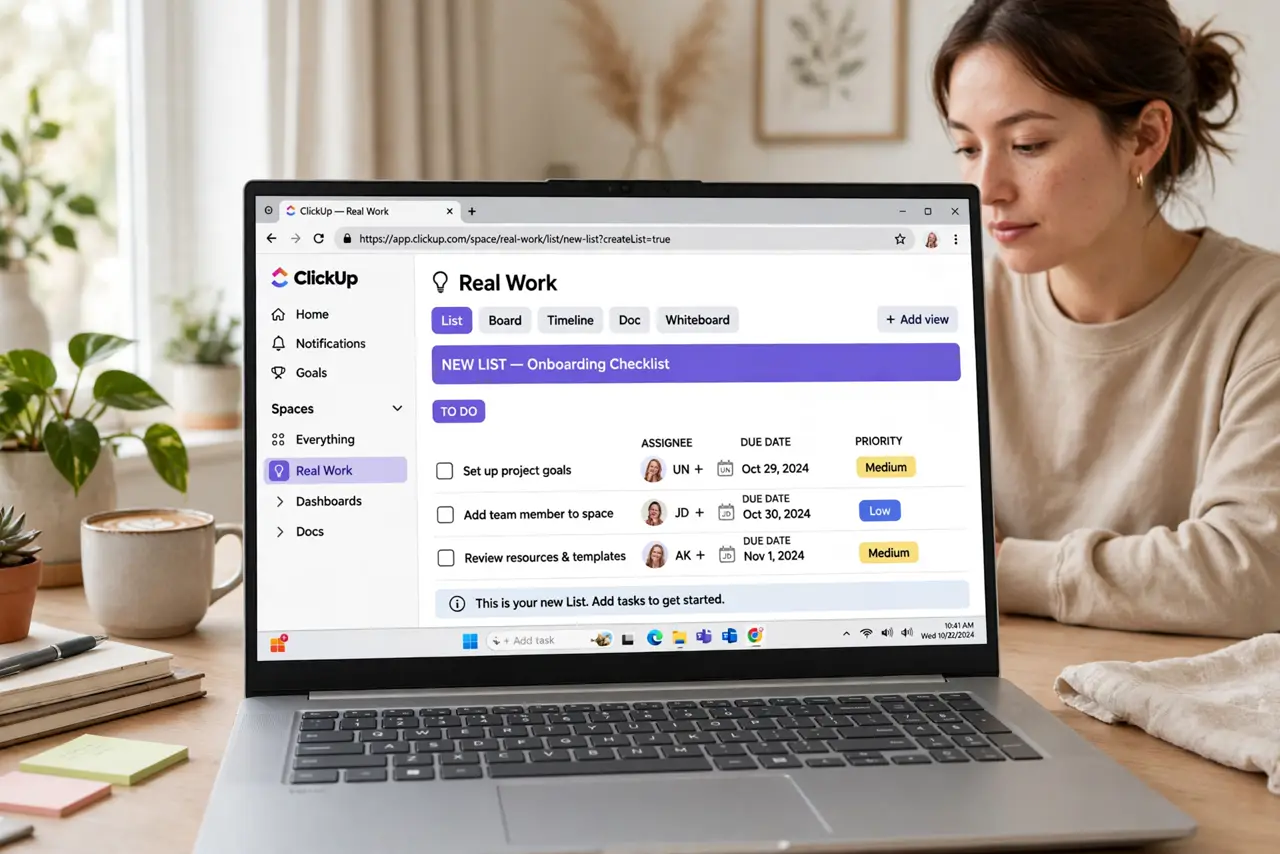
- Create one Space for real work. Spaces are ClickUp's top-level containers — make one for an actual project, not 'My Workspace Demo.' Inside it, create one List. That is your entire setup for week one.
- Learn the task hierarchy lightly. Tasks can hold subtasks, which can hold checklists. Use one level: tasks with checklists inside. Deeper nesting impresses nobody and confuses everybody.
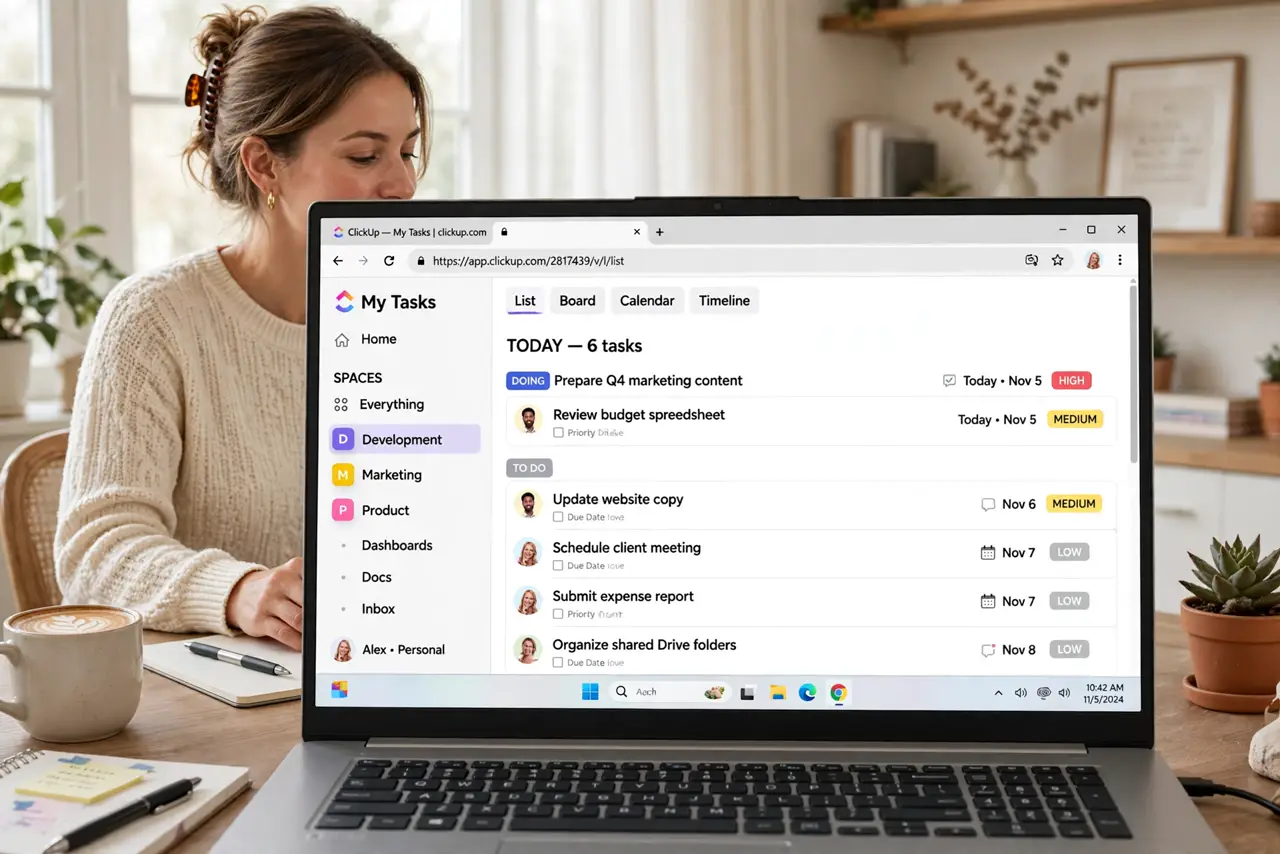
- Assign and date every task. One assignee, one due date — the same discipline as any task manager. ClickUp's views are useless if the underlying tasks lack owners and dates.
- Pick one view and live in it. List, Board, Calendar, Gantt — ClickUp offers them all. Choose List for week one. Switching views daily is a distraction disguised as optimization.
- Ignore ClickApps at first. ClickApps are ClickUp's feature toggles — time tracking, sprints, custom fields. They are all optional. Enable one only when a real workflow demands it, not because it looks cool.
- Compare before committing. If ClickUp feels heavy after two weeks, simpler tools exist — Trello for visual simplicity, Asana for structured teams. The best tool is the one you actually open daily.
What NOT to do
- Do not enable every ClickApp on day one. A task manager with forty features on is a maze, not a tool.
- Do not nest tasks five levels deep. If you need a map to find a task, the structure has failed.
- Do not import your entire life in the first hour. Start with one live project; migrate the rest once the habit sticks.
- Do not chase the perfect setup. Two weeks of real use beats two weeks of configuring views you may never need.
Frequently asked questions
Is ClickUp free?
Yes, the free tier is generous — unlimited tasks and members with storage limits. Paid plans raise limits and unlock advanced features most small teams skip.
ClickUp vs Asana — which is better?
ClickUp is more customizable and cheaper; Asana is simpler to learn. Tinkerers love ClickUp, teams that want calm pick Asana.
Why does ClickUp feel overwhelming?
Because it shows every feature at once. Hide what you do not use, pick one view, and it calms down dramatically.