Clone Your Drive to an SSD
You want the new SSD's speed without reinstalling everything — programs, settings, files, exactly as they are. Cloning copies your entire drive bit-for-bit onto the SSD, so the PC wakes up identical, just faster. Done right it takes under an hour; done carelessly it copies problems too. Here is the careful way.
TL;DR / Quick Fix
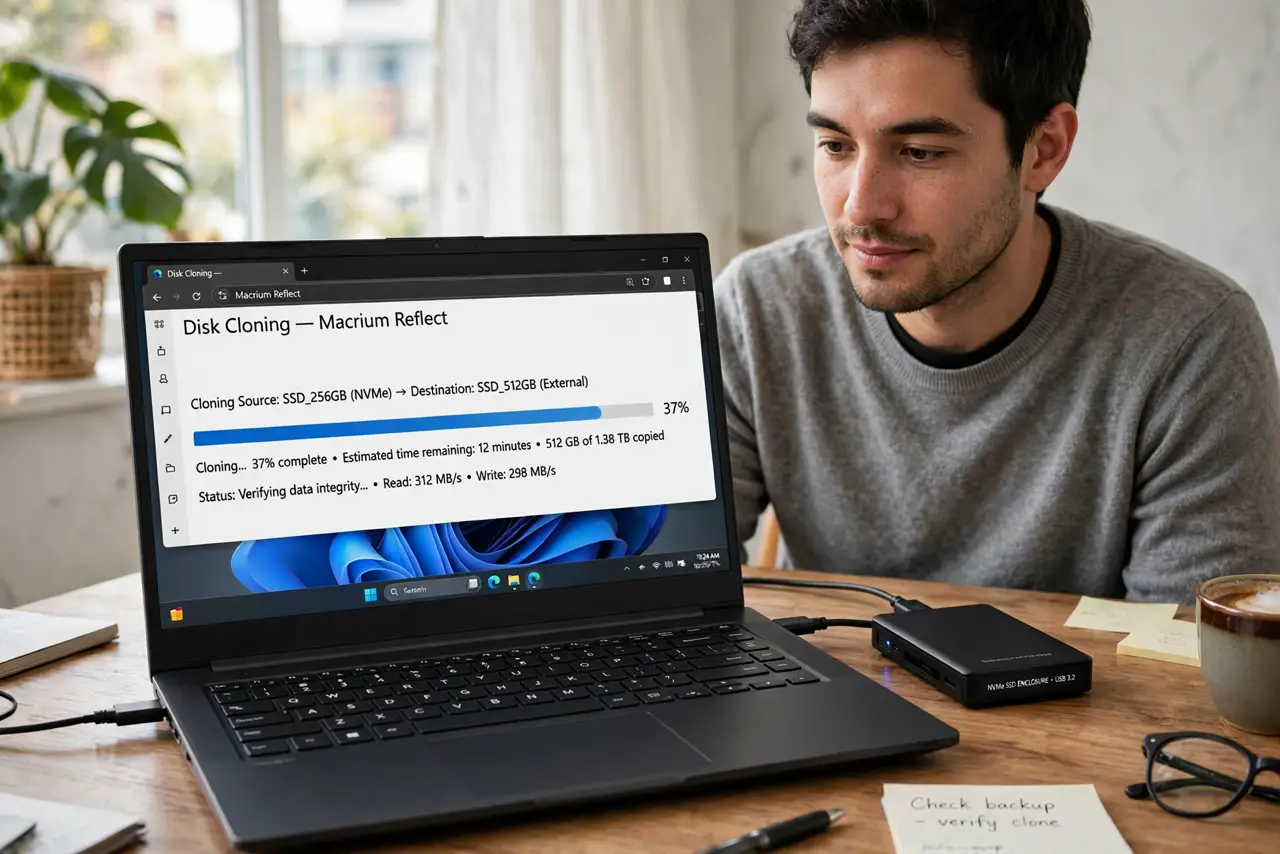
Quick fix: connect the SSD, run a reputable cloning tool, and copy the source drive to the SSD with all partitions. Shut down, swap the drives, and boot. Verify everything works before wiping the old drive. Clone only healthy drives — cloning copies corruption as faithfully as files.
Follow these steps
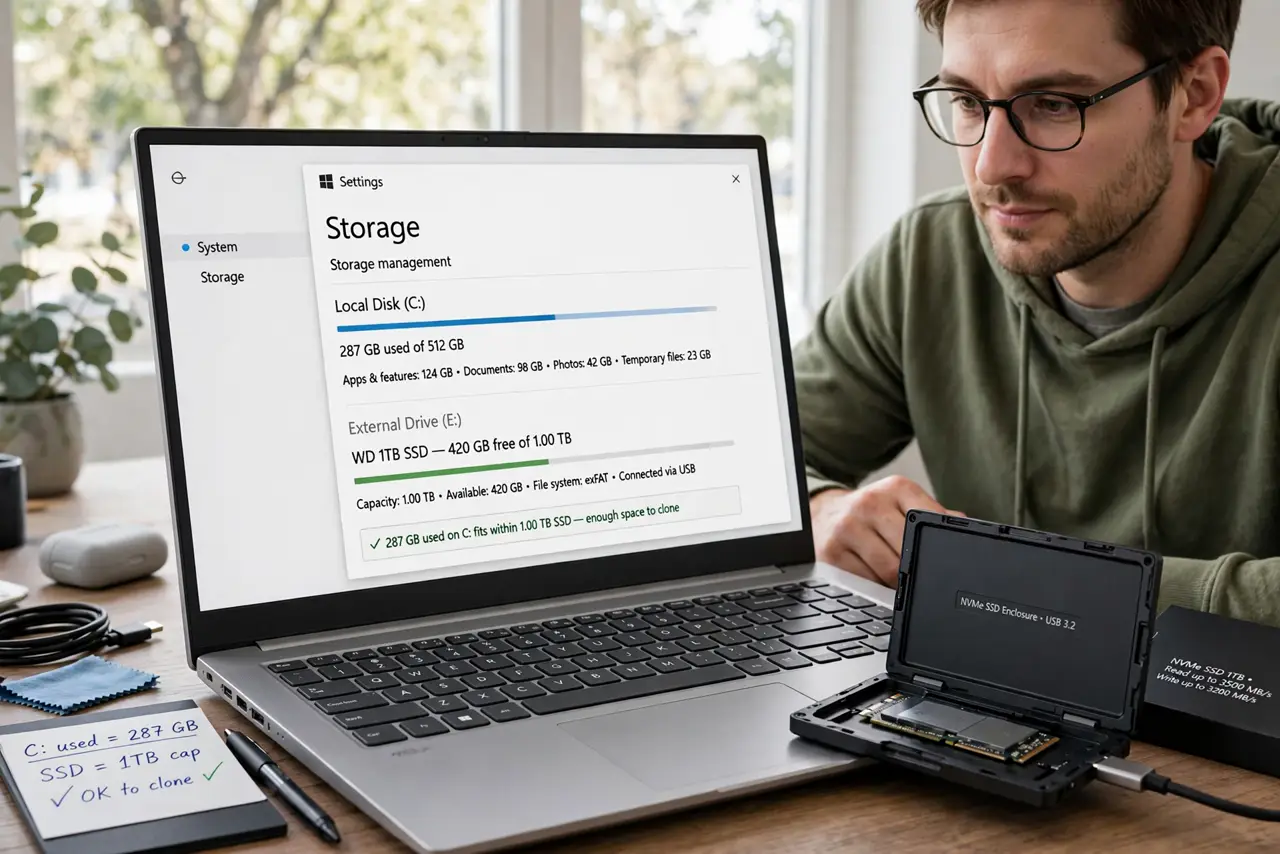
- Check the SSD fits the used space. Cloning needs room for everything on the source. A 500 GB drive with 300 GB used fits a 500 GB SSD — used space is what matters, not the drive's total size.
- Connect the SSD before cloning. Use a USB-to-SATA adapter or an empty internal bay. The cloning tool must see both drives at once.
- Pick a reputable cloning tool. Use well-known disk cloning software from an established vendor — free editions handle basic cloning fine. Avoid random 'free cloner' downloads bundled with ads.
- Select source and destination with extreme care. Source is the old drive; destination is the new SSD — the destination gets overwritten completely. Triple-check the drive sizes before confirming.
- Copy all partitions, not just C:. The hidden boot and recovery partitions must come along, or the SSD will not boot — the classic new SSD will not boot aftermath.
- Swap the drives and verify before wiping. Boot from the SSD, use the PC for a day, and confirm everything works. Only then wipe or repurpose the old drive.
What NOT to do
- Do not wipe the old drive the moment the clone finishes. Verify the SSD boots and everything works first.
- Do not clone a drive with filesystem errors. Run a disk check first — cloning copies corruption faithfully.
- Do not interrupt the clone. A half-written SSD needs the whole process restarted.
- Do not clone onto a smaller SSD hoping it 'fits.' The tool will fail or silently truncate — check sizes first.
Frequently asked questions
Is cloning better than a fresh install?
Cloning is faster and keeps everything. A fresh install is cleaner and sheds years of cruft. For a healthy system, cloning wins; for a sluggish one, reinstall.
How long does cloning take?
Roughly the time to read the whole source drive — often 30 minutes to a few hours over USB, faster internally. The progress bar is honest; let it finish.
Will the SSD be as fast after cloning?
Yes — speed comes from the hardware, not the install method. Enable TRIM afterward to keep it fast long-term.