Private Photos Sync to Cloud Backup by Default
Your phone quietly uploads every photo — including screenshots of documents and private moments — to cloud backup. That convenience is great until a shared album or a breached account exposes photos you never meant to share.
TL;DR / Quick Fix
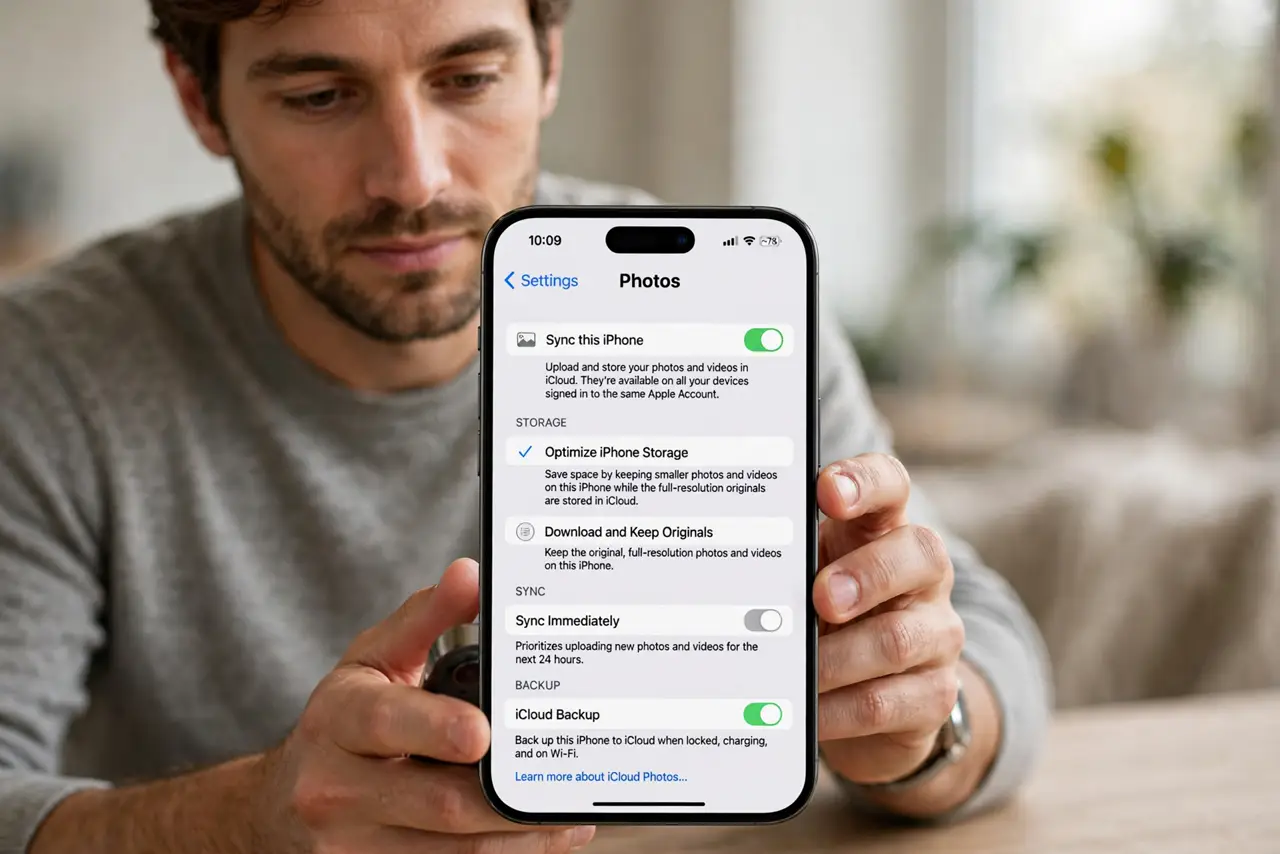
Quick fix: open your photo backup settings, turn off backup for sensitive albums or screenshots, and review what is already uploaded. Then lock the cloud account with two-factor, check shared albums, and keep truly private photos off the cloud entirely.
Follow these steps
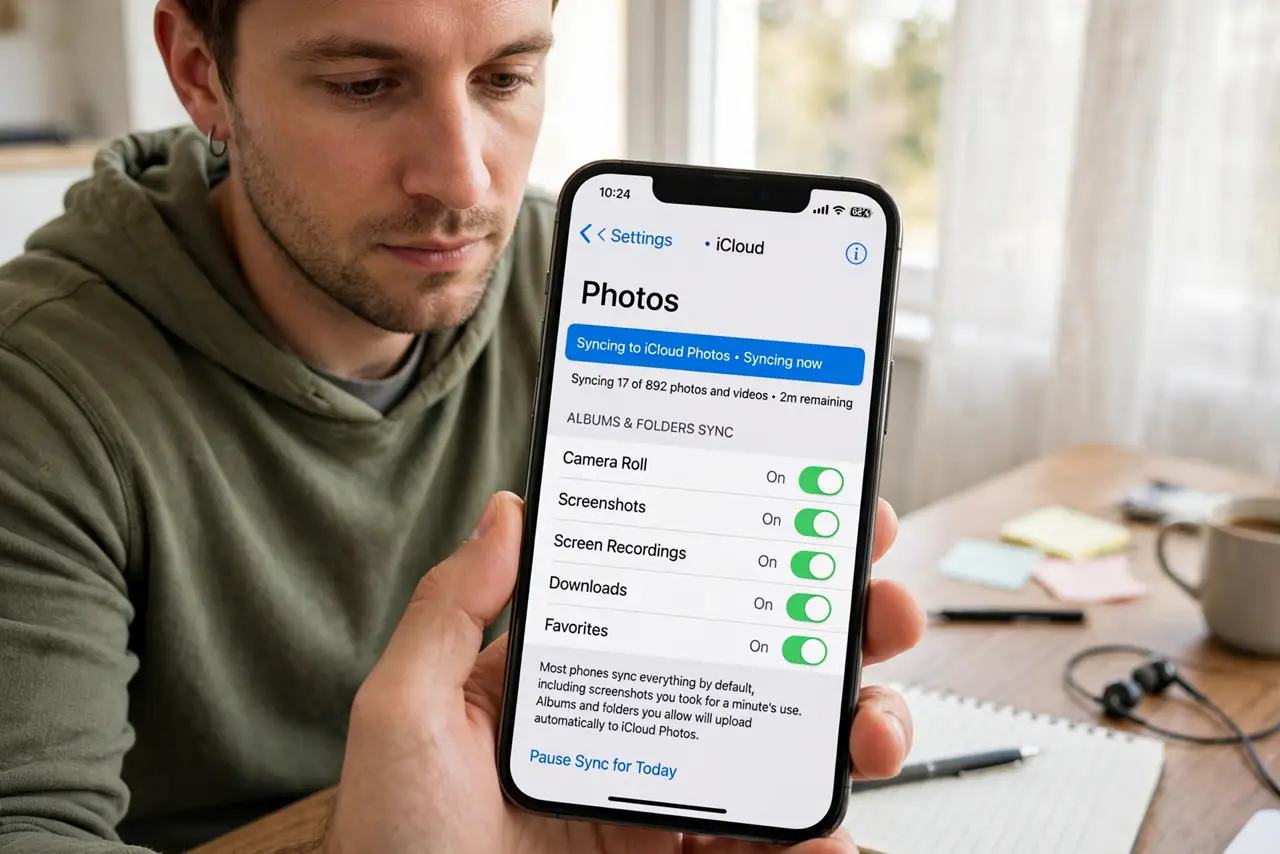
- See what is syncing right now. Open the backup settings and check which albums and folders upload automatically. Most phones sync everything by default, including screenshots you took for a minute's use.
- Exclude sensitive albums from backup. Turn off backup for screenshots, downloads, and any album holding documents or private photos. Selective backup keeps memories safe without uploading everything.
- Delete already-uploaded sensitive photos. Remove private shots from the cloud library and its trash. Deleting from the phone alone leaves the cloud copy behind on most services.
- Lock the cloud account with two-factor. Enable two-factor on the account holding your photos. Your entire photo history is only as secure as that one login.
- Review shared albums and links. Check who can see your shared albums and revoke stale shares. An anyone-with-the-link album stays open to anyone holding the URL, even people you forgot.
- Keep the most private photos offline. For truly sensitive images, skip the cloud and keep them in an encrypted local folder. The safest cloud backup is the one that never happened.
What NOT to do
- Do not assume deleted phone photos are gone. Cloud copies and shared albums survive the phone deletion, so check the cloud too.
- Do not share your cloud login with family casually. One shared login exposes every photo to everyone holding it, so use proper family sharing instead.
- Do not screenshot documents and forget them. Screenshots of IDs and tickets auto-upload like any photo, so delete them right after use.
- Do not skip two-factor on the photo account. A breached photo library exposes years of your life in one download.
Frequently asked questions
Do all my photos upload automatically?
On most phones, yes, once cloud backup is on. Screenshots, downloads, and camera photos all sync unless you exclude them.
How do I remove a photo from the cloud?
Delete it from the cloud library and then empty the cloud trash, since trash keeps deleted photos for weeks.
Are shared albums really a risk?
They can be. Anyone with the link or invite sees new photos added later too, so review the guest list.