Selective Sync to Save Disk Space? How To
Your cloud drive wants to sync everything to every device, and your laptop's SSD is paying the price. When the disk fills up, a full drive slows everything down — selective sync is the fix that keeps the cloud intact. This guide shows how to reclaim gigabytes safely.
TL;DR / Quick Fix
Open your cloud drive's sync settings and uncheck the large folders you rarely need offline. Keep active projects synced and archive the rest to cloud-only. Check freed space afterward, and re-sync a folder anytime you need it back. Nothing is deleted from the cloud when you unsync locally.
Follow these steps
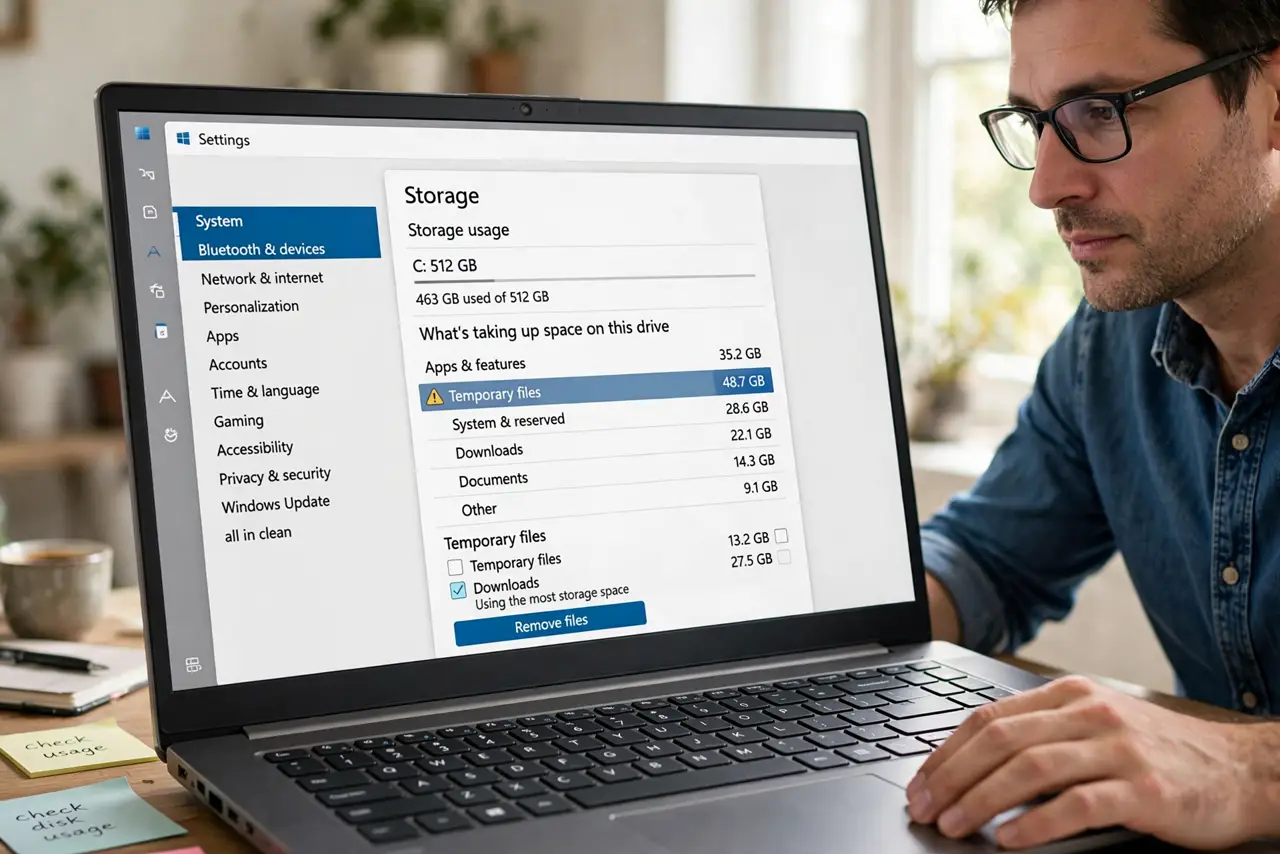
- Find what's eating the disk. Check which synced folders are the largest. One old project folder often holds half the usage — the classic precursor to a full drive.
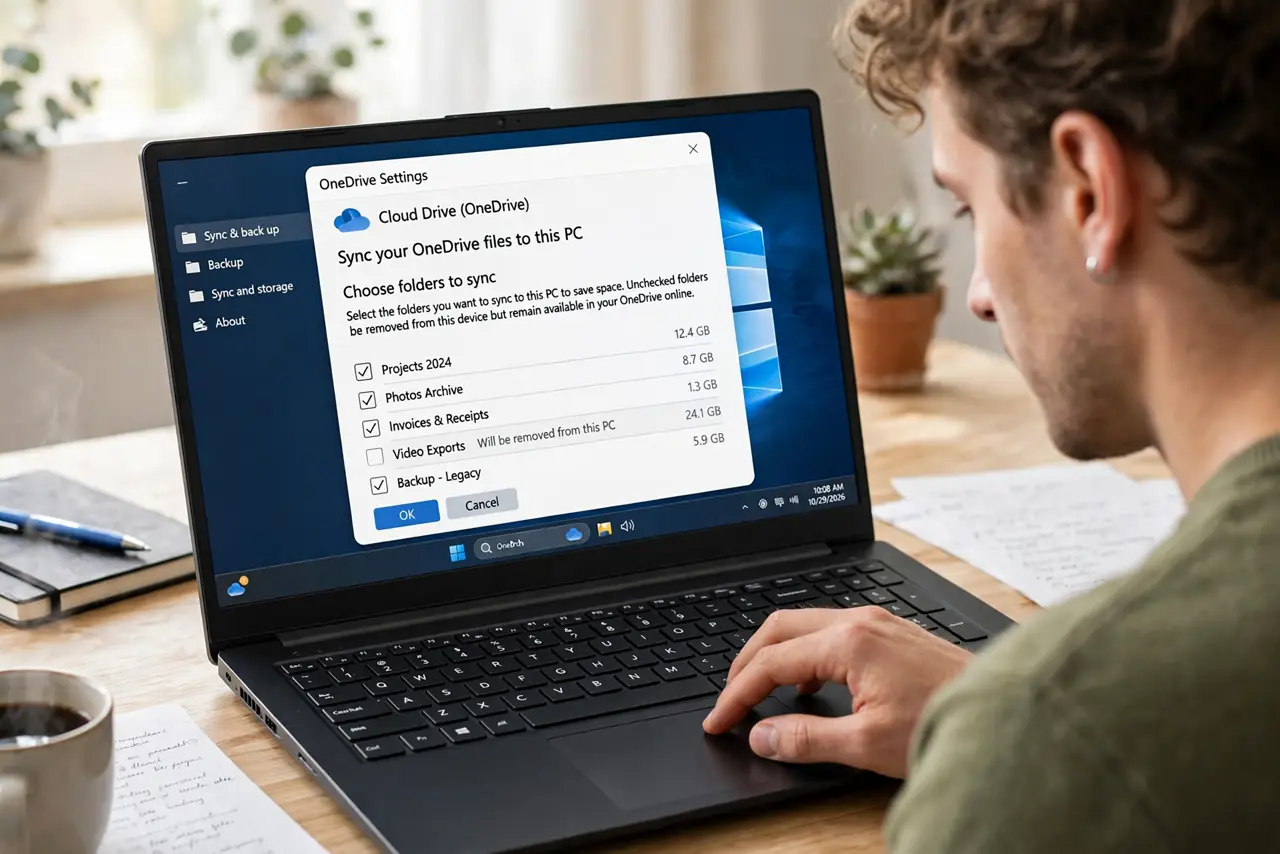
- Open selective sync settings. In your cloud drive app's preferences, find the sync or folders section. Every major drive app offers folder-level control.
- Uncheck the archives. Uncheck large folders you rarely open: old projects, completed work, media archives. They stay safe in the cloud and leave your disk.
- Keep active work synced. Leave current projects fully synced for offline access and fast search. Selectivity is about archives, not today's work.
- Verify the freed space. Check your disk space after the change. The folders should shrink to tiny placeholders or vanish from the disk entirely.
- Re-sync on demand. When you need an archived folder, recheck it in the settings. It downloads again — nothing about selective sync is permanent.
What NOT to do
- Do not unsync a folder with unsynced changes. Let everything upload first, or local-only changes get stranded.
- Do not confuse unsyncing with deleting. Unchecked folders leave the disk but stay in the cloud.
- Do not unsync your only copy of anything. Confirm the cloud holds the files before removing local copies.
- Do not forget shared folders. Unsynced shared folders still count against collaborators, not just you.
Frequently asked questions
What is selective sync?
Choosing which cloud folders download to your device. Unchecked folders stay in the cloud, freeing local disk space.
Will I lose files if I turn off sync for a folder?
No. The files stay in the cloud; only the local copies are removed. Re-check the folder to download it again.
Should I use selective sync or just buy a bigger drive?
Selective sync is free and instant. A bigger drive helps too, but syncing 500 GB you never open is wasteful either way.