Reset the CMOS
You changed a BIOS setting — overclock, boot order, something experimental — and now the PC will not boot at all. Not even to the BIOS. The CMOS holds those settings in battery-backed memory, and resetting it returns everything to factory defaults. Two minutes, no parts, and the bricked board usually wakes right up.
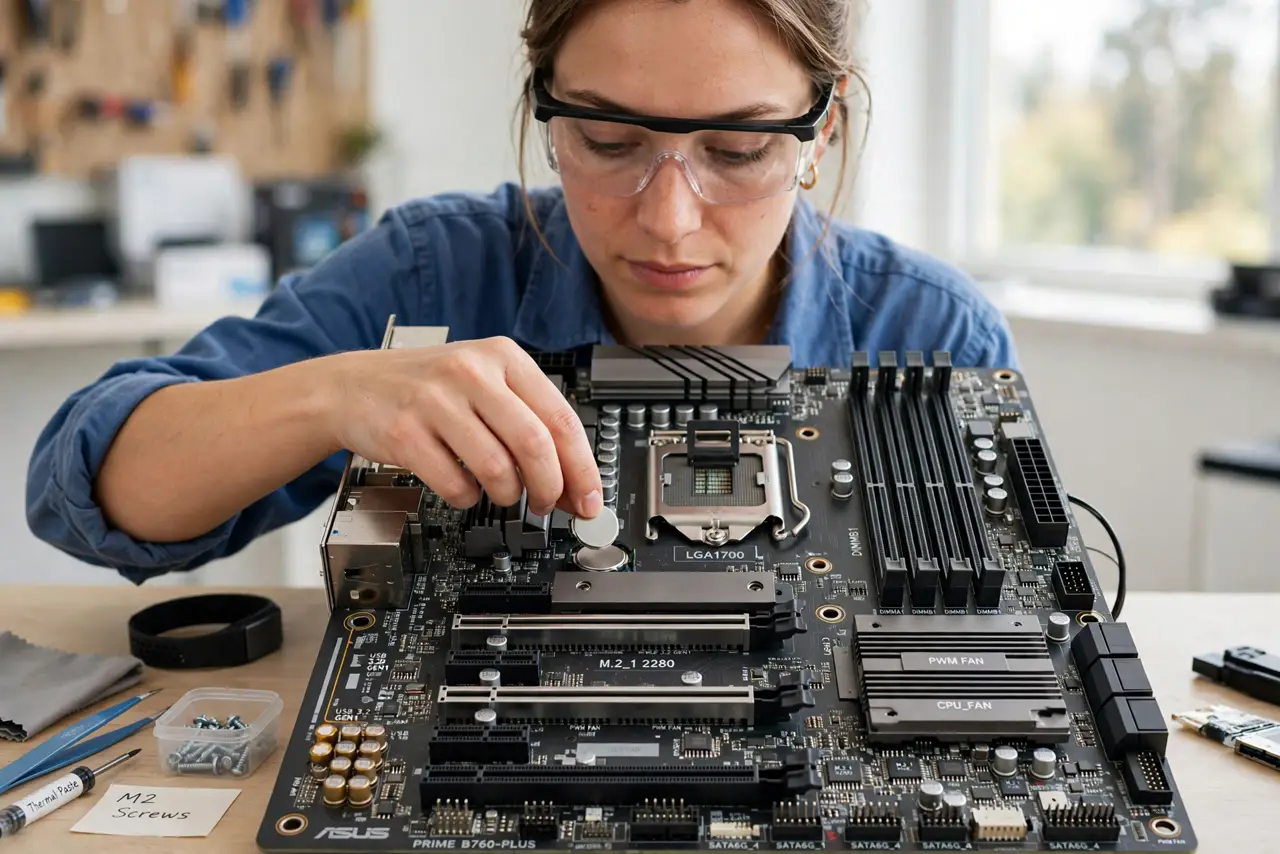
TL;DR / Quick Fix
Quick fix: power off, unplug the PSU, and remove the coin-cell battery from the motherboard for five minutes — or short the labeled CLR_CMOS jumper. Reinstall, plug in, boot. Settings return to defaults; your files are untouched. Note your custom settings first if you can.
Follow these steps
- Power down fully. Shut down, flip the PSU switch off, and unplug the power cable. CMOS work happens with zero power — the battery you are about to remove is the only energy left, which is the point.
- Find the battery or jumper. Look for the silver coin-cell battery on the motherboard, or a jumper labeled CLR_CMOS / JBAT1 in the manual. Either method works; the jumper is faster if your board has one.
- Remove the battery. Push the metal clip and lift the battery out. Wait five full minutes — the residual charge needs time to drain and actually clear the settings. Impatience here fails the reset.
- Or short the jumper. With power unplugged, touch the two CLR_CMOS pins with a screwdriver tip for ten seconds. Same result, no waiting — check the manual for the exact pins.
- Reinstall and boot. Put the battery back (or remove the jumper cap to its normal position), plug in, and power on. The board boots with factory defaults — expect a 'settings reset' message, which is success.
- Reconfigure what you need. Re-enter only the settings you actually need — boot order, XMP, fan curves. Leave the experimental value that bricked it alone this time.
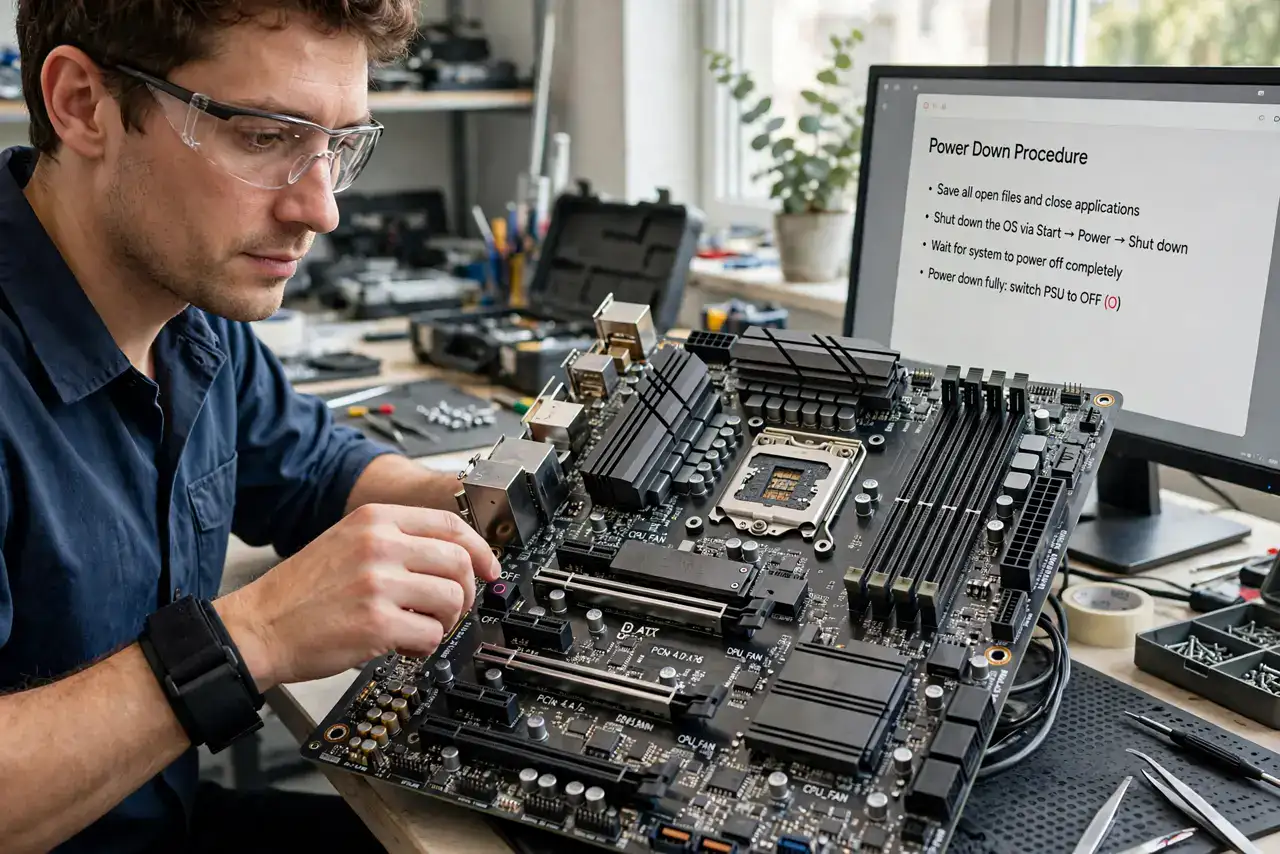
What NOT to do
- Do not reset with power connected. Unplug the PSU cable — the reset needs zero power, and live board work risks damage.
- Do not rush the five minutes. Residual charge holds settings for a while — a thirty-second battery pull often changes nothing.
- Do not lose the battery. It is small and rolls — remove it over the case, not over the carpet.
- Do not expect file changes. CMOS holds firmware settings only; your Windows install and files are completely untouched.
Frequently asked questions
Will I lose my files?
No — CMOS stores BIOS settings, not data. Your drives are untouched; only firmware settings return to defaults.
How often should I reset CMOS?
Only when troubleshooting — it is a fix, not maintenance. Routine resets just erase your tuned settings for nothing.
The battery is soldered. Now what?
Some laptops solder it — use the motherboard's reset button or jumper if present, or hold the power button 30 seconds unplugged. Otherwise, this is a repair-shop job.