PC Won't POST?
You press the power button on your new build and... nothing on screen. Fans may spin, lights may glow, but the monitor stays black. This is a POST failure — the Power-On Self-Test never completed — and it is almost always something simple: power, seating, or one forgotten cable. Work the checklist before you panic.
TL;DR / Quick Fix
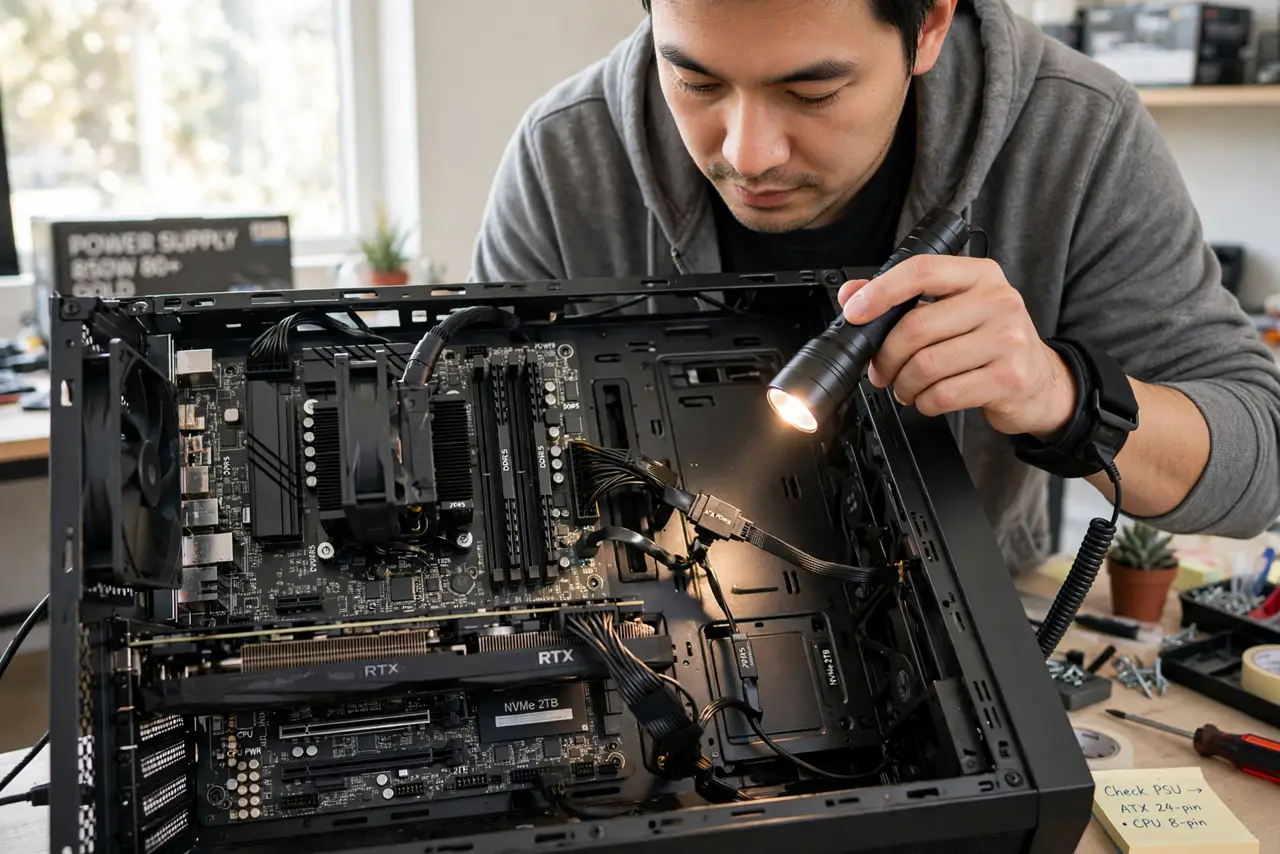
Quick fix: check the monitor cable goes to the graphics card, not the motherboard. Reseat the RAM — one stick at a time in the primary slot. Confirm both the 24-pin and the CPU power cables are plugged in. Most no-POST builds wake up at one of these three steps.
Follow these steps
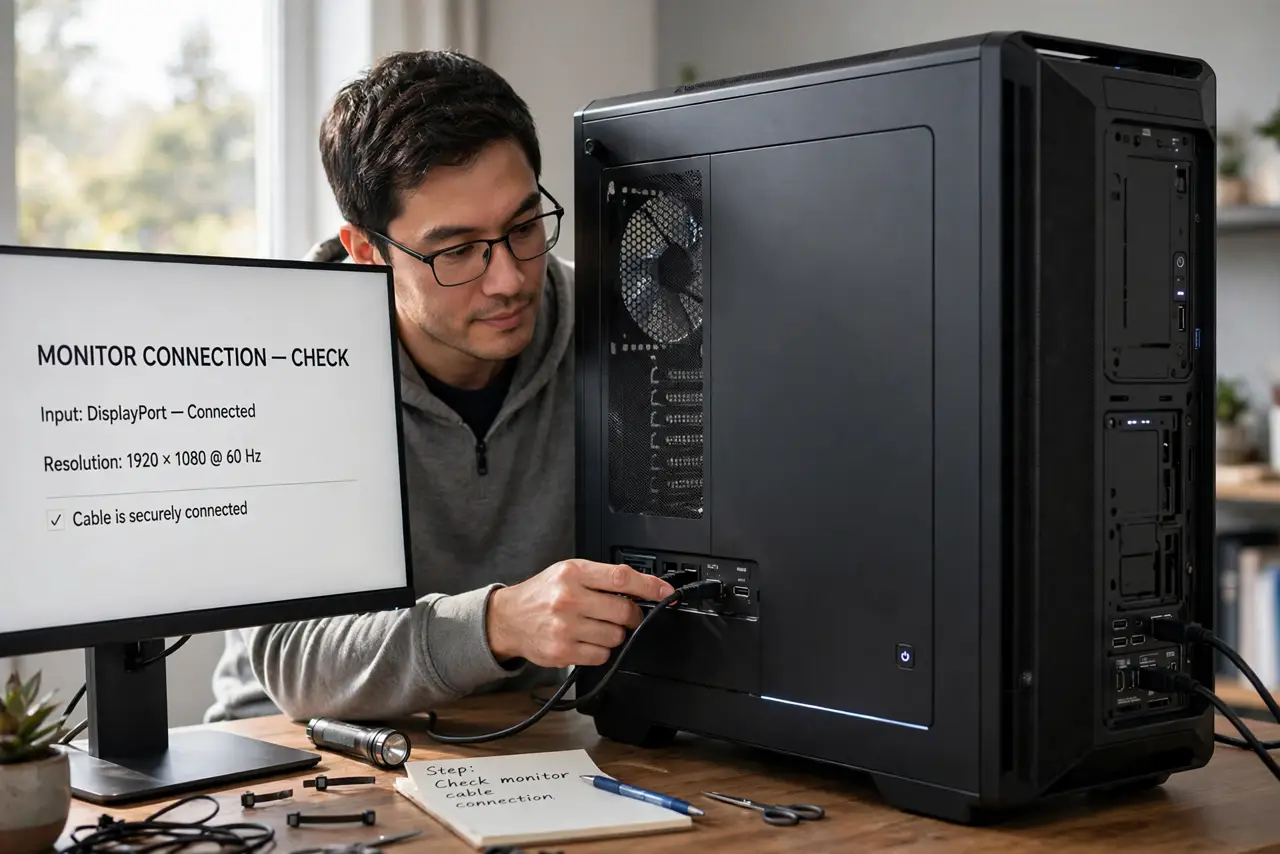
- Check where the monitor plugs in. The monitor cable must go into the graphics card's ports, not the motherboard's. With a dedicated GPU installed, motherboard video outputs are usually dead — this one mistake causes a huge share of black screens.
- Verify both power cables. Confirm the big 24-pin motherboard cable and the smaller CPU power cable (4 or 8 pin, top-left of the board) are fully seated — they need a firm push until the latch clicks. Half-seated power is the classic silent killer.
- Reseat the RAM. Power off, unplug, and remove the RAM sticks. Reinstall one stick in the primary slot (check the manual — usually slot 2), pressing firmly until both clips snap. Try booting with just that one stick.
- Strip it to minimum. Disconnect everything non-essential: extra drives, USB devices, RGB extras. Boot with only CPU, one RAM stick, and GPU. If it POSTs, add parts back one at a time until the culprit reveals itself.
- Listen and look for codes. Many boards have debug LEDs or a beep speaker — check the manual for what each pattern means. A DRAM light points at RAM; a CPU light points at power or seating. The board is trying to tell you.
- Reset the CMOS. If nothing helps, reset the CMOS to clear any bad BIOS setting blocking the boot. It takes two minutes and fixes a surprising number of stubborn no-POST cases.
What NOT to do
- Do not assume a part is dead. Nine times in ten it is seating or cabling — test everything before ordering replacements.
- Do not work with power connected. Unplug the PSU before reseating anything — live reseating kills components.
- Do not force the RAM. If it will not seat, the notch is misaligned — forcing cracks the slot or the stick.
- Do not skip the CPU power cable. Builders remember the big 24-pin and forget the small CPU plug — the board will not POST without it.
Frequently asked questions
Fans spin but no display — what now?
That is the classic partial-power or GPU-output mistake. Check the monitor-to-GPU cable first, then the CPU power plug — those two cover most cases.
Should I breadboard the build?
If the minimal config still fails outside the case on the motherboard box, you have ruled out shorts — a worthwhile step before blaming parts.
How do I know if the motherboard is dead?
Only after the full checklist fails: minimal config, known-good PSU, reseated everything, CMOS reset. Boards die rarely; checklists fail rarely too — trust the process.