Computer Overheats on a Soft Bed? Cool It Down
A laptop on a soft bed sinks into blankets that block its underside vents, so hot air cannot escape and the fan cannot keep up. The laptop then slows down, gets hot to touch, and may shut off to protect itself. The fix is airflow, not a new laptop, and a stand makes bed use safe. Dust that blocks vents indoors needs the dust build-up checks as well.
TL;DR / Quick Fix
Quick fix: Move the laptop onto a hard, flat surface at once. Check that no blanket covers the vents. Then work through the remaining steps in order, checking one change at a time, and stop for a technician if you see damage, swelling, or a burning smell.
Follow these steps
- Move the laptop onto a hard, flat surface at once. Lift the laptop off the bed and set it on a desk, table, or hard board. This alone restores vent airflow and is the fastest cooling fix.
- Check that no blanket covers the vents. Look at the underside and sides for blanket, pillow, or clothing covering vent slots. Vents must stay fully clear, not just mostly clear, for air to flow.
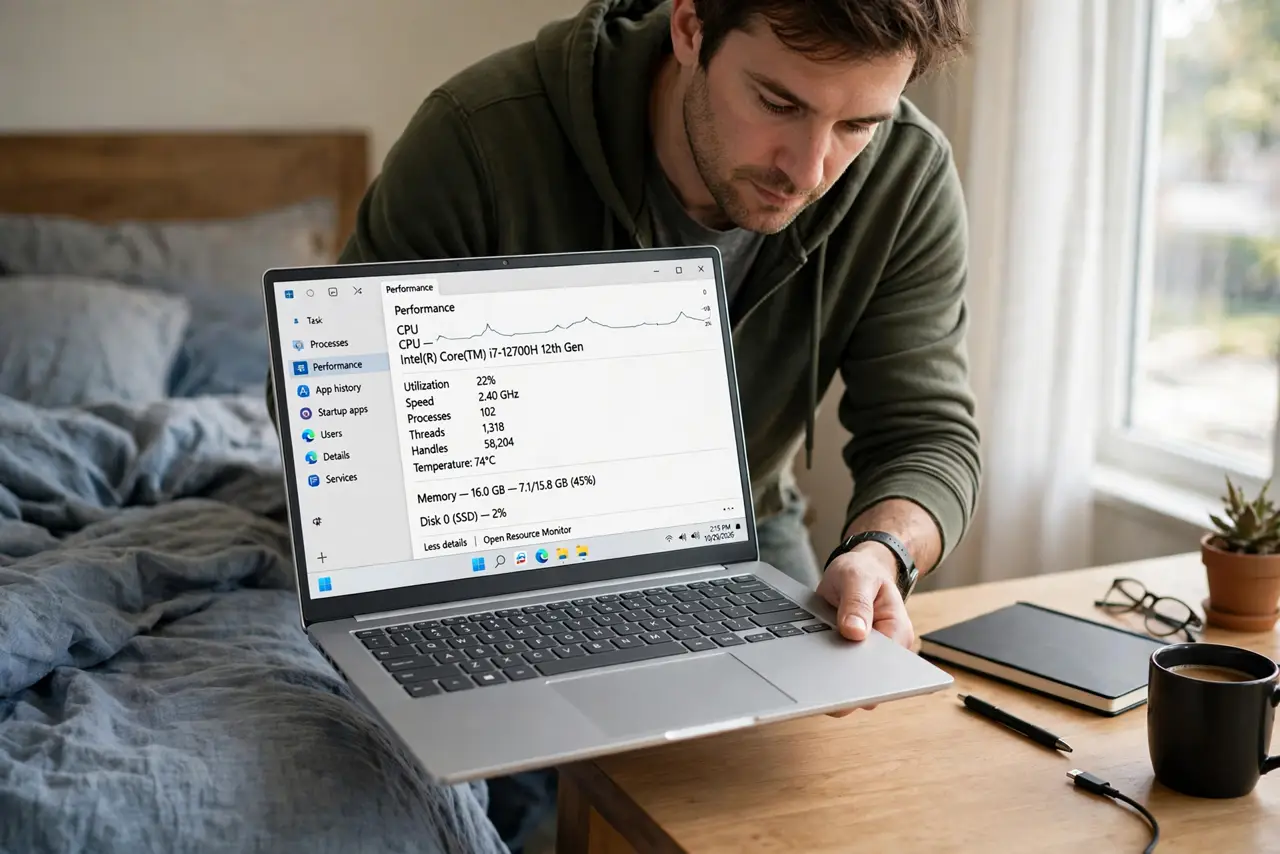
- Let the laptop cool before heavy use. Close heavy apps, leave the laptop on a hard surface, and wait until the base feels warm, not hot, before gaming or video editing again.
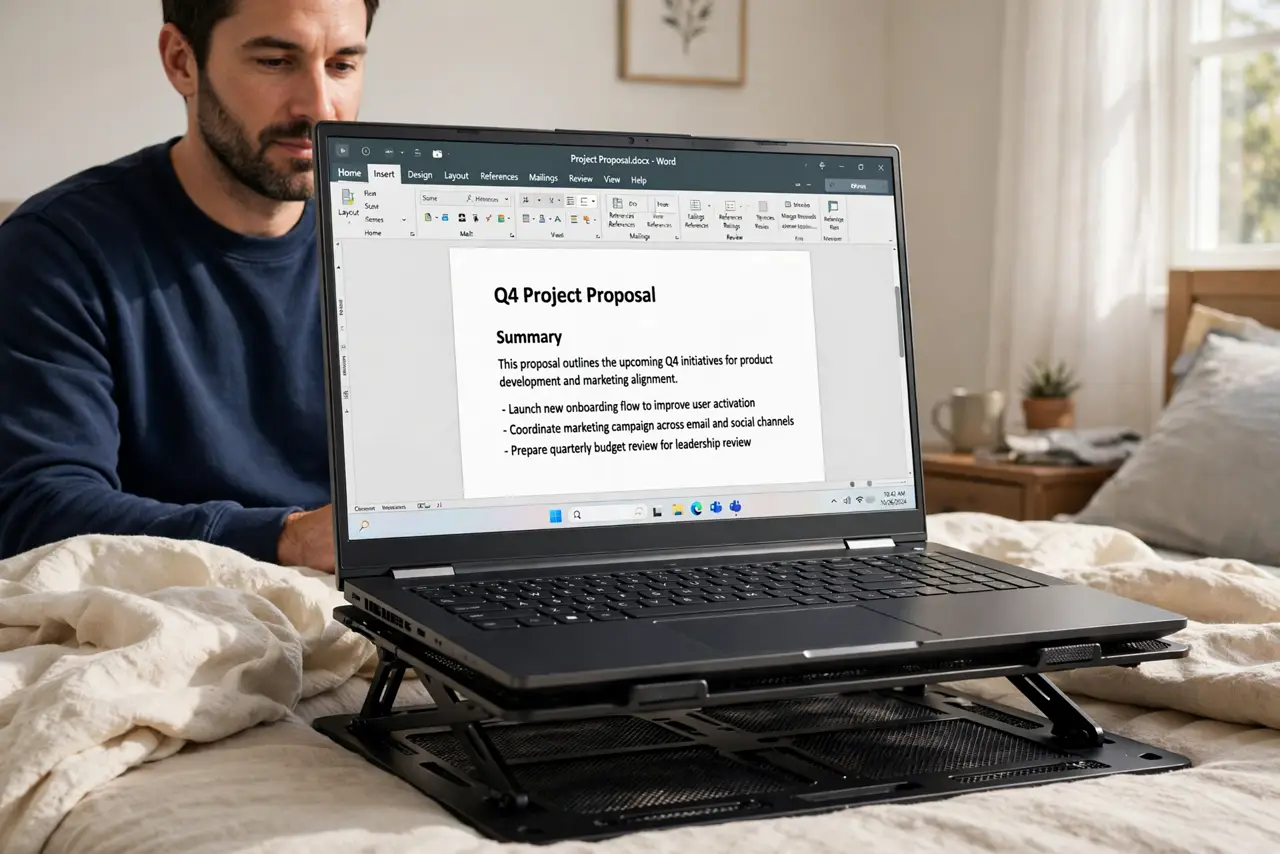
- Use a laptop stand for bed use. If you work from bed, use a hard laptop stand or a lap desk with a flat top and vent gaps. A stand lifts the laptop, keeps blankets away from vents, and improves the screen angle too.
- Clean the vents if the laptop still runs hot. With the laptop off, clear vent dust with short, upright bursts of compressed air from outside. Do not blow dust deeper in, and do not open a sealed laptop to clean inside.
- Watch for shutdowns and slowdowns after cooling. If the laptop still shuts off or slows badly on a hard surface, heat damage or dust inside may be involved. Back up your files and book a cooling check.
What NOT to do
- Do not use a laptop on a pillow, blanket, or duvet for long sessions. Soft surfaces block vents by design, because the laptop sinks into them.
- Do not cover a hot laptop with a blanket to muffle the fan. Covering traps heat and can push a hot laptop into a protective shutdown or damage.
- Do not keep using a laptop that shuts off from heat. Repeated heat shutdowns stress parts, so cool it properly and book a check if shutdowns continue.
- Do not place a laptop on a soft bed while charging and gaming at once. Charging plus heavy use is the hottest combination, and blocked vents leave that heat nowhere to go.
Frequently asked questions
Why does a bed make a laptop overheat so fast?
Beds block the underside vents that carry hot air out. With no airflow, heat builds in minutes, the fan speeds up, and the laptop throttles or shuts off.
Is a lap desk enough to fix it?
A hard lap desk with vent gaps helps a lot, because it keeps blankets off the vents. A proper stand with airflow is even better for long sessions.
Can bed use damage a laptop permanently?
Repeated overheating can shorten battery and part life. Occasional short bed use on a stand is fine, but daily blocked-vent use is not.