View Dashcam Footage on Phone
Your dashcam records everything, but getting the video onto your phone feels like a puzzle: a Wi-Fi network with no internet, an app that won't connect, and clips that won't download. The trick is understanding that the dashcam's Wi-Fi is a direct link just for file transfer. Here is the calm way through it.
TL;DR / Quick Fix
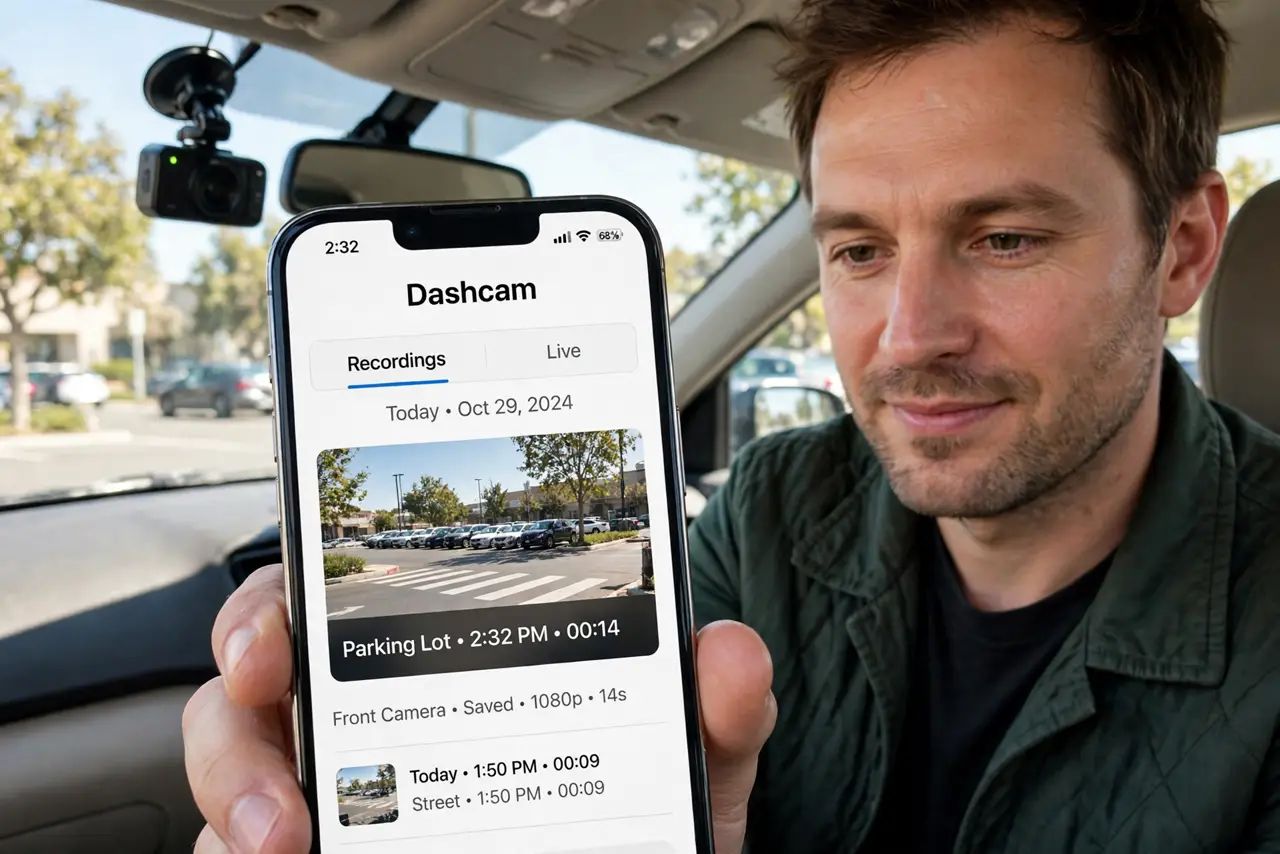
Quick fix: install your dashcam maker's app, then join the dashcam's own Wi-Fi network from your phone's Wi-Fi settings — it won't have internet, that's normal. Open the app to browse and download clips. Park the car first; never fiddle with footage while driving.
Follow these steps
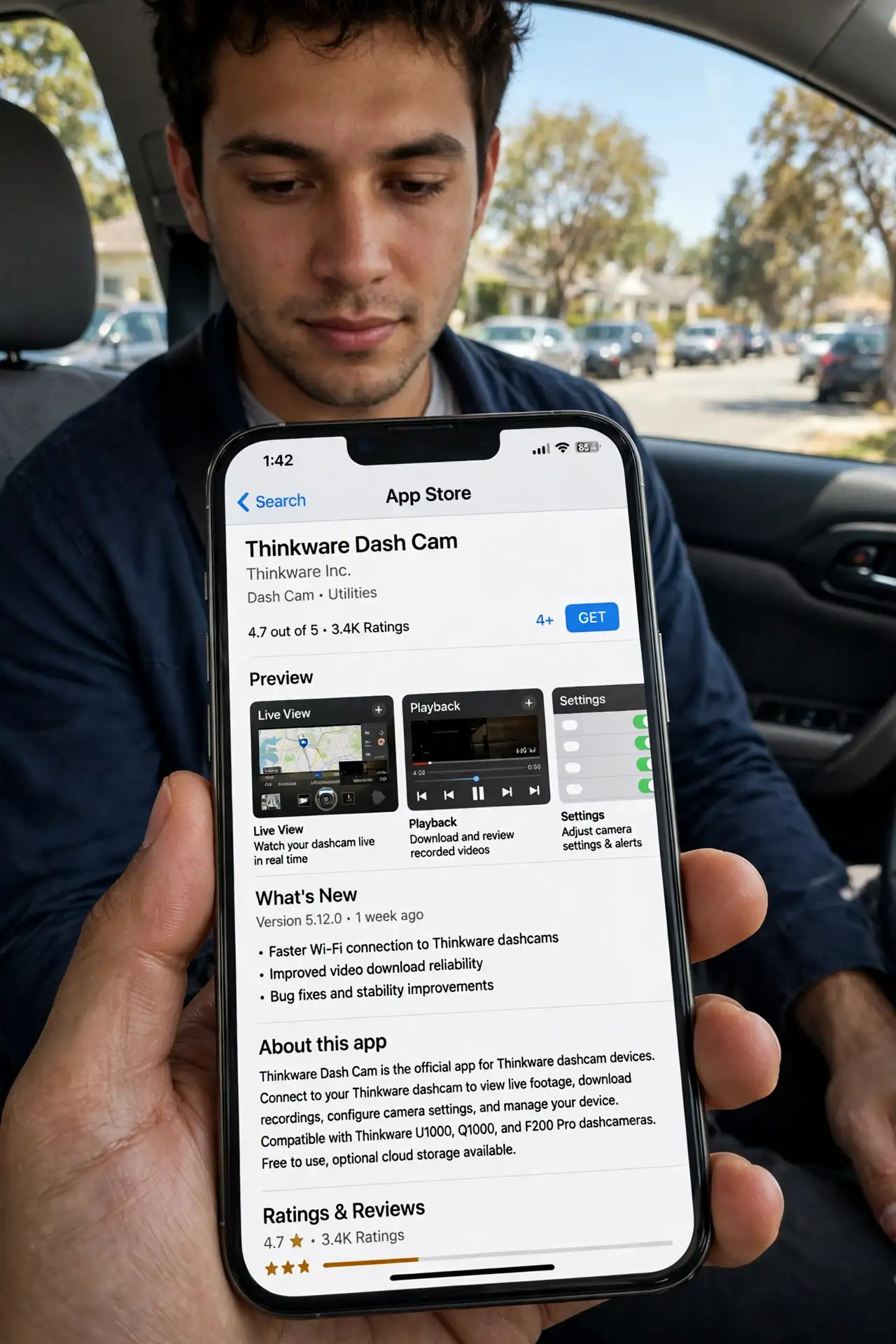
- Install the dashcam maker's own app. Download the app from the dashcam brand's site or your app store — not a generic 'Wi-Fi camera' app. Third-party apps rarely speak the dashcam's protocol.
- Join the dashcam's Wi-Fi network. In your phone's Wi-Fi settings, connect to the network name printed on the dashcam or its manual. It will show 'no internet' — that is normal, since it is a direct camera link, not a hotspot.
- Open the app only after connecting. Launch the dashcam app after the Wi-Fi is connected. Opening it first and then switching networks is why most 'app won't connect' complaints happen.
- Browse and download the clips you need. Preview clips in the app and download the important ones to your phone. Downloading takes a while — stay connected and keep the app in the foreground.
- Disconnect and rejoin your normal Wi-Fi after. Your phone will not have internet while on the dashcam's network. Switch back to your home or mobile data when you are done, or notifications and maps will stall.
- Format the memory card occasionally. Dashcams overwrite old footage in a loop, and cards wear out. Format the card in the dashcam's own menu every few months, and replace the card if recordings start corrupting.
What NOT to do
- Do not expect internet on the dashcam's Wi-Fi. It is a direct file-transfer link — 'connected, no internet' means it is working, not broken.
- Do not handle footage while driving. Park first. No clip is worth a crash, and most regions ticket phone handling behind the wheel.
- Do not delete clips from the card before downloading them. Loop recording will happily overwrite the moment you were trying to save.
- Do not buy a dashcam without checking its app exists and is maintained. A dead app turns a good camera into a card you can only read on a computer.
Frequently asked questions
Why does the app say 'not connected'?
You are probably on your home Wi-Fi instead of the dashcam's network. Switch Wi-Fi networks first, then open the app.
How far does the dashcam Wi-Fi reach?
Only a few meters — it is meant for use inside or right next to the car, not from your living room.
Does the dashcam Wi-Fi use my mobile data?
No. It is a local link with no internet, so nothing uploads and no data is consumed.