Desktop Fan Rattles on Startup? Fix It
A fan that rattles for a few seconds at startup, then settles, often hits a cable, has a worn bearing, or spins up against dust. A rattle that grows or never settles means the fan is failing, and a failing fan stops cooling the PC. Check cables and dust first, then identify which fan rattles. A fan that runs at full speed all the time needs the full-speed fan checks instead.
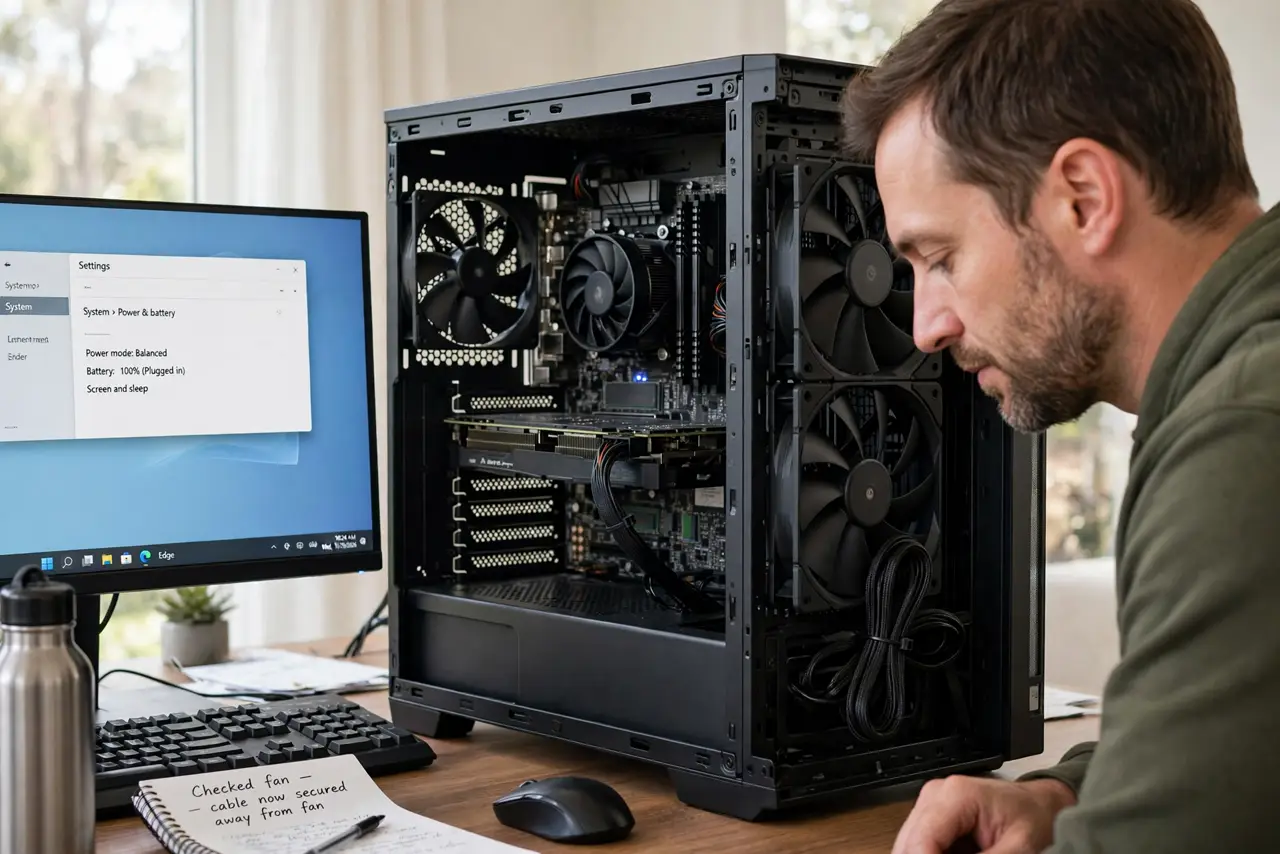
TL;DR / Quick Fix
Quick fix: Unplug the PC and look for a cable touching a fan. Spin each fan gently by hand, with power off. Then work through the remaining steps in order, checking one change at a time, and stop for a technician if you see damage, swelling, or a burning smell.
Follow these steps
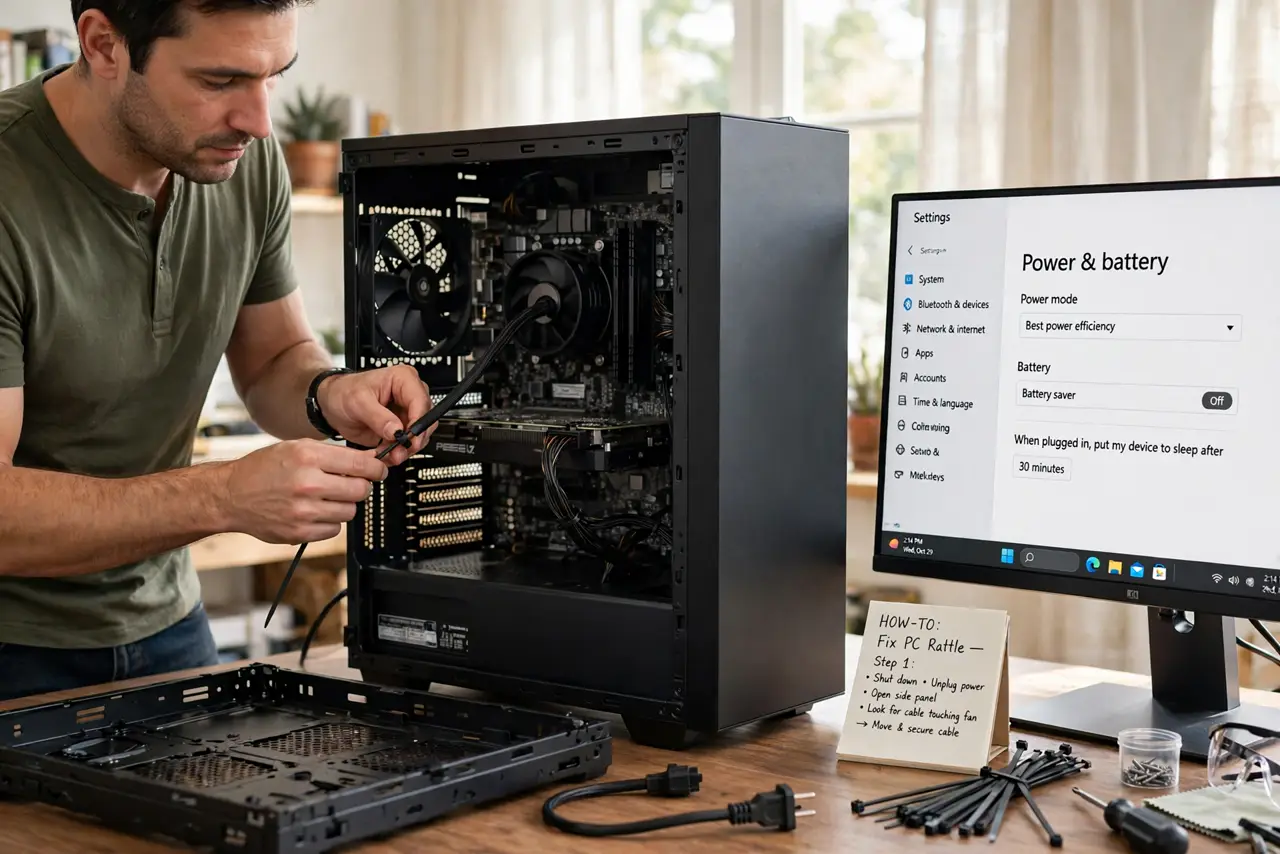
- Unplug the PC and look for a cable touching a fan. Shut down, unplug, open the side panel, and look for a cable resting against a fan blade. Move the cable away and tie it neatly, because a cable tap is the most common startup rattle.
- Spin each fan gently by hand, with power off. With the PC unplugged, spin each fan gently with a finger and listen for grinding or wobble. A fan that grinds by hand has a worn bearing, while a smooth fan is likely fine.
- Clear dust from fan blades gently. Use short bursts of compressed air held upright to clear dust from blades and vents, holding the fan still so it does not spin wildly. Dust build-up unbalances a fan and causes rattle.
- Boot with the side panel off and listen. Plug in, boot with the panel off, and listen to pinpoint which fan rattles: case fan, CPU fan, or graphics card fan. Knowing which fan rattles decides the replacement part.
- Check the fan screws and mounting. Power off and unplug again, then tighten any loose fan screws and check the fan sits flat in its mount. A fan mounted at an angle rattles as it spins up.
- Replace a fan that grinds or wobbles. If one fan grinds by hand or wobbles on its mount, replace it with a matching size and connector. Do not run a PC for long with a failing cooling fan, because heat damage follows.
What NOT to do
- Do not let compressed air spin a fan wildly. Overspinning can damage the fan bearing, so hold the fan still while you blow dust off it.
- Do not reach inside a running PC to stop a fan. Fingers near spinning blades and live parts risk injury and damage, so always power off first.
- Do not ignore a fan rattle that grows louder. A growing rattle means a bearing is failing, and a stopped cooling fan can overheat the PC fast.
- Do not oil a PC fan with household oil. Oil attracts dust, can drip onto parts, and does not repair a worn bearing.
Frequently asked questions
Why does the rattle stop after a few seconds?
At startup, fans spin up fast and a cable tap or dust imbalance shows most. As speed settles, the tap may lessen, but the fault is still there.
Can a cable really rattle a fan?
Yes, and it is the most common cause. A cable resting on a blade taps once per revolution, which sounds exactly like a rattle.
What if all fans sound fine by hand?
Boot with the panel off and listen. A fan can sound fine by hand but rattle under power if its mount is loose or its bearing wears under load.