When to Use DMZ
Your game console complains about strict NAT, a friend cannot join your server, and a forum post says just put it in the DMZ. The DMZ — demilitarized zone — puts one device outside your router's firewall, letting all traffic reach it. It does fix stubborn connection problems. It also removes the protection that stops random internet strangers from knocking on that device. Here is when it is justified, and the safer options to try first.
TL;DR / Quick Fix
Quick fix: a router DMZ puts one device outside the firewall, fixing stubborn NAT and hosting problems — but exposing it to the whole internet. Try port forwarding first; use DMZ only for game consoles, never a PC with personal files. Read the DMZ explainer first.
Follow these steps
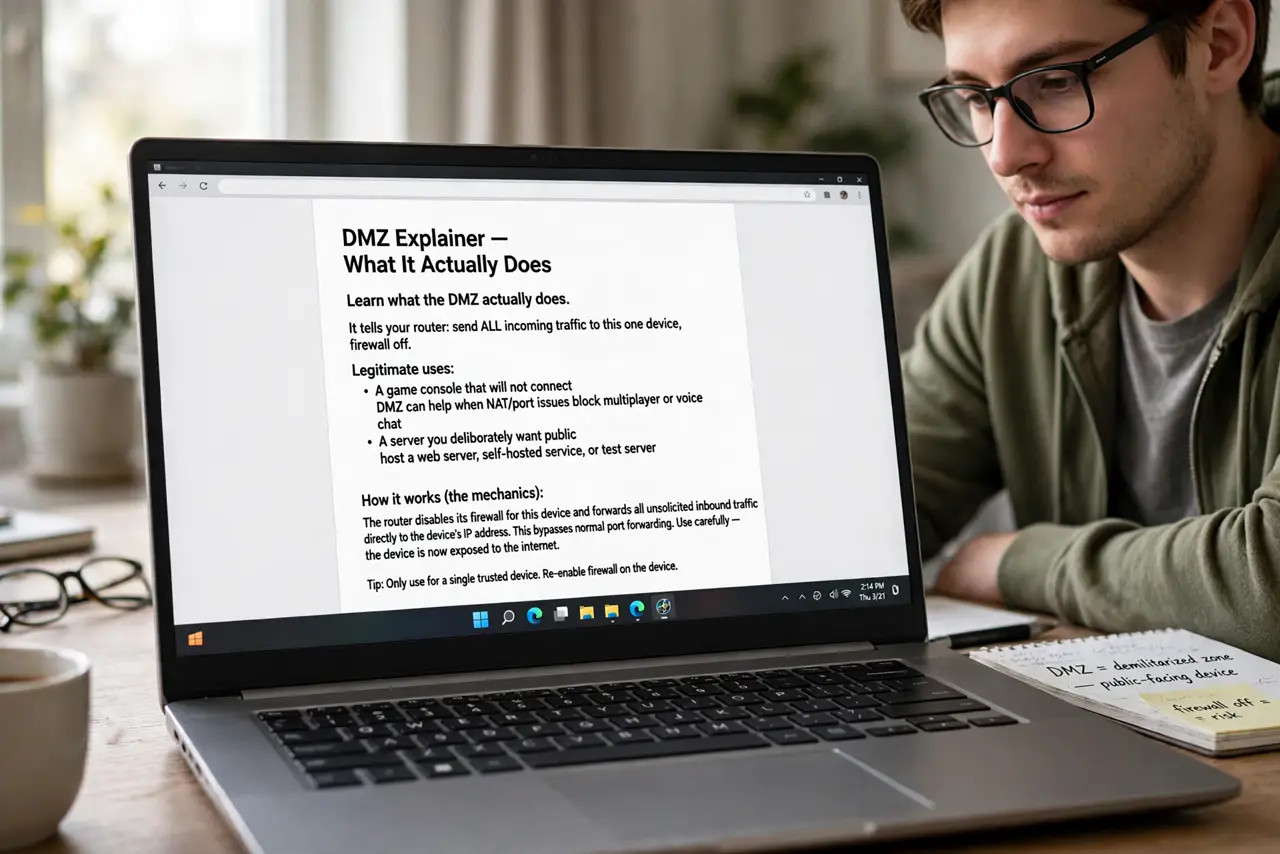
- Learn what the DMZ actually does. It tells your router: send ALL incoming traffic to this one device, firewall off. Legitimate uses: a game console that will not connect, or a server you deliberately want public. For background, the DMZ explainer covers the mechanics.
- Try port forwarding first. Most strict NAT problems need just one or two specific ports opened, not the entire firewall dropped. Forwarding the game's actual ports is the surgical fix — see the port-forwarding troubleshooting guide.
- Never DMZ a computer with personal data. A Windows PC or Mac in the DMZ gets probed by automated scanners within minutes. Only low-risk devices — consoles, dedicated game servers — belong there, never your main computer.
- Give the DMZ device a static IP. The DMZ points at one IP address. If your router's DHCP hands the console a different address tomorrow, the DMZ breaks silently — assign a static or reserved IP first.
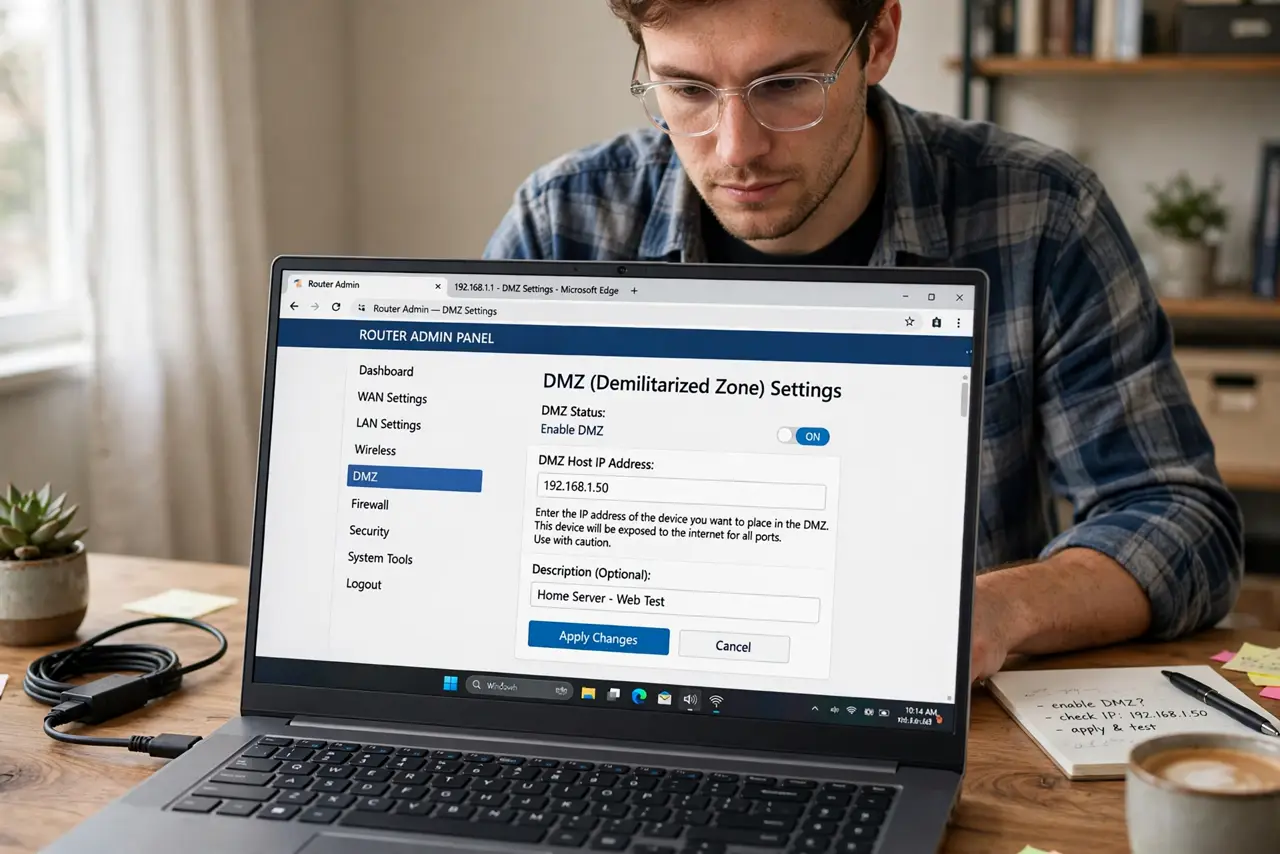
- Enable it in the router settings. Log in to your router admin page, find the DMZ section (often under WAN or Security), enter the device's IP, and save. Reboot the router if the setting does not take effect immediately.
- Turn it off when you are done. Hosting a weekend game server? Disable the DMZ on Monday. A permanent DMZ is a permanent open door — treat it as a temporary tool, not a setting.
What NOT to do
- Do not put your main PC or laptop in the DMZ. It strips away the router firewall that blocks automated attacks — the riskiest thing on this list.
- Do not enable DMZ just to see if it helps without a specific problem. Randomly dropping the firewall for vague slowness fixes nothing and adds risk.
- Do not use DMZ as a substitute for diagnosing double NAT. If you have two routers chained, fix the double-NAT setup — DMZ will not help there.
- Do not forget the device still needs its own updates. A console in the DMZ with outdated firmware is exactly the kind of target scanners look for.
Frequently asked questions
Is DMZ safe for a PS5 or Xbox?
Reasonably — consoles are hardened, single-purpose devices with little personal data. It is far safer than DMZ-ing a PC, though port forwarding is still the tidier fix.
DMZ vs port forwarding — which is better?
Port forwarding opens only the doors one app needs; DMZ opens all of them. Forwarding takes a few more minutes to set up and is almost always the right choice.
Why is my NAT still strict after enabling DMZ?
Your ISP may use carrier-grade NAT, which no router setting can fix — or you may have double NAT from a modem-router plus your own router. Check both before blaming the console.
What to read next
- Wi-Fi DMZ Explained
- Port Forwarding Not Working?