Encrypt DNS Queries
Every site you visit starts with a DNS lookup — your browser asking 'what is the address of this site?' Traditionally that question travels unencrypted, meaning your internet provider (and anyone on the network) sees every site you look up. DNS-over-HTTPS wraps those lookups in the same encryption as secure websites. It is a small setting with a big privacy payoff. Here is how to enable it.
TL;DR / Quick Fix
Quick fix: DNS-over-HTTPS encrypts the address lookups your browser makes, so your provider can no longer see every site you visit. Turn it on in your browser settings under Privacy or Security — it takes seconds. Your provider still sees connection IPs, so add a VPN for full privacy.
Follow these steps
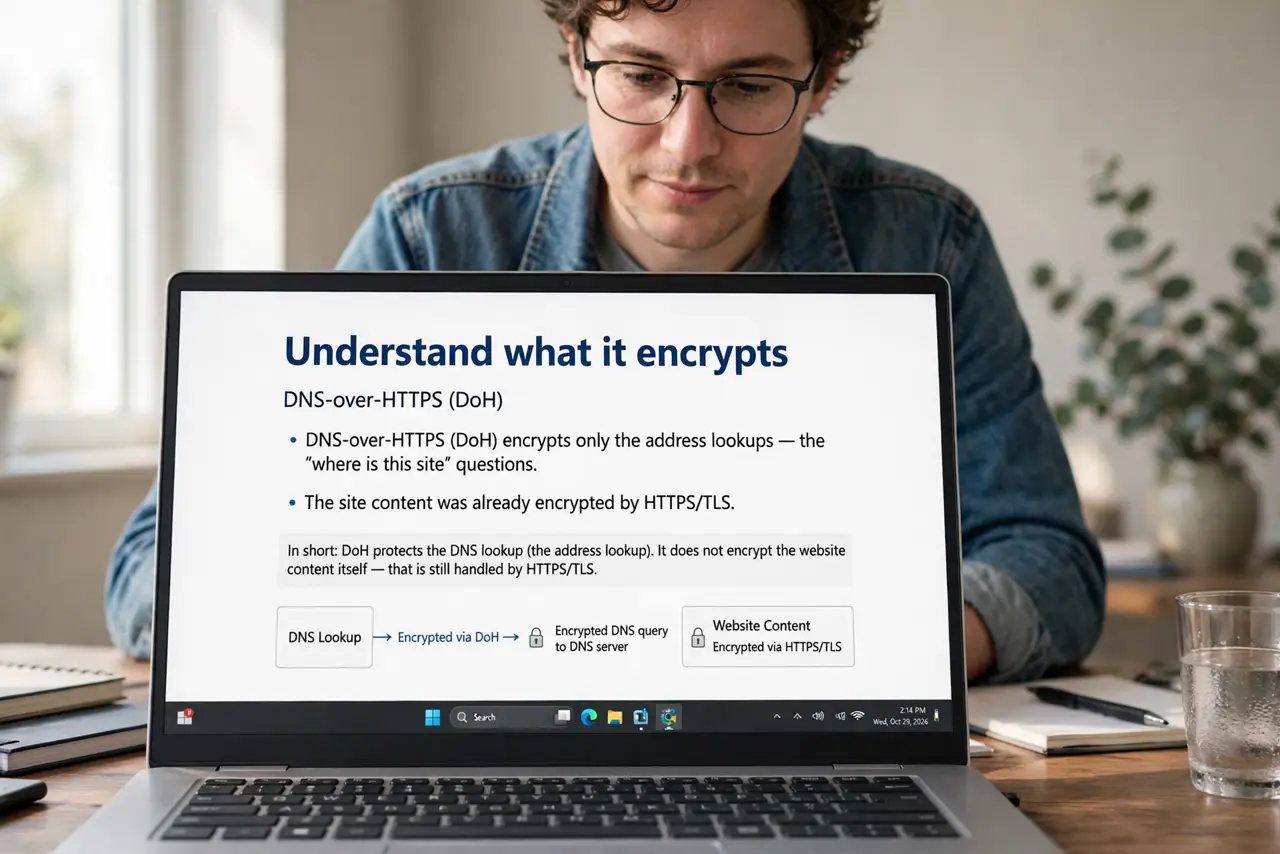
- Understand what it encrypts. DNS-over-HTTPS (DoH) encrypts only the address lookups — the 'where is this site' questions. The site content was already encrypted by HTTPS; now the lookup is too. Your provider goes from seeing everything to seeing much less.
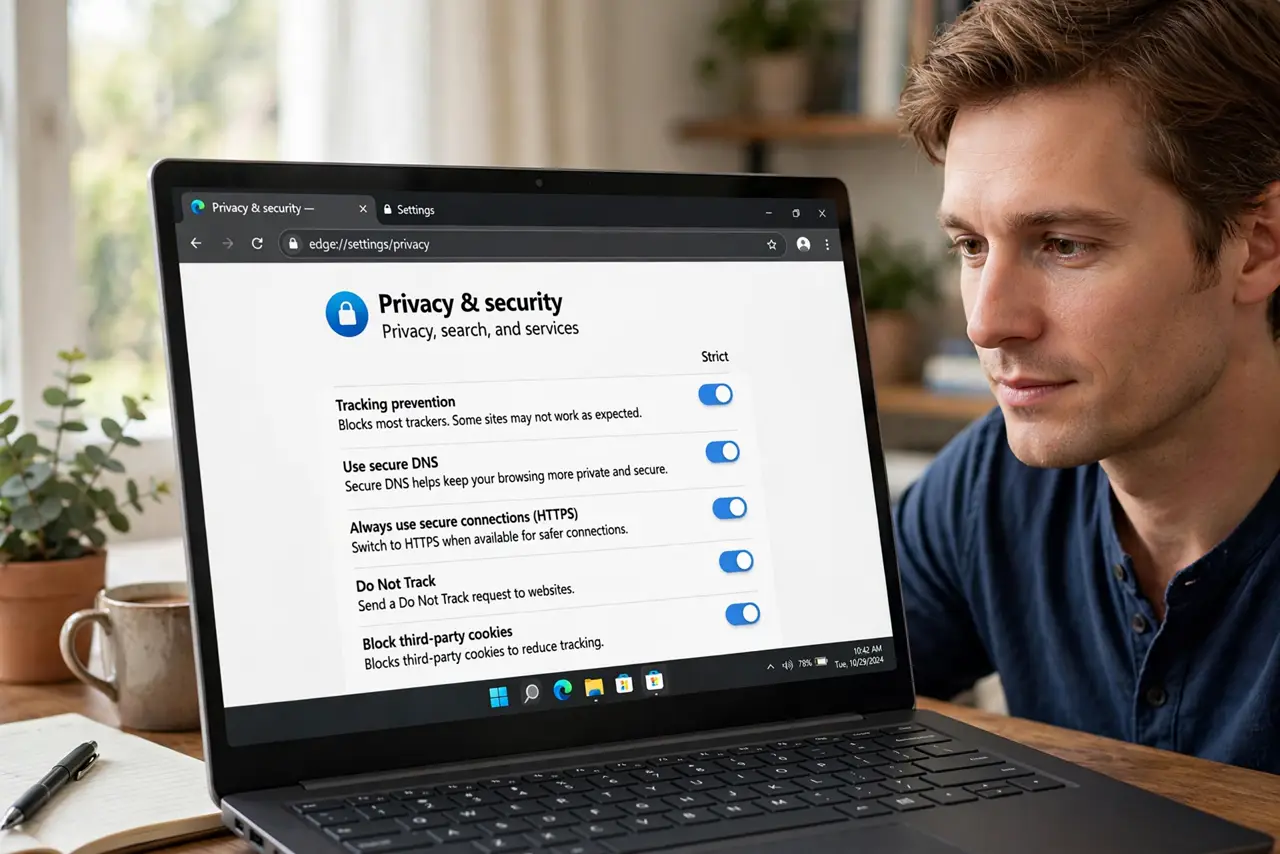
- Turn it on in your browser. In Chrome, Edge, Firefox, or Brave, open Settings, then Privacy and security, and find the secure DNS or DNS-over-HTTPS option. Enable it and pick a provider — the browser usually suggests reputable defaults. The full background explains the provider choice.
- Pick a DNS provider you trust. With DoH, your DNS provider sees your lookups instead of your ISP. Choose one with a clear no-logging policy from a name you recognize — you are moving trust, not eliminating it.
- Know its limits. DoH hides lookups, but your provider can still see the IP addresses you connect to, which often reveal the site anyway. For full privacy against provider snooping, pair DoH with a VPN.
- Consider the router-level option. DoH protects one browser; setting encrypted DNS at the router protects every device in the house at once. One does not replace the other — they stack.
- Test that it is working. Visit a DNS leak or encryption check site after enabling it. If the check shows encrypted DNS active, you are done — if not, the setting may need a browser restart.
What NOT to do
- Do not assume you are invisible now. DoH is one layer — your provider still sees connection IPs, and trackers in the browser still track.
- Do not pick a random DNS provider. Obscure free providers can log or sell exactly the data you are trying to protect — stick to reputable names.
- Do not enable it and forget parental controls. Some family filtering relies on plain DNS; encrypted DNS can bypass router-level filters unless they support it too.
- Do not confuse it with a VPN. A VPN hides far more; DoH hides only the lookups. They solve different problems and work best together.
Frequently asked questions
Will DNS-over-HTTPS slow my browsing?
No — usually it is as fast or faster, since big DNS providers answer quickly. Any difference is unnoticeable in normal browsing.
Does it work on public Wi-Fi?
Yes, and that is where it helps most — it stops the cafe hotspot owner from logging every site you visit.
Should I use it on my phone too?
Yes. Both iPhone and Android support encrypted DNS settings, and phones spend the most time on untrusted networks.