Different First Page Header? Setup
Your document's first page is a title page — but the header with the page number sits on it anyway, looking wrong. The 'different first page' setting gives page one its own header and footer, typically blank, while the rest of the document keeps theirs. One checkbox, professional result. Here is how to set it up.

TL;DR / Quick Fix
Quick fix: 'different first page' lets page one have its own header and footer — typically blank, while later pages show page numbers. Open the header/footer options and check Different first page. Design the first-page header separately. Ideal for title pages and cover sheets.
Follow these steps
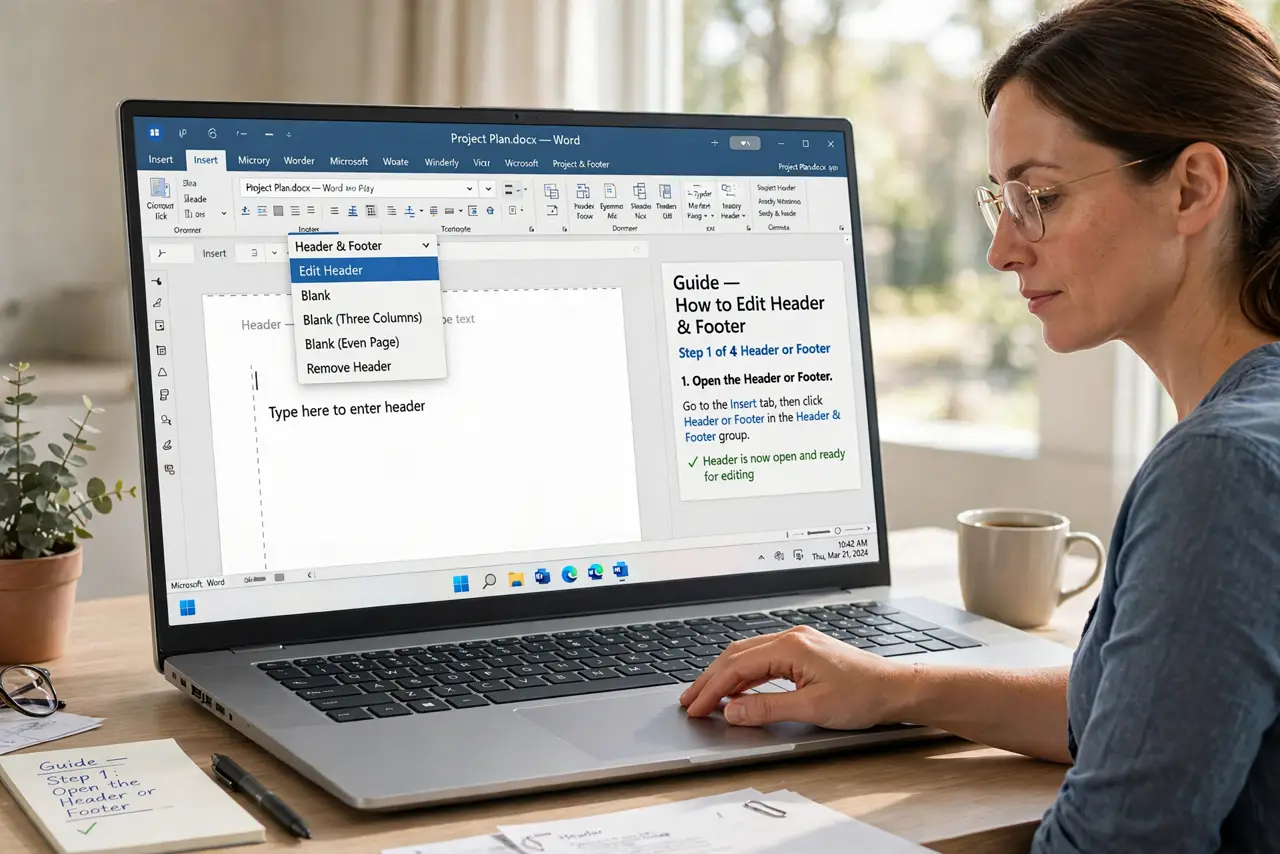
- Open the header or footer. Double-click the header or footer area (or use Insert > Headers & footers) to enter header/footer editing mode.
- Check 'Different first page.' In the header/footer options panel, tick Different first page. Page one immediately gets its own independent header and footer.
- Design the first page separately. Leave the first-page header blank for a clean title page — or give it unique content, like a logo without page numbers.
- Set up the rest normally. Navigate to page two's header and build the standard version — page numbers, document title, whatever belongs on every page.
- Know it pairs with page-number tricks. Different-first-page plus starting numbering on page two is the classic professional setup: title page clean, numbering correct from the content on.
- Check it survived conversions. If you export to Word or PDF, verify the first page stayed clean. Most conversions preserve it, but a glance costs nothing.
What NOT to do
- Do not fake it by deleting the header content on page one. Without the setting, your 'blank' first page shifts the moment text reflows.
- Do not forget the footer too. Different first page covers headers AND footers — check both if you only wanted one blank.
- Do not use it to hide a bad title page. Fix the title page design; the setting only controls headers and footers.
- Do not assume it applies per section. It is document-wide for page one — section breaks handle per-part headers.
Frequently asked questions
Can I have a different header on the last page too?
Not with this setting — it only special-cases the first page. Section breaks can give other parts their own headers.
Why does my page numbering start at 2 look wrong?
Combine Different first page with the page-number start option so numbering begins correctly on the content pages.
Does this work in Microsoft Word too?
Yes — Word has the identical 'Different First Page' checkbox in its header/footer tools. The concept transfers directly.