Drop Caps in Docs? How To
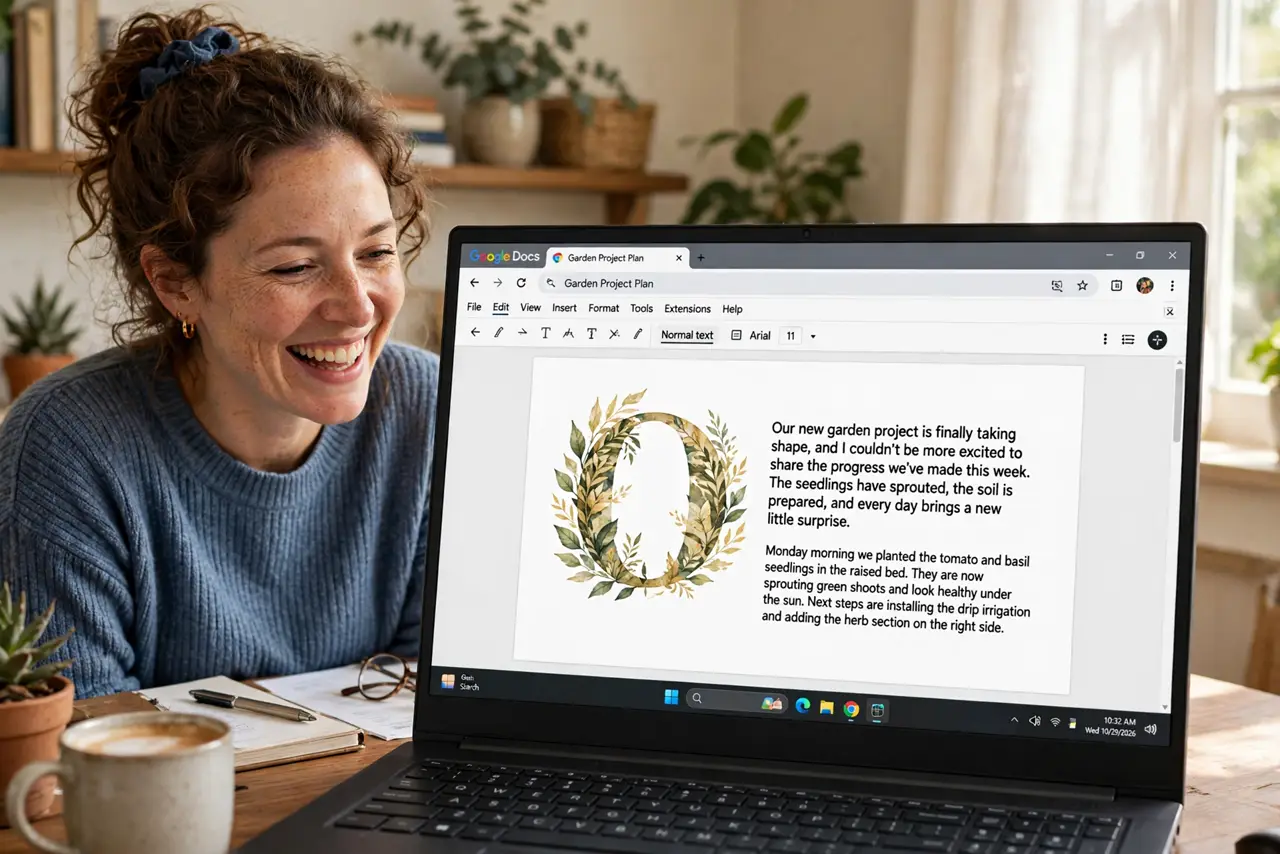
That big decorative first letter starting a chapter — the drop cap — is a classic print touch, and Docs added it natively. One menu, a few options, instant editorial feel. Here is how.
TL;DR / Quick Fix
Quick fix: in Google Docs place the cursor in the paragraph, go to Insert > Drop cap, and pick a style. It enlarges the first letter to span several lines. Use it once per chapter opening — a drop cap on every paragraph is decoration overkill.
Follow these steps
- Place the cursor in the paragraph. Click anywhere in the opening paragraph — the drop cap applies to the paragraph the cursor is in.
- Insert the drop cap. Insert > Drop cap, then choose a style. The first letter immediately grows to span multiple lines.
- Use it on openings only. Chapter starts, article leads — one per major opening. Restraint is what makes it look editorial.
- Check the paragraph spacing. The enlarged letter needs room — ensure the paragraph has normal line spacing so text wraps cleanly around it.
- Remove it cleanly. Insert > Drop cap > None. The letter returns to normal size — no formatting residue.
- Pair with a heading. Drop cap under a chapter heading is the classic combo. The heading announces; the drop cap invites.

What NOT to do
- Do not drop-cap every paragraph. One per opening — more is a ransom note.
- Do not use it on short paragraphs. Two-line paragraphs with a three-line letter look broken.
- Do not combine with all-caps first words. The giant letter plus shouting text is too much.
- Do not expect it in every export. Check PDF and Word exports — rendering varies.
Frequently asked questions
Where is the drop cap option?
Insert > Drop cap. If you do not see it, update — it is a newer Docs feature.
Can I change the drop cap font or color?
Style options are limited to Docs presets. For full control, that is a job for desktop publishing software.
Does the drop cap print?
Yes — it prints as shown. Preview to confirm the wrap looks right on paper.