Email Collaborators From Docs
Your document is ready for eyes — and you want more than a bare link in a chat message. Google Docs can email collaborators directly from the document, with your own message attached, and the Share dialog notifies people when you add them. Both routes keep the link and the context together.
TL;DR / Quick Fix
Open the document, click Share, and tick Notify people — or use File > Email > Email collaborators to write a custom message. Add recipients, choose Can edit or Can comment, and send. Everyone gets a link by email; they need a Google account only if you restrict access.
Follow these steps
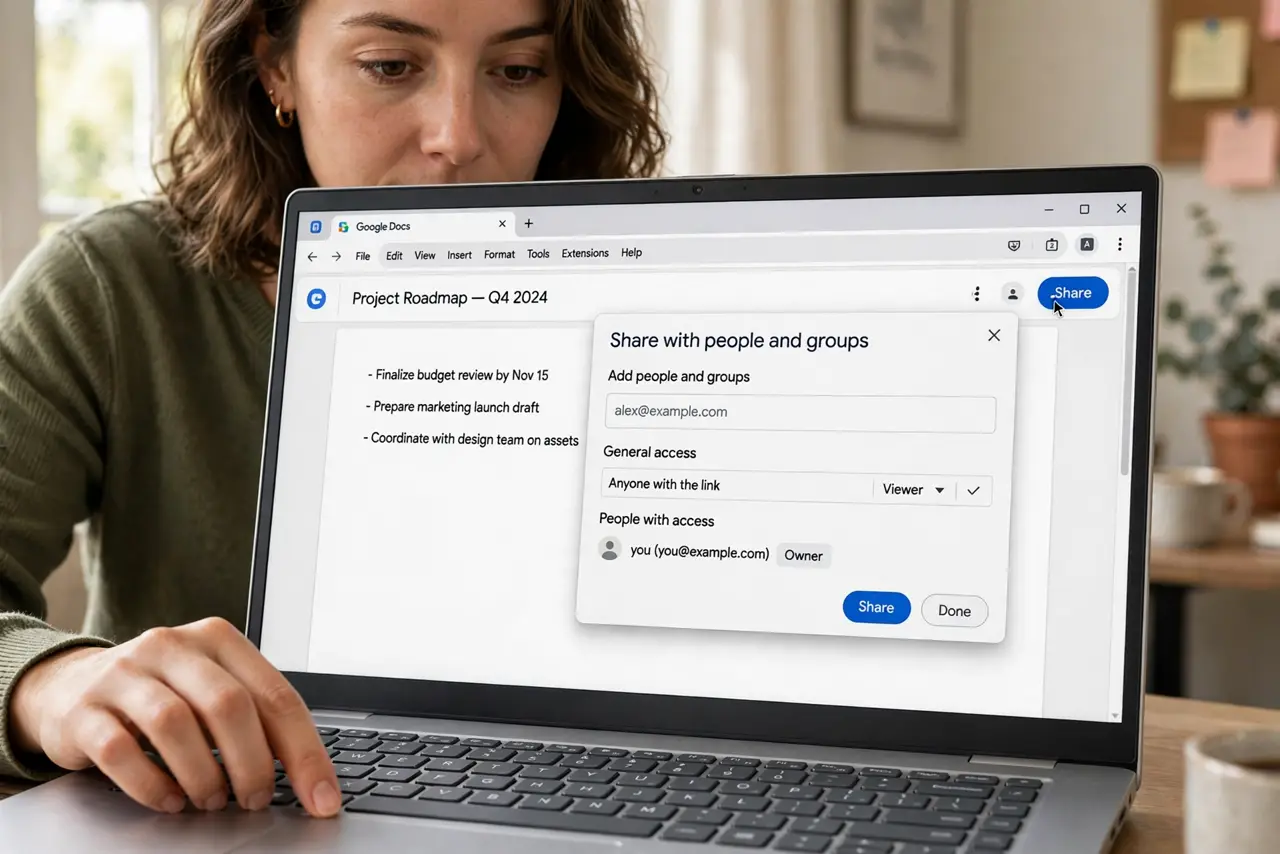
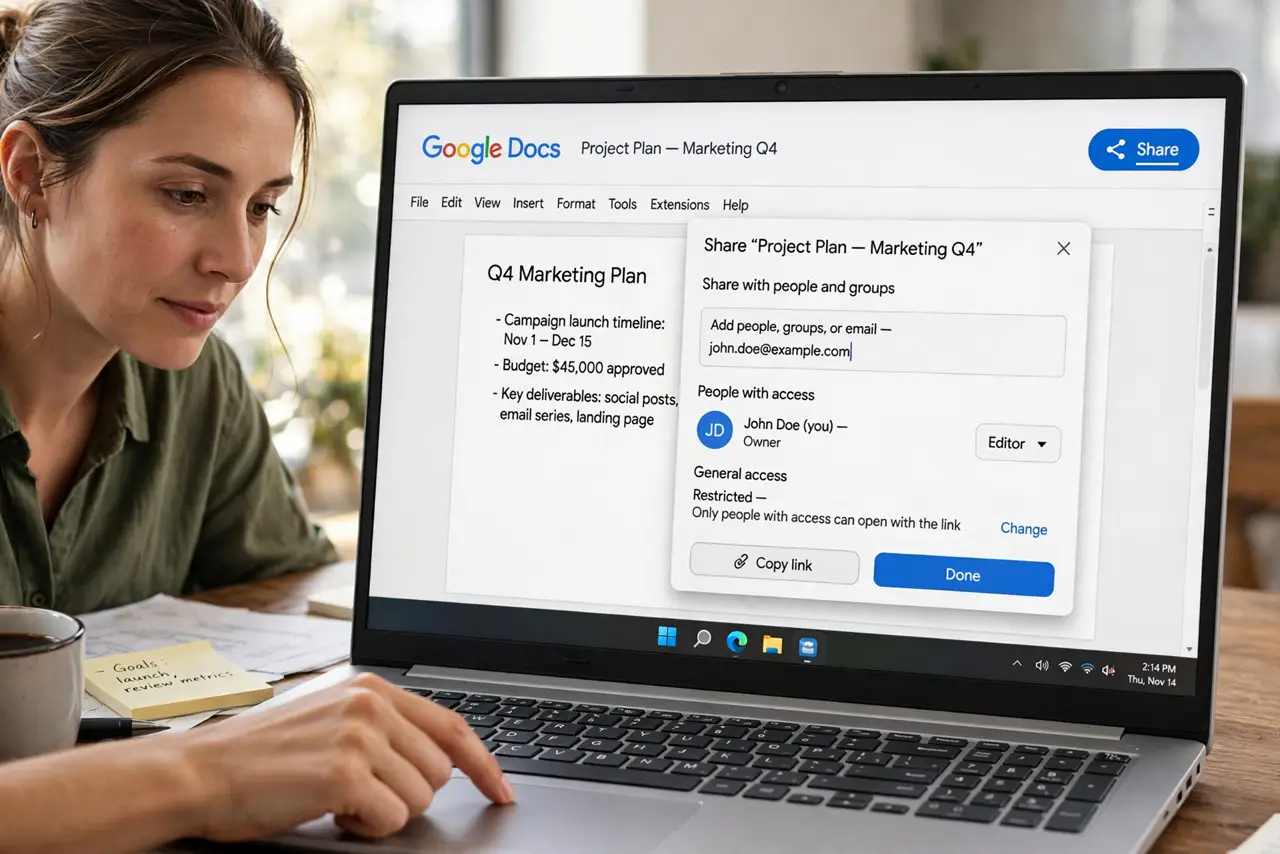
- Click the Share button. Top-right of the document. The Share dialog is the control room for who can access the file and what they can do.
- Add people by email address. Type each address in the Add people field. Choose Viewer, Commenter, or Editor from the role dropdown before sending.
- Tick Notify people and add a message. The checkbox sends an email with your note plus the link. Write one line of context — people open linked docs faster with it.
- Or use File > Email > Email collaborators. This route opens a compose window with the document attached as a link and your message. Better for longer explanations to a group.
- Set link sharing if appropriate. For a wide audience, change General access to Anyone with the link. Keep it Restricted for sensitive documents.
- Confirm they received it. Ask one recipient to confirm, and check the Share dialog — it lists who has access and their roles.
What NOT to do
- Do not grant Editor to everyone by default. Commenter is enough for feedback; Editor lets anyone rewrite or delete your work.
- Do not email the document as an attachment when a link will do. Attachments fork into conflicting versions — the link keeps everyone on one live copy.
- Do not share sensitive documents with Anyone with the link. That link can be forwarded anywhere; keep Restricted and name the people.
- Do not forget to remove access later. Old collaborators keep their access until you revoke it — review the Share list when a project ends.
Frequently asked questions
Do collaborators need a Google account?
Only if access is Restricted. With Anyone with the link, they can view or comment without signing in; editing still needs an account.
What is the difference between Notify people and Email collaborators?
Notify people sends a short share notification from the Share dialog; Email collaborators under File > Email opens a fuller compose window for longer messages.
Can I email a PDF instead of a link?
Yes — File > Email > Email this file attaches the document as PDF or Word. Use it for formal delivery, not for collaborative editing.