Name Versions in Google Docs? How To
Google Docs saves every change automatically, but scrolling through October 29, 2:14 PM entries to find your draft is miserable. Named versions let you bookmark milestones like Draft sent to client so you can jump back instantly. This guide shows how to name, find, and restore them.
TL;DR / Quick Fix
Open version history and name important milestones like Draft v1 or Client feedback so you can find them later. Name versions before big edits, share the names with collaborators, and restore a named version when an edit goes wrong. Never rely on timestamps alone.
Follow these steps
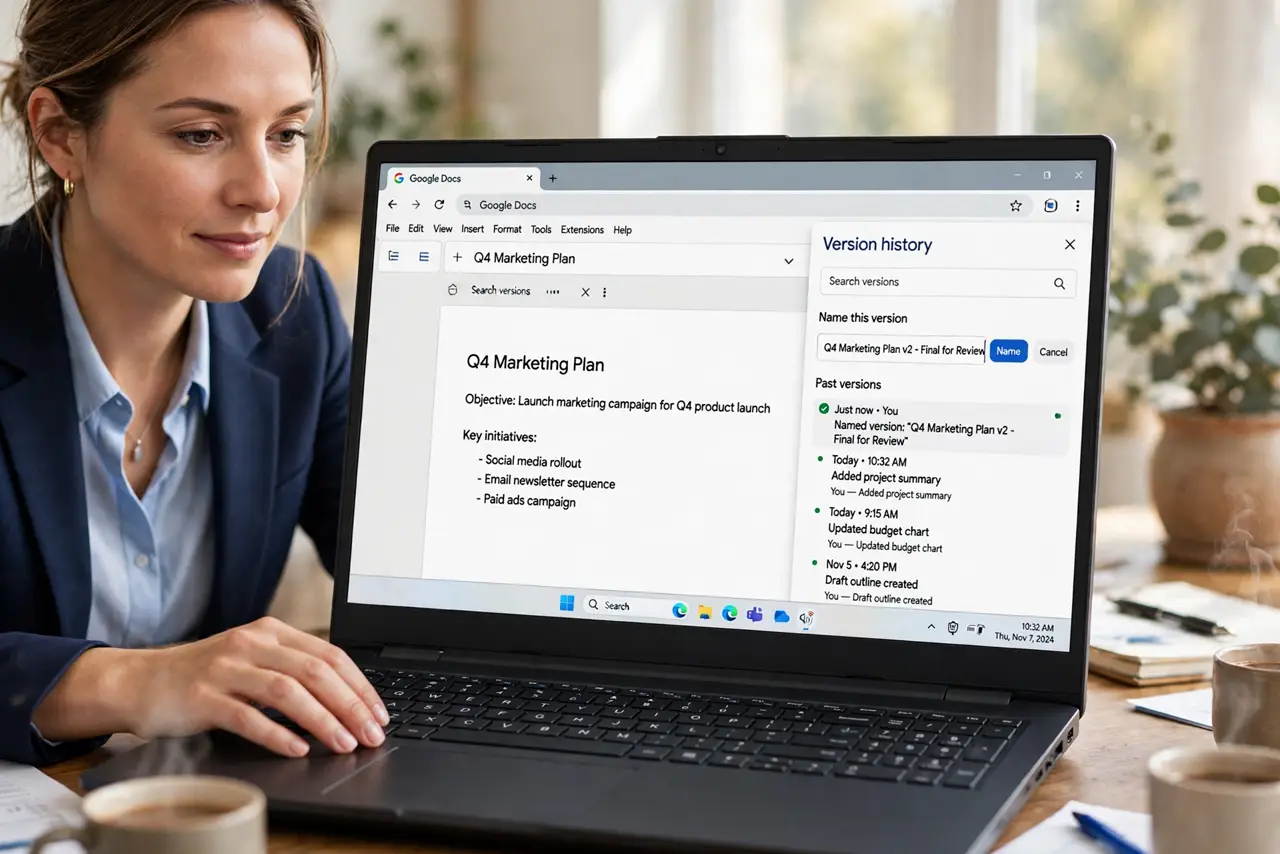
- Open version history. In Google Docs, open File, then Version history, then See version history. The panel on the right lists every saved change with a timestamp.
- Pick the milestone to name. Click the version that matches your milestone, and check its preview. Naming the wrong version is easy when entries are minutes apart, so verify first.
- Name it clearly. Click the three dots on the version and choose Name this version. Use names like Draft v1 or Before restructure, not vague labels like Good version.
- Name versions before big edits. Right before a rewrite or a merge of feedback, name the current version. That bookmark is your undo button if the edit goes sideways.
- Share the names with collaborators. Tell your collaborators which named versions matter, like Final for review. Shared names keep everyone restoring the same milestone.
- Restore from a named version when needed. Open version history, find the named version, and restore it. Docs keeps the current text as a new version too, so restoring never destroys recent work.
What NOT to do
- Do not name every single version. Name milestones only, or the list becomes as noisy as the timestamps were.
- Do not use vague names like Version 2. A name should say what changed or why it matters.
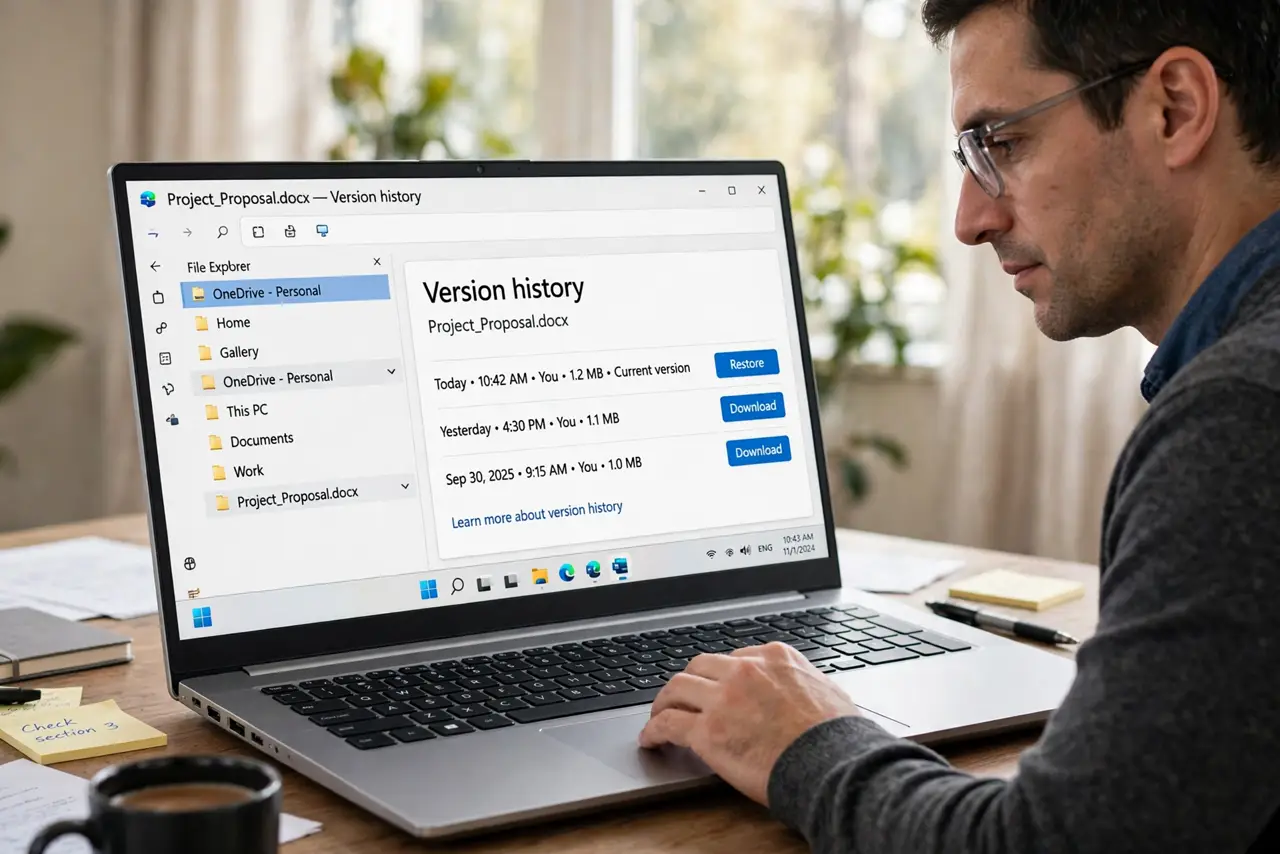
- Do not restore without checking the preview. Restoring the wrong version creates a mess you then have to undo.
- Do not treat named versions as backups. They live inside the same document, so keep a separate copy for anything irreplaceable.
Frequently asked questions
How do I see named versions in Google Docs?
Open File, Version history, See version history. Named versions appear at the top of the history list with their names in bold.
Can I rename a version later?
Yes. Open version history, click the three dots on the version, and choose to rename it.
Do named versions work in shared docs?
Yes, and they are even more useful there, since collaborators can find agreed milestones like Approved draft without guessing.