Recover an Overwritten Cloud File? How To
You saved a document and realized the new version replaced the good one. Most cloud services keep older versions of your files, so an overwritten file is usually recoverable. This guide shows how to open the version history and restore the copy you actually want.
TL;DR / Quick Fix
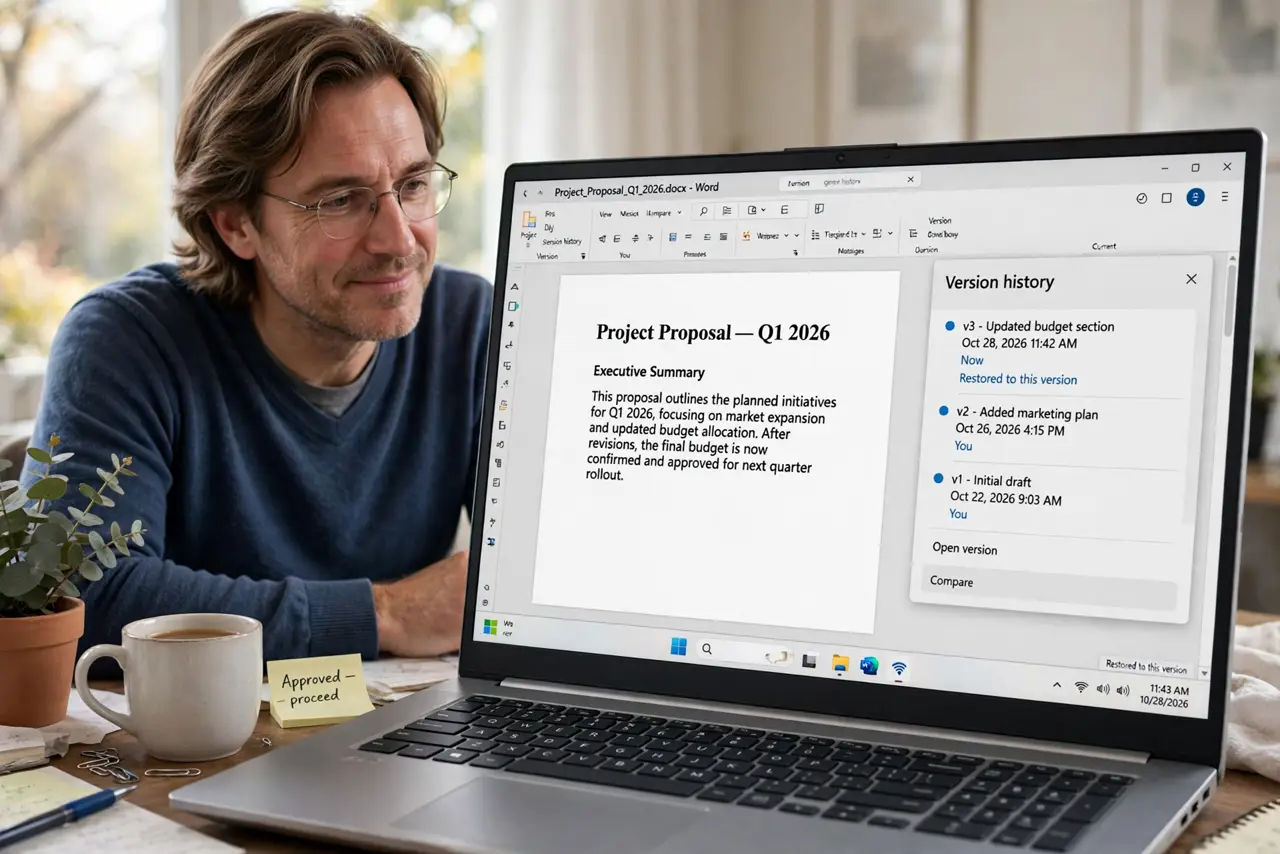
Quick fix: open the file's version history in your cloud drive app and restore the version from before the overwrite. Do it soon, because some services only keep old versions for 30 days. Check the restored file, rename it or save a copy so the version never gets overwritten again.
Follow these steps
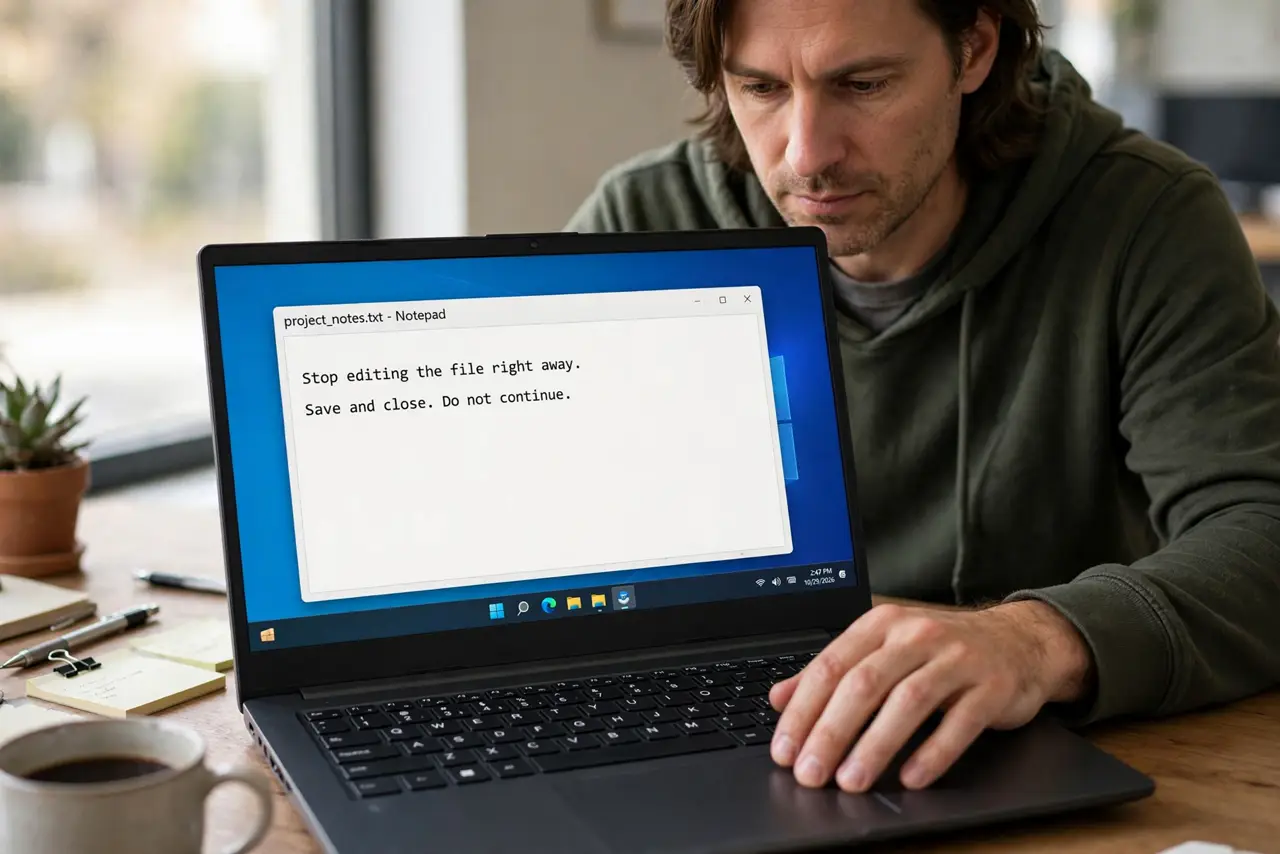
- Stop editing the file right away. Close the file or stop typing the moment you notice the overwrite. Every new save can push the good version further down the history list, and on some services it shortens how long old versions are kept.
- Open version history in the cloud app. Right-click the file in Google Drive, OneDrive, Dropbox, or iCloud and look for Version history or Previous versions. Pick the newest version that still has your work, judging by the date and time shown.
- Preview the versions by date. Open the candidates around the time of the overwrite and compare their contents. Previewing beats guessing, since two versions saved minutes apart can look identical in the list.
- Restore the good version. Use the Restore button on the version you picked. The current bad version usually becomes a new entry in the history, so nothing is lost if you restore the wrong one by mistake.
- Rename or copy the restored file. Give the restored file a clear name with the date, or save a separate copy outside the synced folder. That way a future overwrite cannot silently replace your only good copy.
- Check that the file is intact. Open the restored file and scroll through it to confirm your work is all there. If anything is missing, repeat the restore with the next older version before you keep editing.
What NOT to do
- Do not keep editing and saving after the overwrite. Each save adds a new version on top and can make the good one harder to find or expire sooner.
- Do not delete the file hoping to recover it from trash instead. Trash recovery is a different process, and deleting adds risk without helping the version problem.
- Do not restore the very oldest version by default. The newest version that still contains your work is the one you want, so preview first.
- Do not assume the file is gone if version history looks empty. Check that you are signed into the right account and looking at the right folder before giving up.
Frequently asked questions
How long do cloud services keep old file versions?
It varies: Google Drive keeps them for 30 days or 100 versions, OneDrive and Dropbox keep them for 30 days on free plans and longer on paid ones. Restore as soon as you notice the problem.
Can I recover an overwritten file without version history?
Only sometimes. Check the trash or recycle bin, look for a local copy on your computer, or ask the file owner for a copy. Without version history, recovery is much less certain.
Will restoring delete the current version?
Usually not. Most services keep the current version as a new history entry when you restore an older one, so you can undo a wrong restore.