Change the Page Color
White pages are the default, not the law. A soft tint behind a flyer, a dark page for a dramatic handout — page color changes the whole feel in one setting. Here is where it lives and when to use it.

TL;DR / Quick Fix
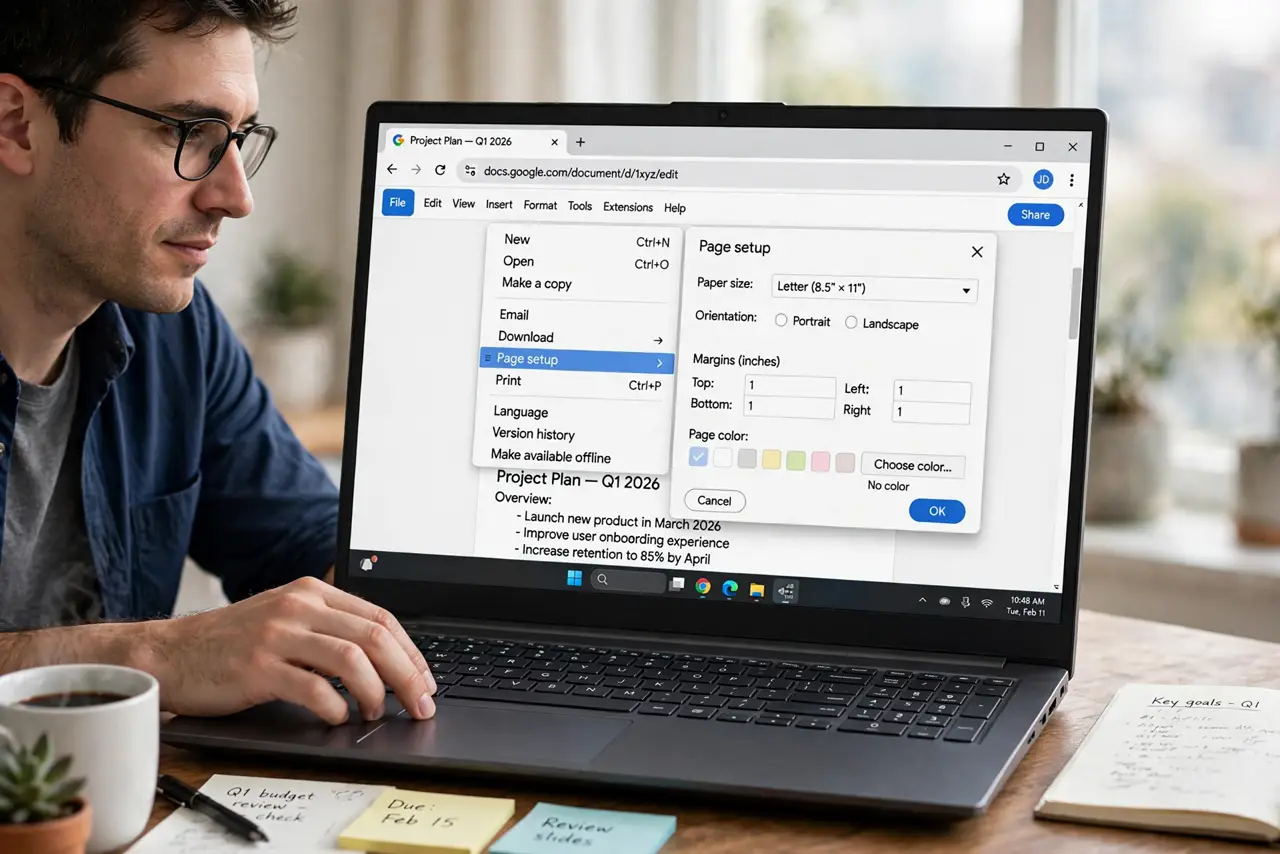
Quick fix: in Google Docs go to File > Page setup > Page color and pick a tint. Keep text contrast high — dark text on light tints, light text on dark pages. Remember it prints: a dark page drinks ink, so use page color for screen-first documents.
Follow these steps
- Open Page setup. File > Page setup. Page color sits with margins and size — the page physical settings.
- Pick the color. Choose a tint from the palette or a custom hex. Soft tints — cream, pale blue — read best; saturated colors shout.
- Fix the text contrast. Dark page? Switch body text to white or pale. Check contrast — pretty means nothing if it is unreadable.
- Consider the print cost. Full-page color prints expensive and slow. For print runs, keep pages white and add color in elements instead.
- Use it for screen-first docs. Digital handouts, slides-as-docs, posters — page color shines where ink never flows.
- Revert cleanly. File > Page setup > Page color > white. One click back to default — no residue.
What NOT to do
- Do not use page color on long reports. Tinted pages fatigue eyes over forty pages — white wins for reading.
- Do not pair dark pages with dark text. Contrast first, aesthetics second — always.
- Do not forget accessibility. Low-contrast color schemes lock out low-vision readers.
- Do not print dark pages casually. One dark page can drink a noticeable amount of ink.
Frequently asked questions
Will the page color print?
Yes — exactly as shown. That is why dark pages cost ink; preview before committing to a print run.
Can different pages have different colors?
Page color is document-wide. Per-page color needs section tricks or separate documents.
Does page color export to PDF?
Yes — the PDF carries the background color faithfully.