Suggesting Mode? How It Works
Someone shares a document and asks for your feedback — but you must not rewrite their words directly. Suggesting mode is Google Docs' answer: your edits appear as colored proposals the owner can accept or reject one by one. It is the polite, trackable way to edit someone else's work. Here is how it works.

TL;DR / Quick Fix
Quick fix: Suggesting mode in Google Docs turns your edits into proposals the owner can accept or reject, instead of changing text directly. Switch via the editing mode dropdown in the toolbar. Use it when reviewing someone else's document; suggestions appear as colored markup with your name.
Follow these steps
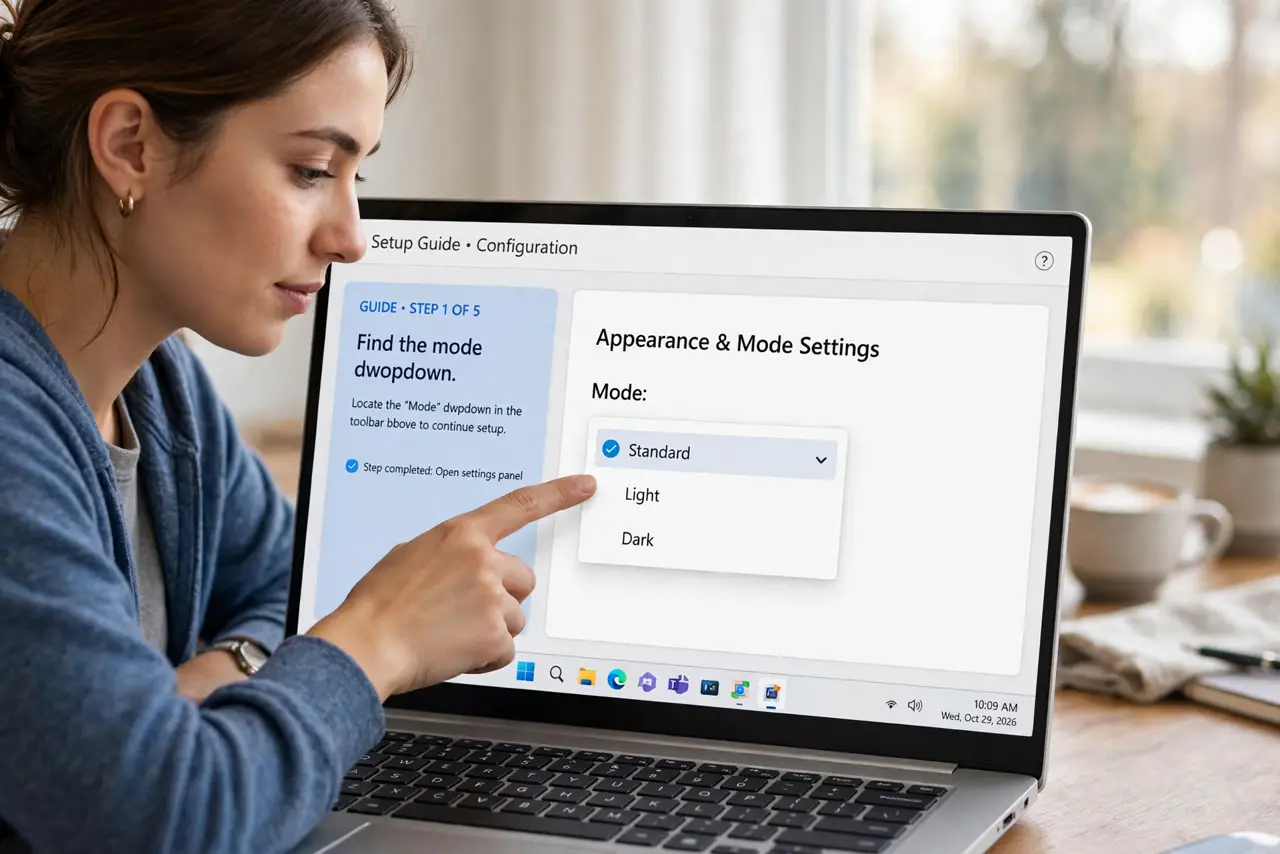
- Find the mode dropdown. In the toolbar, click the pencil icon (Editing mode). The dropdown offers Editing, Suggesting, and Viewing — switch to Suggesting.
- Make edits normally. Type, delete, and reformat as usual. Instead of changing the text, Docs records each change as a colored suggestion tagged with your name.
- Understand what the owner sees. Every suggestion appears in the margin with Accept and Reject buttons. Nothing becomes final until the owner decides.
- Add comments to explain big suggestions. For substantial rewrites, attach a comment explaining why. A bare suggestion without context often gets rejected.
- Accept or reject suggestions you receive. When reviewing others' suggestions on your document, work through them with the checkmark and X in the margin — see accepting suggestions.
- Switch back to Editing when done. Change the dropdown back to Editing for your own direct work. Staying in Suggesting mode by accident litters your own documents with proposals.
What NOT to do
- Do not use Suggesting mode on your own drafts unless you mean it. Every keystroke becomes a proposal you must later accept — tedious.
- Do not suggest huge rewrites without a comment. The owner cannot read your mind; unexplained red ink feels like an attack.
- Do not confuse Suggesting with Viewing. Viewing locks you out of edits entirely; Suggesting lets you propose them.
- Do not leave dozens of suggestions unresolved. Work through them or ask the owner to — stale suggestions rot into confusion.
Frequently asked questions
Can I suggest changes on a document I only have view access to?
No — you need commenter access or better. With view-only access, even suggestions are locked out.
Do suggestions work in the Docs mobile app?
You can view and accept/reject suggestions on mobile, but making new suggestions is clunkier — desktop is the real workspace.
What happens to rejected suggestions?
They vanish from the text but remain in the version history. Nothing is ever truly lost in Docs.