Accept Suggestions in Bulk
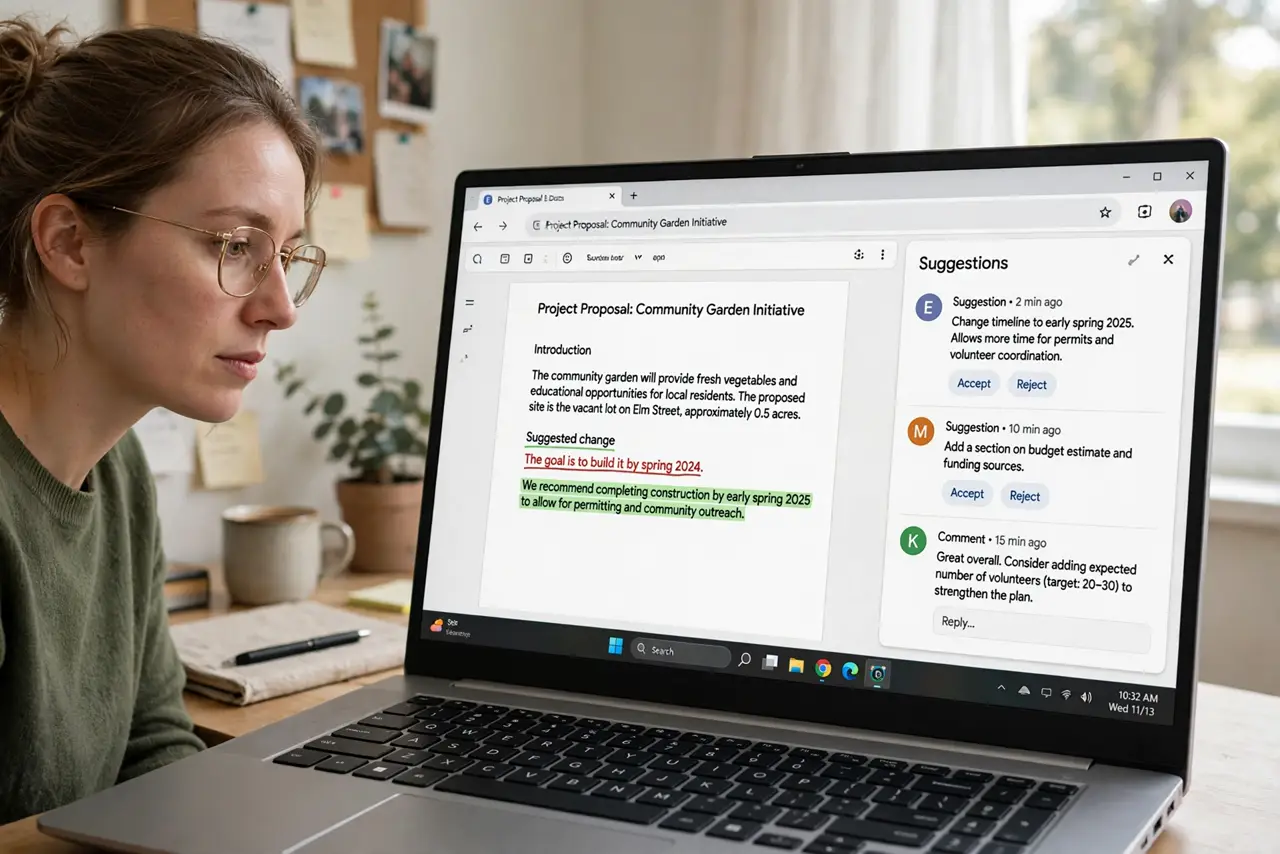
Your document came back full of suggested edits — dozens of little checkmarks and X marks — and clicking each one will take all morning. The Review suggested edits panel gathers every suggestion in one place, and the Accept all button applies them in one click. Review first, then bulk-accept with confidence.
TL;DR / Quick Fix
Open the document and go to Tools > Review suggested edits to see every suggestion in one panel. Click the checkmark to accept or the X to reject each one, or use Accept all to apply everything at once. Switching to Editing mode hides new suggestions, so finish reviewing first.
Follow these steps
- Open the document with suggestions. Suggested edits appear as colored markup with the suggester's name. Open the document in Google Docs on the web.
- Go to Tools > Review suggested edits. This opens the review panel listing every suggestion in order. It is far faster than hunting through the document.
- Walk through each suggestion. Click through the panel — each item highlights in the document. Accept the good ones with the checkmark, reject the bad with the X.
- Use Accept all for a trusted reviewer. If one careful editor reviewed the whole piece, Accept all applies everything. Only use it when you trust the reviewer's judgment fully.
- Reject all when the direction was wrong. Reject all wipes every suggestion at once — useful when feedback went a direction you are not taking.
- Switch modes when done. Flip the Editing/Suggesting/Viewing toggle back to Editing. New keystrokes then edit directly instead of piling up as suggestions.

What NOT to do
- Do not Accept all from an unknown reviewer. Bulk-accept applies everything, including suggestions that change your meaning — skim first.
- Do not review in Viewing mode. Suggestions are hidden there; use Suggesting or Editing mode so the markup is visible.
- Do not delete suggested text manually. Deleting around a suggestion can corrupt the markup — use the checkmark or X on the suggestion itself.
- Do not forget collaborators see rejections. Rejected suggestions vanish, but the suggester may notice — a quick thank-you message smooths feelings.
Frequently asked questions
What is the difference between Suggesting and Editing mode?
Suggesting mode records changes as proposals; Editing mode applies keystrokes directly. The mode toggle sits under the Share button — see suggesting vs editing.
Can I accept suggestions on the mobile app?
Yes, but one at a time — tap a suggestion and choose the checkmark. Bulk review is a desktop-web feature.
Do accepted suggestions stay in version history?
Yes. Accepting or rejecting writes to the document, and every change is captured in version history for later undo.