Translate a Whole Document
You received a document in a language you do not read, or you need your own work in another language. Google Docs can machine-translate the entire document in one step — creating a translated copy while your original stays untouched. It is fast, but it is a draft, not a professional translation.
TL;DR / Quick Fix
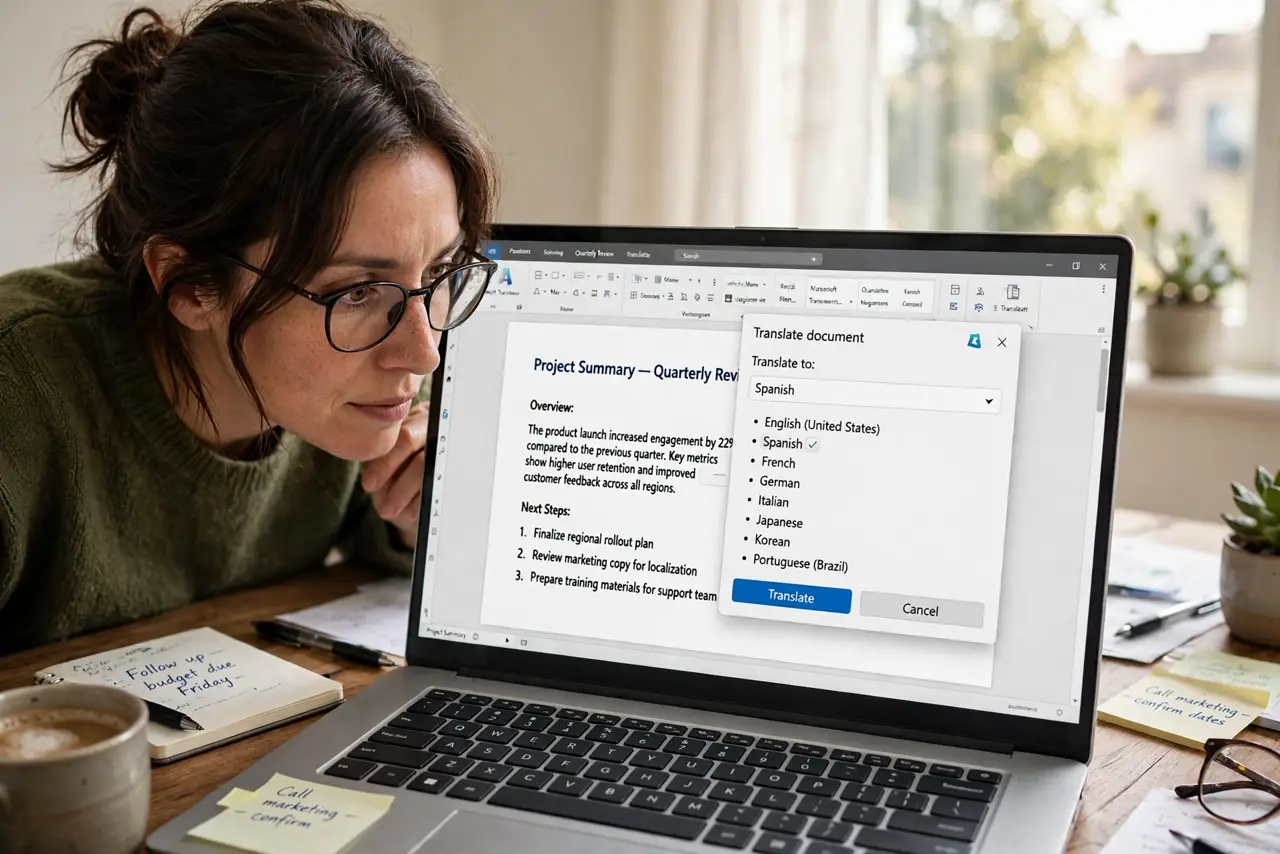
Quick fix: open Tools, Translate document, pick the target language, and click Translate. Docs creates a new translated copy; your original is untouched. Review names, numbers, and formatting afterward — machine translation handles meaning, not precision. Never use it for legal or medical documents without a human check.
Follow these steps
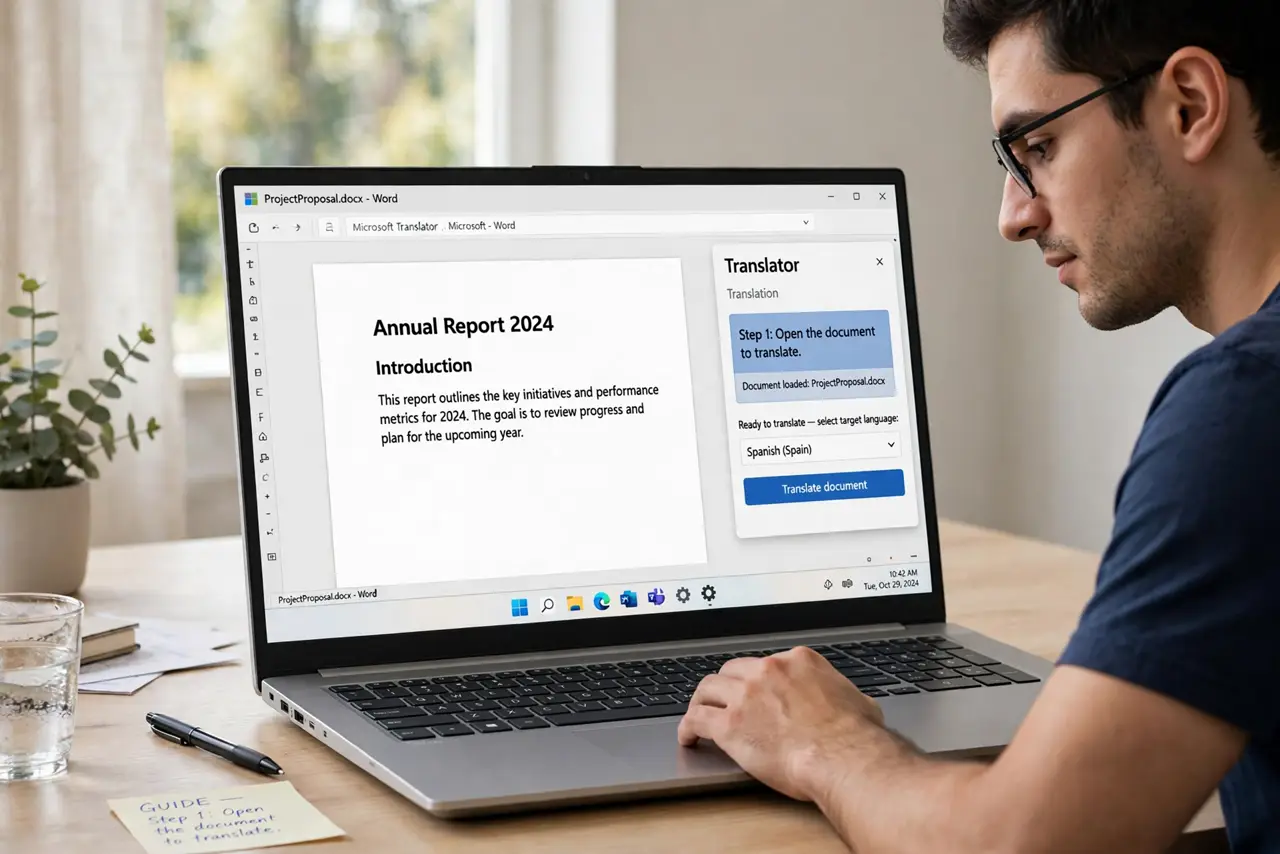
- Open the document to translate. The command works on the open document — no upload step needed. Long documents translate fine, though very large ones can take a minute.
- Go to Tools > Translate document. The menu item sits in the Tools menu. A dialog asks for the target language and a title for the copy.
- Pick the language and name the copy. Choose the target language and give the translated copy a clear name — 'Contract (Spanish)' beats 'Copy of Contract.'
- Click Translate and wait. Docs creates a brand-new document with the translation. Your original never changes — this is a copy, not a conversion.
- Review names, numbers, and dates. Machine translation garbles proper nouns, flips number formats, and mangles dates. Read those fields specifically — the prose is usually the safer part.
- Check the formatting survived. Tables, hanging indents, and page breaks can shift in translation. Compare against the original before sharing — and see downloading as PDF for a clean handoff.
What NOT to do
- Do not send the raw output as final. Machine translation is a draft — a human review pass is mandatory for anything public or official.
- Do not translate legal, medical, or contract documents this way alone. One mistranslated term can change obligations; get a professional.
- Do not assume the original is safe to delete. Keep it — the translation is a separate copy, and you may need to re-translate after edits.
- Do not translate by pasting over the original. Always use the Translate command's new copy; overwriting the source destroys it.
Frequently asked questions
Does translating a document change the original?
No. Tools > Translate document creates a separate translated copy. The original stays exactly as it was.
How accurate is Google Docs translation?
Good enough for gist and drafts, unreliable for precision — names, numbers, idioms, and legal terms need a human check.
Can I translate just part of a document?
The built-in command translates the whole document. For a section, copy it into a new blank document and translate that.