Name a Version? How To
Google Docs saves every change automatically, but a version history full of timestamps is useless when you need 'the draft before the big rewrite.' Named versions let you plant labeled flags in the history — 'client draft v2,' 'before sorting' — so you can jump back in one click.
TL;DR / Quick Fix
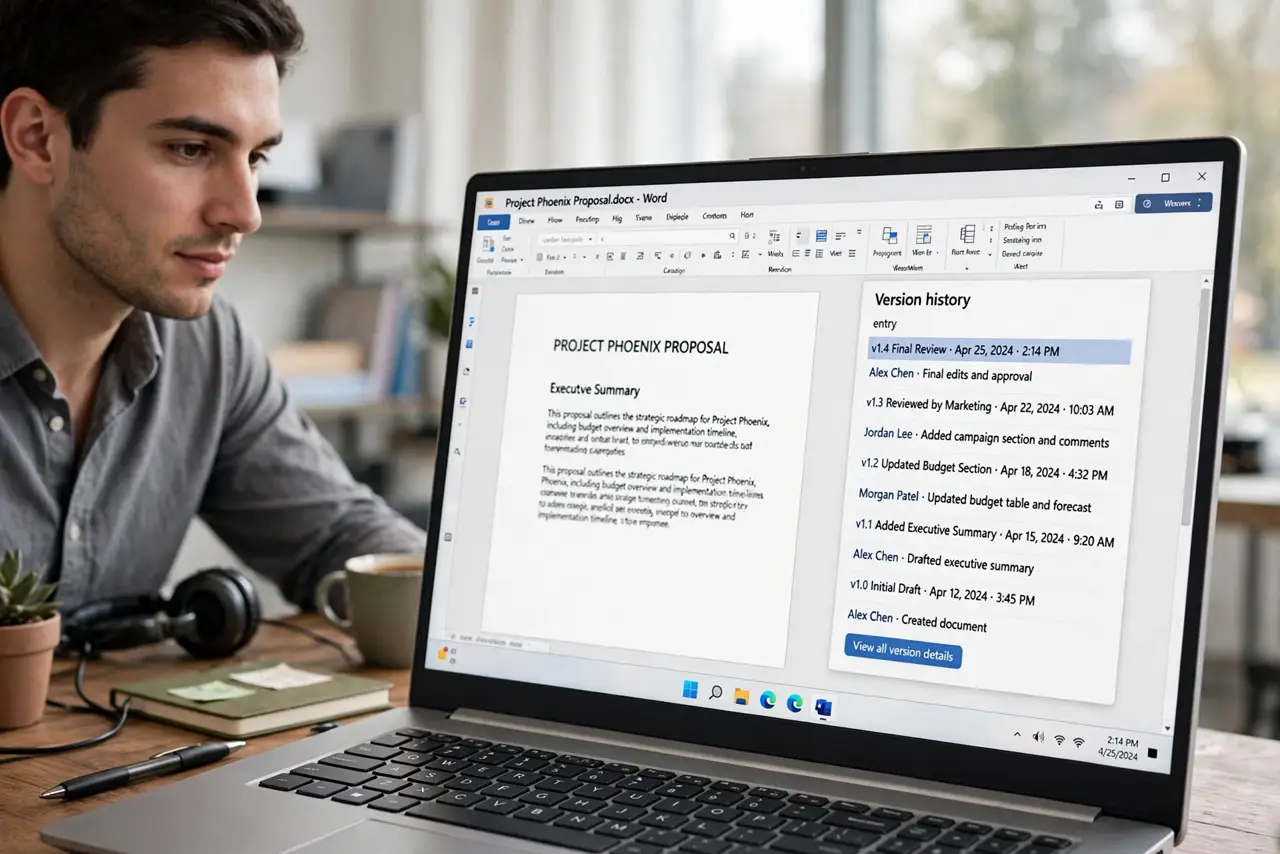
Quick fix: go to File, Version history, Name current version, and type a clear label like 'before rewrite'. Find it later under File, Version history, See version history — named versions appear at the top of the timeline. Name one before any risky edit: sorts, big deletions, or formatting overhauls.
Follow these steps
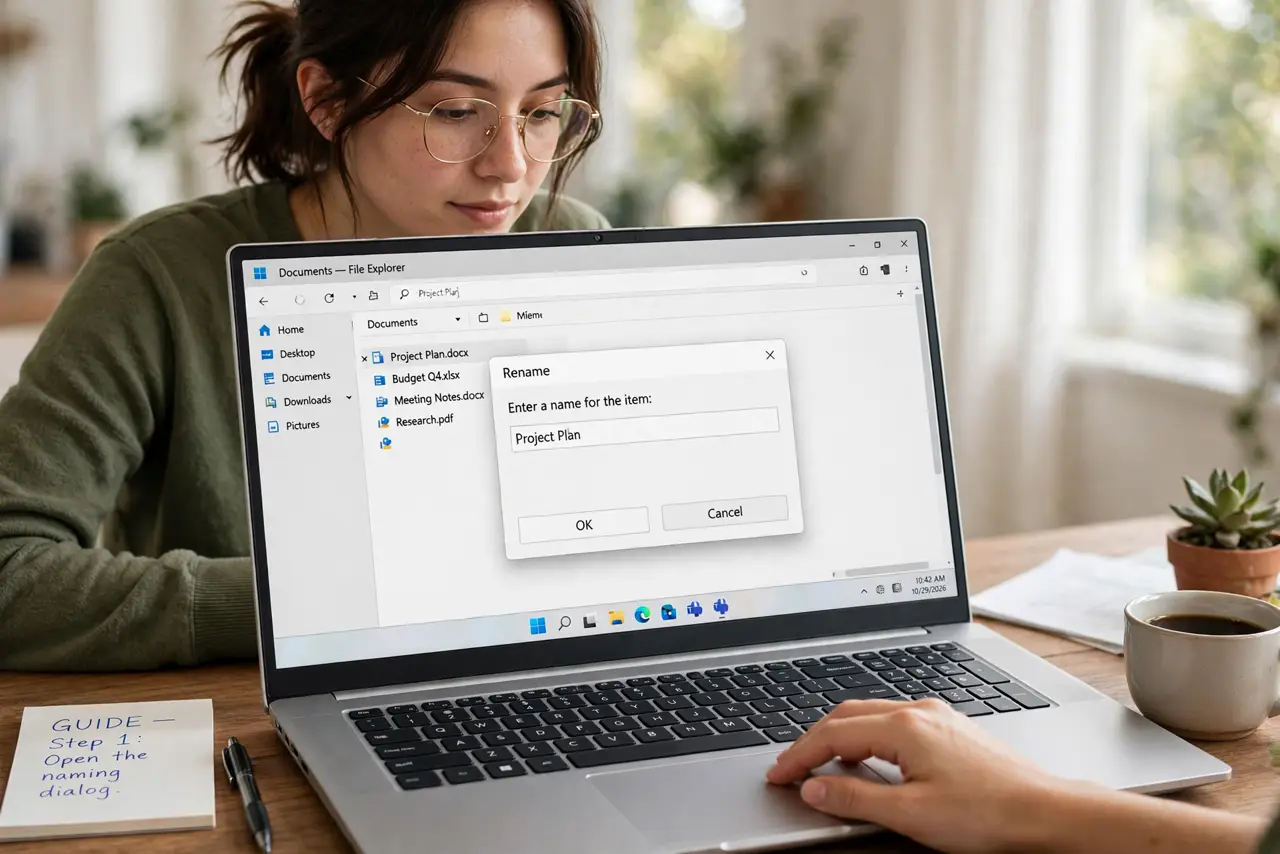
- Open the naming dialog. Go to File > Version history > Name current version. A small dialog asks for the name — this takes five seconds.
- Write a label future-you understands. 'Before client feedback' beats 'v3.' Include what changed or what is about to change, not just a number.
- Name versions before risky edits. Sorting a list, deleting a section, reformatting everything — name the calm before the storm. This is the habit that saves documents.
- Find named versions in the history. File > Version history > See version history opens the timeline. Named versions sit labeled at their timestamps — click one to preview.
- Restore from a named version. In the history panel, click the three-dot menu on a named version and choose 'Restore this version.' Docs keeps the current state in history too, so restoring is reversible.
- Rename or tidy as the document evolves. Old names like 'draft' lose meaning. Revisit them: rename stale ones and keep the count small — a dozen good names beat a hundred vague ones. Pair this with restoring old versions when digging deeper.
What NOT to do
- Do not rely on timestamps alone. 'October 29, 2:14 PM' tells you nothing about what changed — the name is the whole point.
- Do not name every tiny edit. A version history of fifty 'fix' labels is as useless as none — name milestones.
- Do not skip naming before a sort or mass deletion. Those are the two edits people most regret without a labeled fallback.
- Do not confuse named versions with copies. File > Make a copy creates a separate document — see making a copy — while a named version stays inside the same history.
Frequently asked questions
What is a named version in Google Docs?
A labeled snapshot in the version history — like a bookmark you can restore. It marks the document as it was at this moment, with a name you choose.
Can I undo a restore?
Yes. Restoring creates a new current version; the pre-restore state stays in the history, so you can restore back just as easily.
Do named versions expire?
They live in the document's version history as long as the document does. Named milestones persist even as fine-grained history thins out.