Live Word Count While Typing
Writing to a word limit in Google Docs and guessing is a losing game — the live word count box solves it. One checkbox under Tools pins a small counter to the bottom of the document that updates as you type, and it can also show pages or characters. Here is where the switch lives and the few quirks worth knowing.
TL;DR / Quick Fix
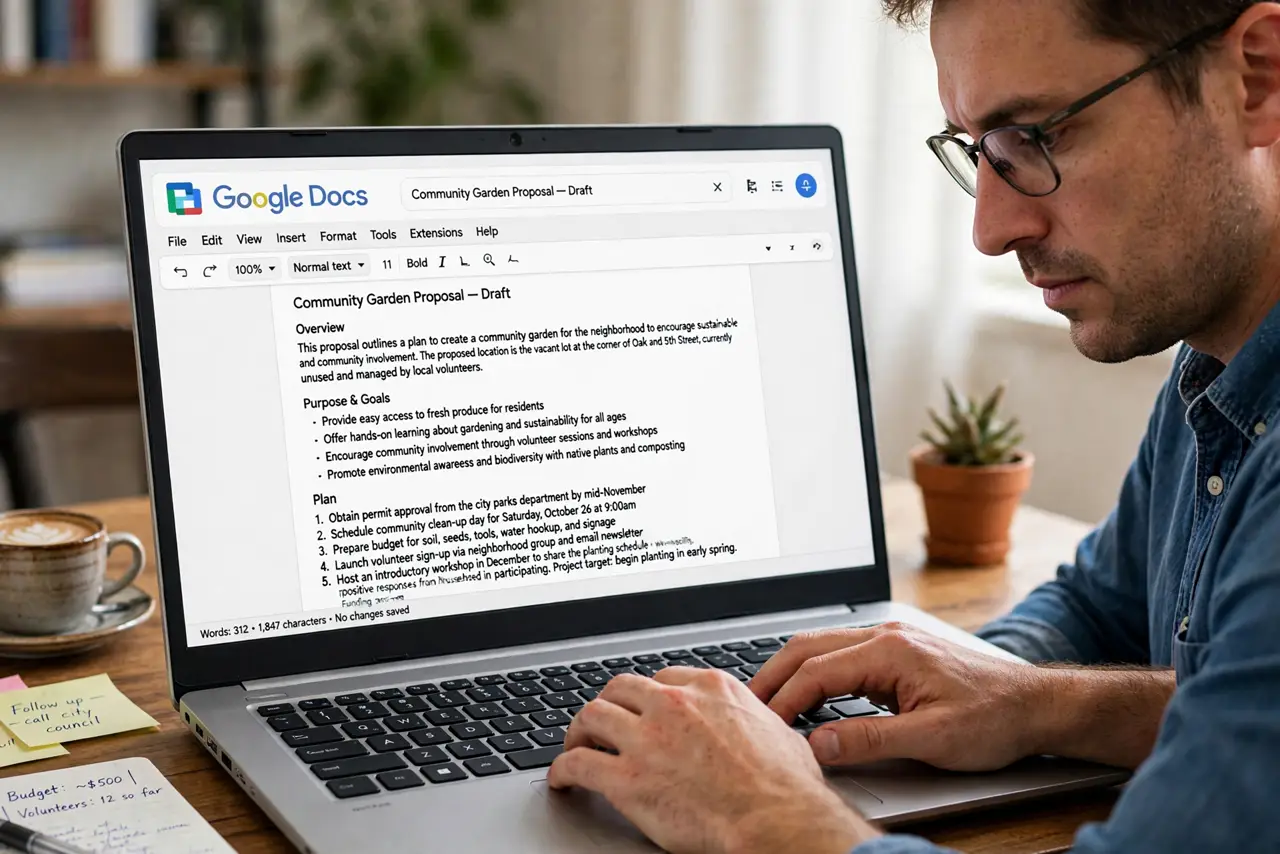
Open Google Docs and go to Tools > Word count, then tick Display word count while typing. A small box appears bottom-left with live words, updating as you type; click its arrow to switch to pages or characters. It stays on for that browser until you untick it.
Follow these steps
- Open the document in Google Docs. The live counter is a Docs-on-the-web feature. Open the document in a desktop browser — the steps below assume docs.google.com.
- Go to Tools > Word count. Click Tools in the menu bar, then Word count. A dialog appears with words, characters, and pages for the whole document or your selection.
- Tick Display word count while typing. Check the box at the bottom of the dialog and click OK. The counter pins itself to the bottom-left of the document immediately.
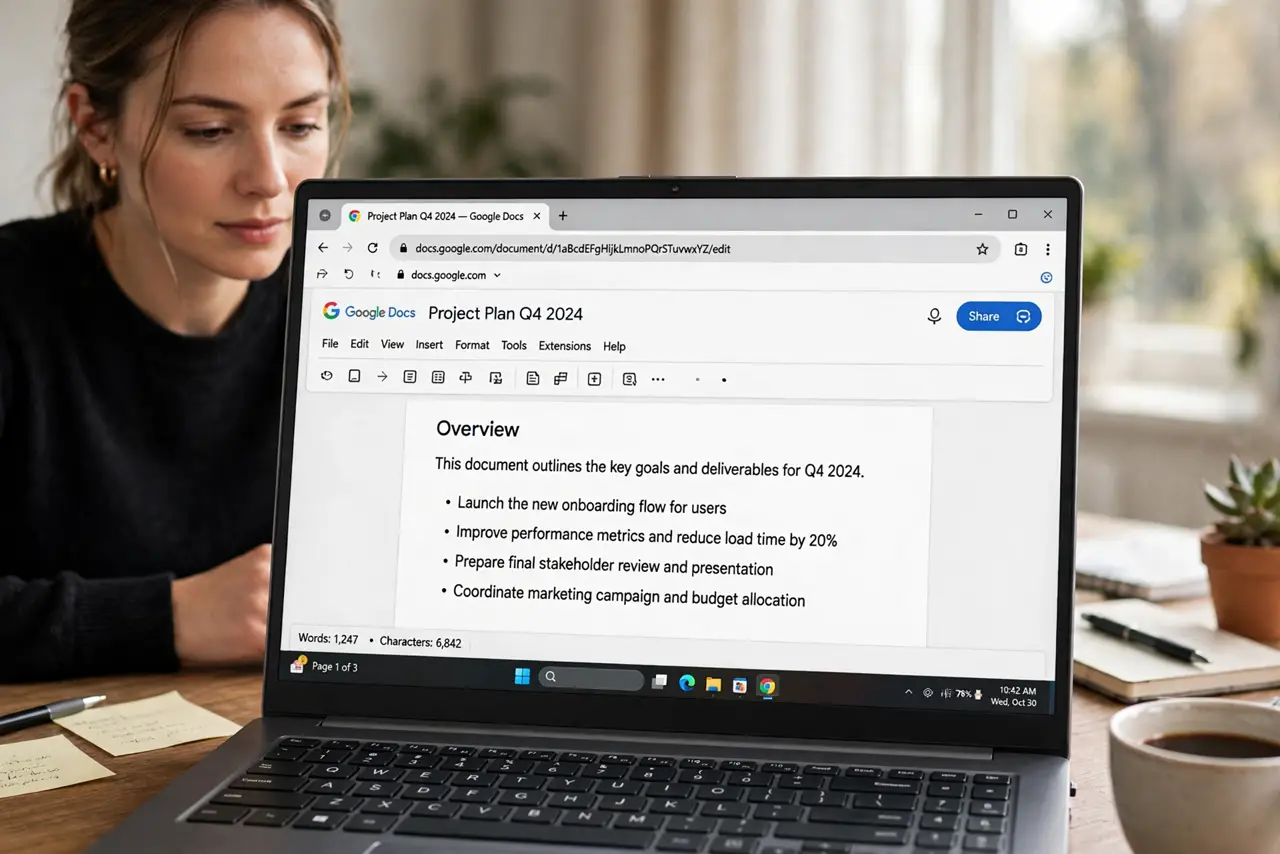
- Read the live box as you type. The number updates with every keystroke. It counts the whole document, or just your highlighted text when you select some.
- Click the arrow to switch units. Click the small arrow on the counter to flip between words, pages, and characters (with or without spaces). Handy for character-limited fields.
- Turn it off when you are done. Go back to Tools > Word count and untick the box. The counter is per browser, so it stays on until you remove it.
What NOT to do
- Do not confuse it with the mobile app. The Docs phone app shows word count only on demand under the three-dot menu — there is no pinned live box.
- Do not trust the count with tracked changes pending. Rejected or unaccepted suggestions can inflate the number; finalize them first.
- Do not include headers and footers by accident. The live box counts body text; page numbers and headers are counted separately in the dialog.
- Do not leave it on if it distracts you. A ticking counter can wreck a first draft — many writers turn it on only for the final trim.
Frequently asked questions
Why is the word count box not showing?
You are probably on the mobile app, or you unticked it in another session. On desktop web, re-tick Display word count while typing under Tools > Word count.
Does it count words in comments?
No — comments and suggested edits are excluded from the live box. The full dialog under Tools > Word count breaks down more categories.
Can I see the count for one paragraph only?
Yes. Highlight the paragraph and the live box switches to the selection count automatically — release the selection to return to the whole document.