Document Styles Make Long Docs Navigable
A long document without real headings is a wall of text nobody can navigate. Heading styles turn your titles into a clickable outline, so readers jump to any section in one click.
TL;DR / Quick Fix
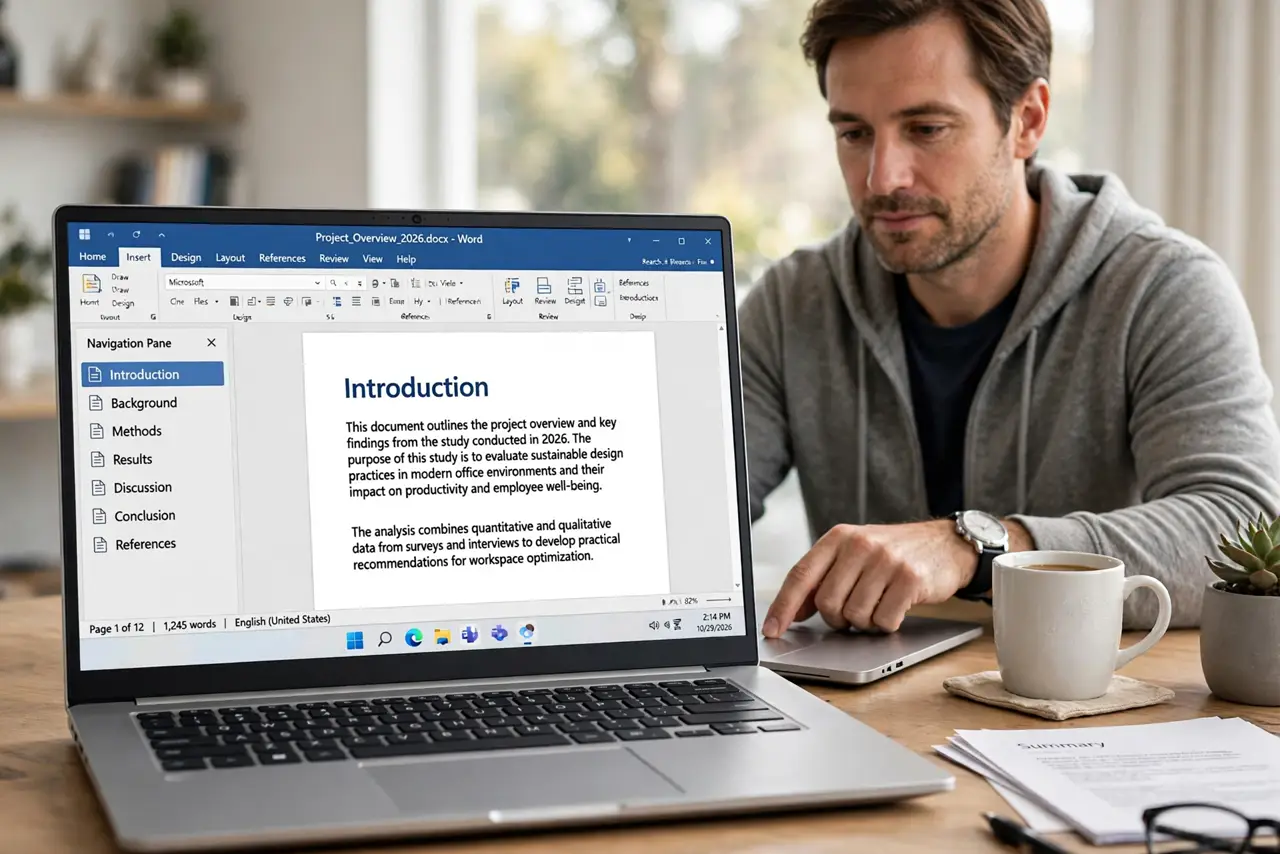
Quick fix: select each section title in your document and apply the Heading 1 or Heading 2 style from the styles menu. Then open the navigation pane and confirm every section appears there as a clickable entry and keep the navigation pane open while writing.
Follow these steps
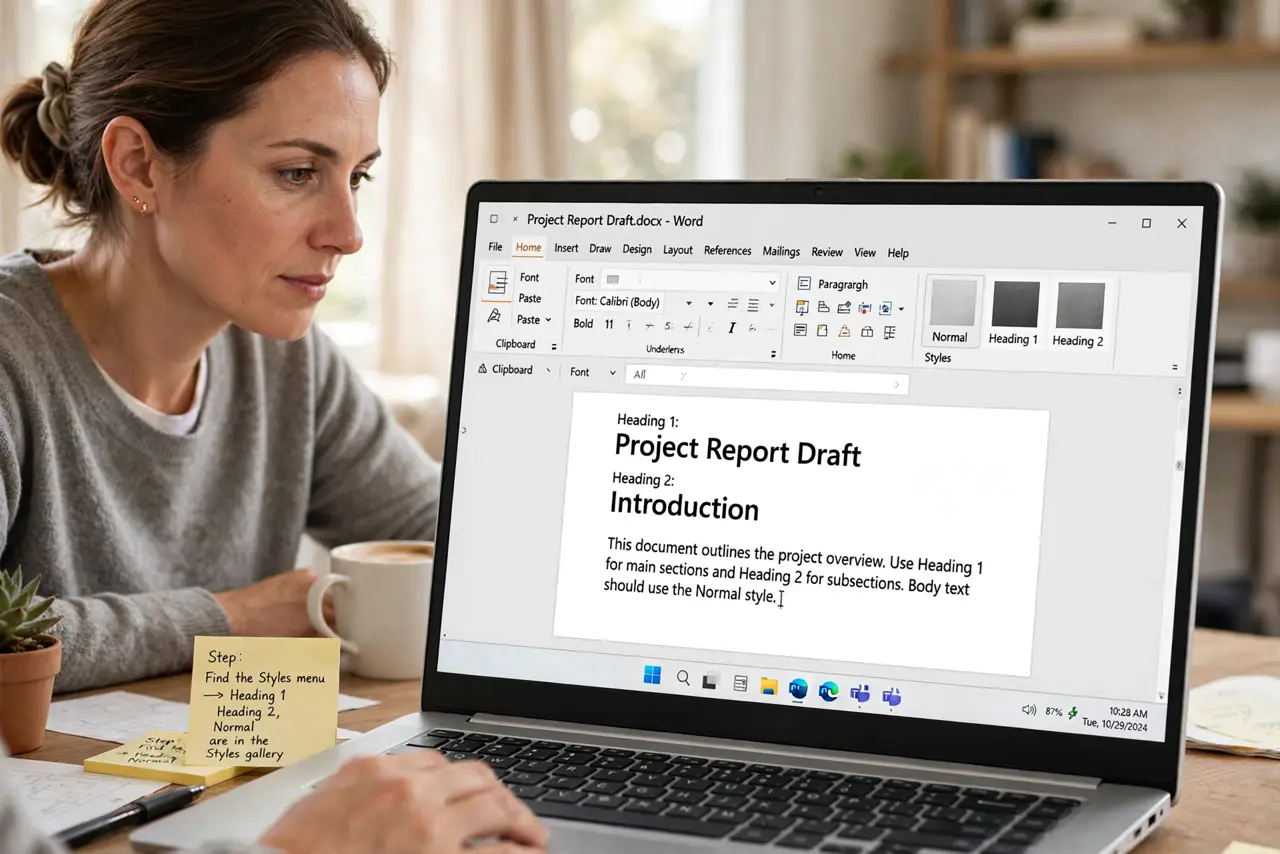
- Find the styles menu. Look for the styles gallery in your word processor's toolbar. Heading 1, Heading 2, and Normal live there, and they are the only styles this trick needs.
- Apply Heading 1 to main titles. Select each major section title and apply Heading 1. Real style, not just big bold text, is what the navigation pane reads.
- Apply Heading 2 to subtitles. Select each subsection title and apply Heading 2. The two levels build a proper outline instead of a flat list.
- Open the navigation pane. Turn on the navigation or outline pane in the View menu. Your headings should appear there as a clickable list of the whole document, which also feeds your table of contents.
- Fix titles that do not appear. Any title missing from the pane is still plain text. Select it and apply the heading style, then watch it join the outline.
- Keep one style per level. Use Heading 1 for all main titles and Heading 2 for all subtitles. Consistency keeps the outline clean and predictable.
What NOT to do
- Do not fake headings with big bold text. Bold text looks like a heading but never appears in the navigation pane.
- Do not skip levels randomly. A Heading 3 under no Heading 2 confuses the outline, so keep the levels in order.
- Do not restyle headings by hand each time. Modify the style itself once, and every heading in the document updates together.
- Do not leave the navigation pane closed. The pane is the payoff, so keep it open while you write long documents.
Frequently asked questions
What is a heading style?
A named format like Heading 1 that marks text as a real heading, which the navigation pane and table of contents can read.
Why do my bold titles not show in navigation?
Because bold is just formatting. Only a true heading style registers as a heading.
How many heading levels should I use?
Two or three. More levels add noise, while two levels outline most documents cleanly.