Auto-Sort Your Downloads Folder? How To
The Downloads folder is where files go to be forgotten — installers mixed with invoices mixed with memes. A simple auto-sort rule files each download by type the moment it lands. This guide shows how to set it up without breaking anything.
TL;DR / Quick Fix
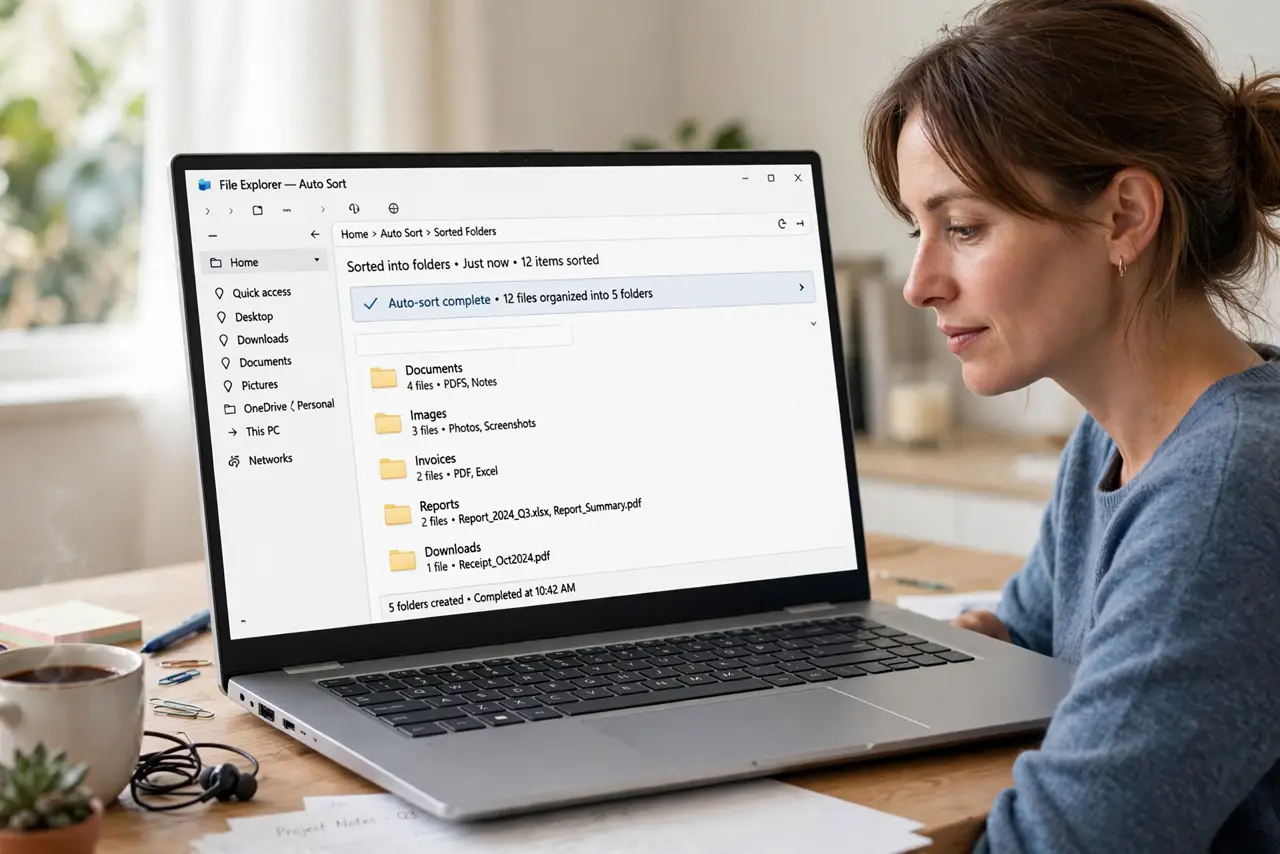
Create destination folders for documents, images, installers, and archives, then set up rules that move new downloads by file type. Review the sorted folders weekly at first. Keep the rules simple — type-based sorting beats clever schemes that misfile things.
Follow these steps
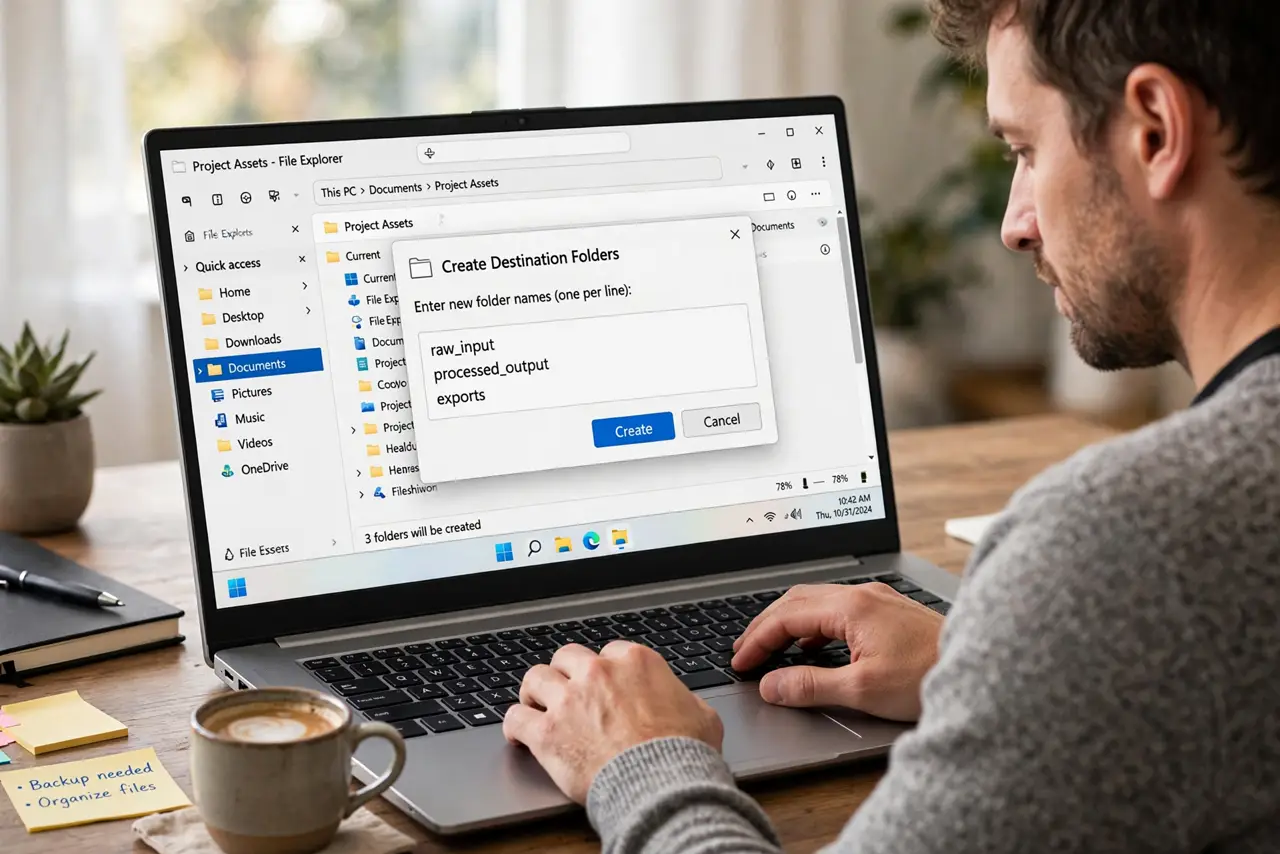
- Create the destination folders. Make folders like Documents, Images, Installers, and Archives inside Downloads or Documents. Four to six buckets cover nearly everything.
- Set up type-based rules. Use your system's automation — folder actions, rules, or a simple organizer tool — to move files by extension: PDFs to Documents, DMGs and EXEs to Installers, ZIPs to Archives.
- Start with move, not delete. Rules should move files, never delete them. A misfiled download is recoverable; a deleted one may not be — and a tidy downloads folder pairs well with a desktop zero habit.
- Review weekly at first. Check the sorted folders every week for the first month. Catch misfiles early and adjust the rules.
- Handle the exceptions manually. Odd files that fit no rule stay in Downloads for manual sorting. A small manual pile beats a clever rule that misfiles.
- Clean installers periodically. Delete installers for software you already installed. They are the fastest-growing clutter in any Downloads folder.
What NOT to do
- Do not let rules delete anything. Auto-delete rules will eventually eat a file you needed.
- Do not create twenty micro-categories. Over-specific rules misfile more than they organize.
- Do not sort by date into deep hierarchies. Type-based buckets stay useful; date mazes do not.
- Do not set it up and never check. Rules need a monthly glance to stay honest.
Frequently asked questions
How do I automatically organize my Downloads folder?
Create destination folders by file type and set up rules that move new downloads automatically by extension.
Is it safe to auto-delete old downloads?
No. Move files with rules, but delete manually — auto-delete eventually removes something you needed.
What about files that don't fit any rule?
Leave them in Downloads for a quick manual sort. Exceptions are normal and cheap to handle by hand.