Work Offline in Google Drive?
You are on a plane, in a dead zone, or the office Wi-Fi just died — and the document you need lives in Google Drive. Offline mode keeps selected Docs, Sheets, and Slides available without internet, syncing your changes when you reconnect. It needs a one-time setup while you still have a connection. Here is how to prepare before you need it.
TL;DR / Quick Fix
Quick fix: in Google Drive on Chrome, open Settings → General → Offline and enable it — this caches your recent Docs, Sheets, and Slides. For specific files, right-click → Available offline. Changes sync automatically when you reconnect. Set it up on your laptop before the flight, not during it.
Follow these steps
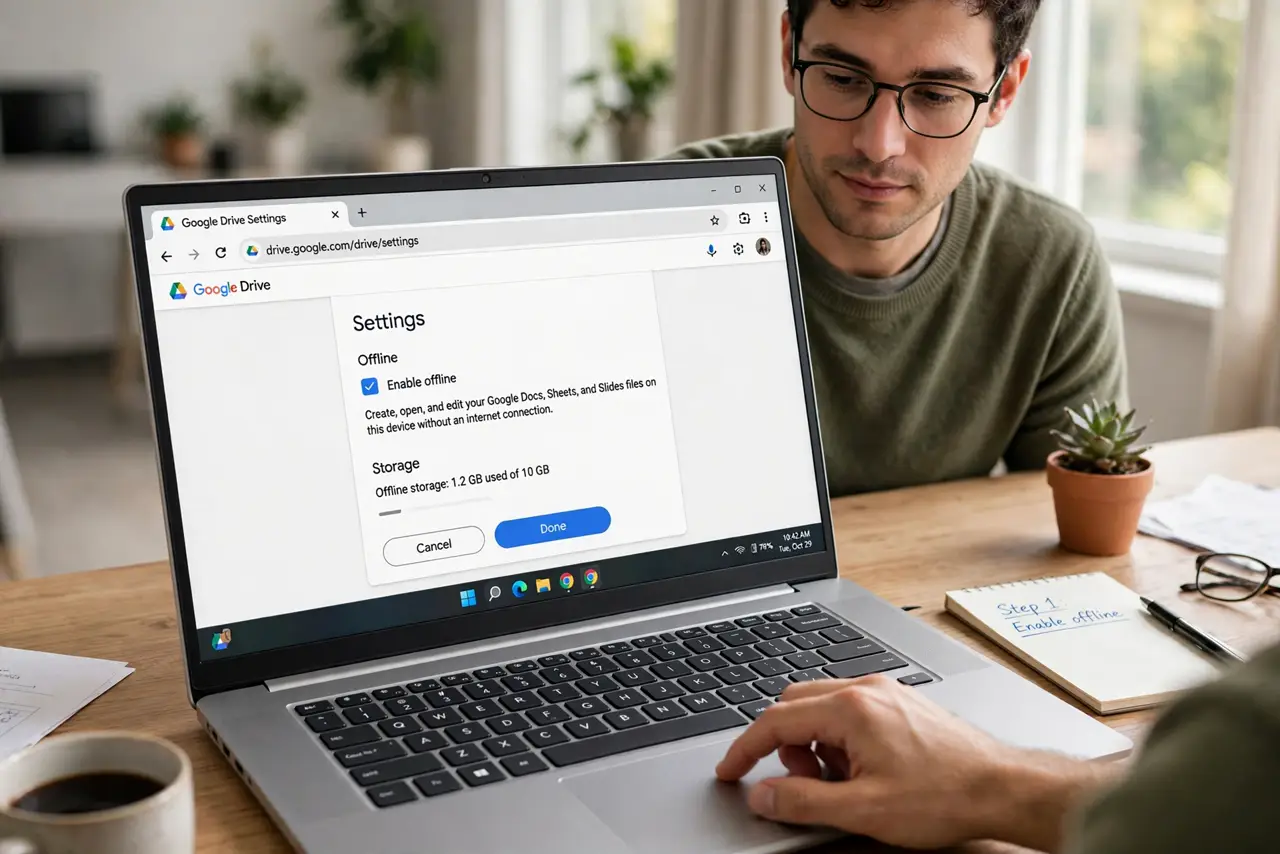
- Enable offline in Drive settings. On your computer in Chrome, open Google Drive → Settings (gear) → General → check 'Offline.' This prepares Drive to cache files locally. It only works in Chrome (or Edge) on desktop — not in other browsers, not on the mobile web.
- Mark critical files available offline. Right-click any Doc, Sheet, or Slide → 'Available offline.' Starred and recent files often cache automatically, but explicit marking guarantees it. Do this for the presentation, the itinerary, the files that matter.
- Install the mobile apps for phone access. On iPhone and Android, the Drive, Docs, Sheets, and Slides apps each offer 'Make available offline' per file. Mobile offline is per-file and per-app — open each app and mark what you need. Don't assume the phone mirrors the laptop.
- Test before you disconnect. Turn on airplane mode and try opening your marked files. If one won't open, it wasn't cached — re-mark it while online. Discovering the gap at 35,000 feet is the failure mode this step prevents.
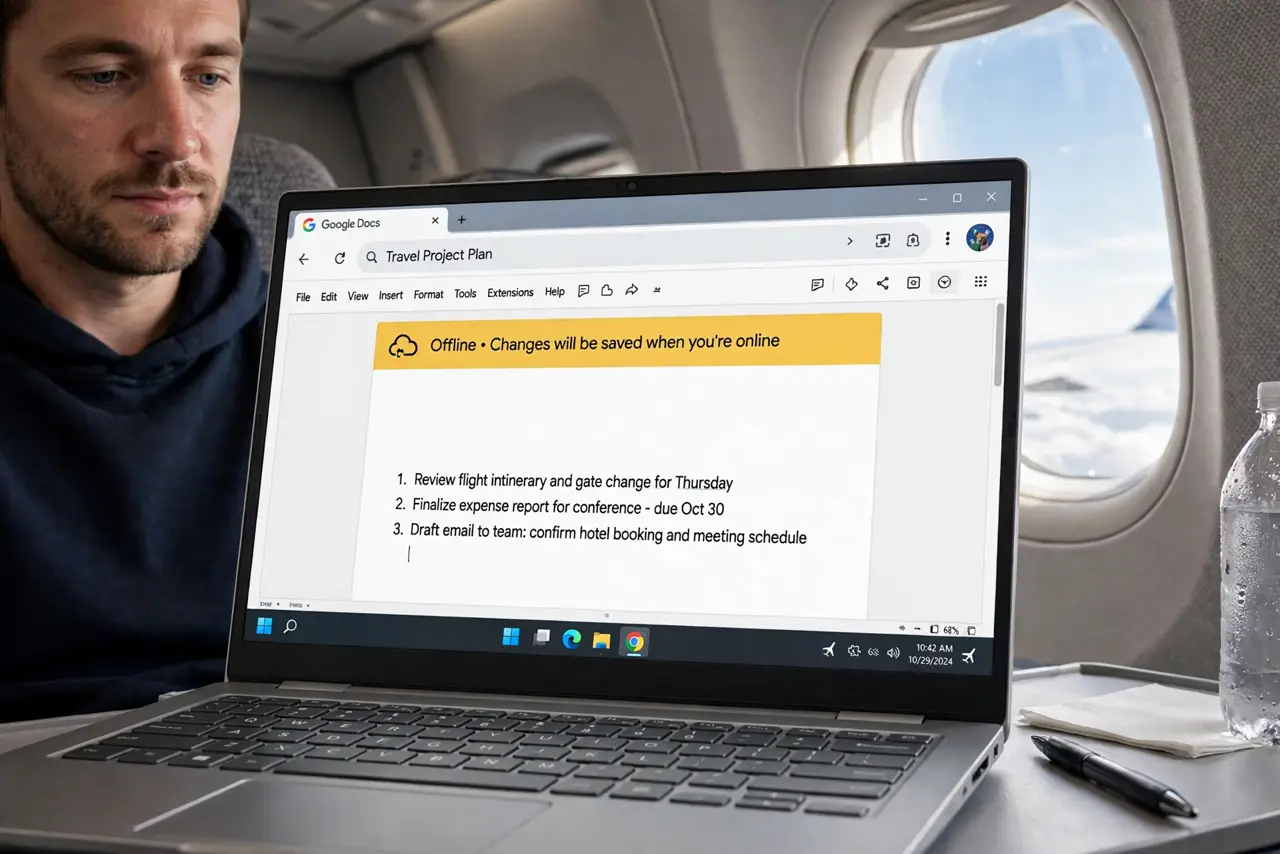
- Work normally; sync happens later. Edit offline files exactly as usual — changes save locally with an 'offline' indicator. Reconnect and Drive syncs automatically, merging your edits. Version history still records everything, including offline edits.
- Mind storage space. Offline files consume local disk space — big Slide decks and Sheets add up. On a full laptop, mark selectively rather than enabling everything. Check what's cached in Drive settings if space gets tight.
What NOT to do
- Do not set this up after losing connection. Offline mode must be enabled while online — it cannot retroactively fetch files.
- Do not use incognito or a wiped browser profile. Offline cache lives in the browser profile — incognito has none, and clearing site data deletes it.
- Do not edit the same file on two offline devices. Conflicting offline edits create sync conflicts — one device at a time until you're back online.
- Do not assume collaborators see offline edits instantly. They sync when you reconnect — warn collaborators if timing matters.
Frequently asked questions
Does offline work for PDFs and images?
Partially — the Drive desktop app can mirror any file type offline, but browser offline mode covers Docs, Sheets, and Slides editors. For PDFs on a trip, download copies explicitly.
How much space does it use?
Only what you mark plus recent files — typically hundreds of megabytes, not gigabytes. The Drive desktop app's full mirroring is what eats space; browser offline is selective.
Is my offline work safe if the laptop dies?
Unsynced changes live only on that device until reconnection. Reconnect and let it sync before any risky shutdowns — synced work is safe in the cloud.