Version History in Drive?
You overwrote the good paragraph, a collaborator deleted a section, or yesterday's version was simply better. Google Drive keeps a version history for Docs, Sheets, Slides, and uploaded files — every change timestamped and restorable. Most people never open it until disaster strikes. Here is how to time-travel your files in two clicks.
TL;DR / Quick Fix
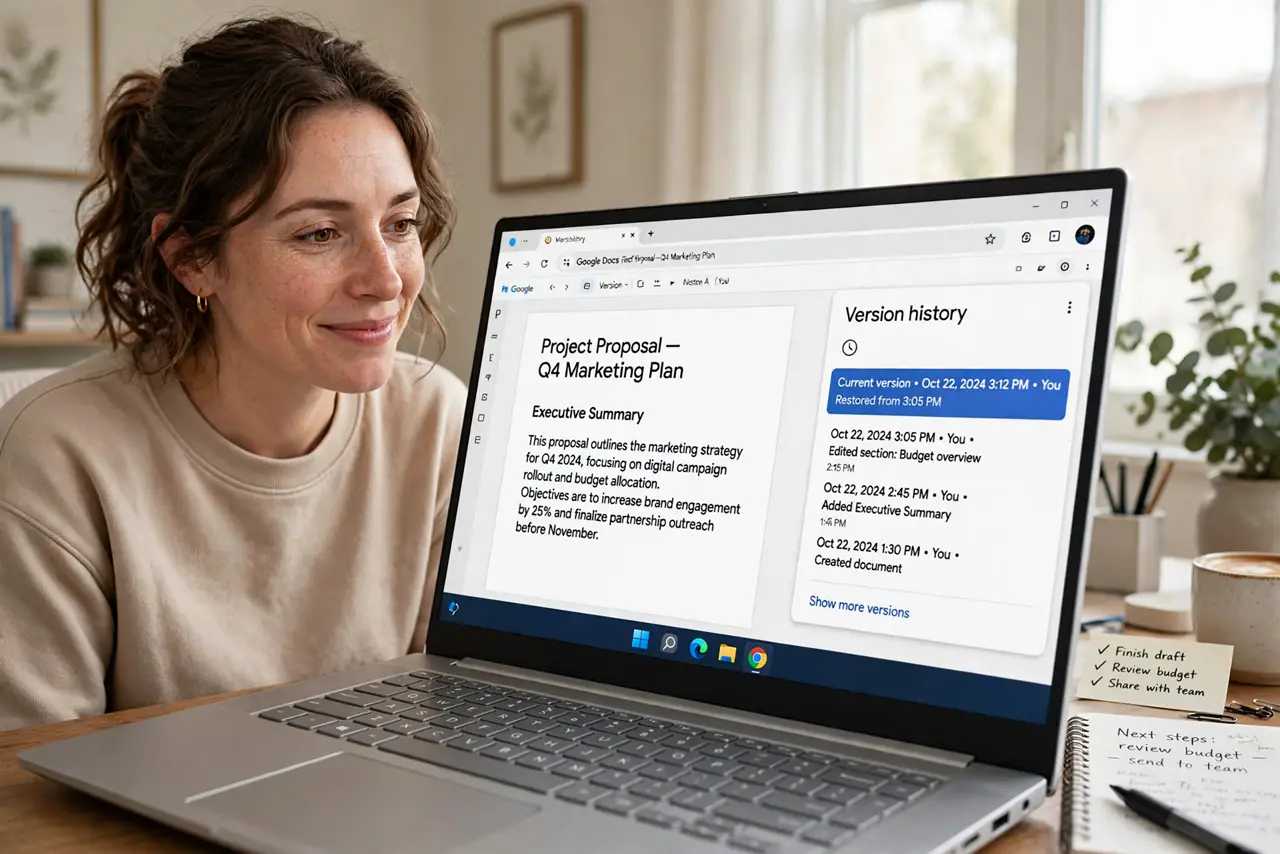
Quick fix: in Docs, Sheets, or Slides, go to File → Version history → See version history. Browse timestamped versions on the right and click Restore this version on the one you want. For uploaded files like PDFs, right-click in Drive → Manage versions. Your edits are never truly lost.
Follow these steps
- Open version history in an editor file. In Google Docs, Sheets, or Slides: File → Version history → See version history. A panel opens on the right listing every saved version with timestamps and who changed what. This works for all native Google files.
- Preview before restoring. Click any version to preview it in the main window — the current version stays safe until you restore. Check the timestamp and the editor's name to find the right moment. Previewing is free; restoring is the commitment.
- Restore the version you want. With the right version selected, click 'Restore this version' at the top. Drive makes the old version current — and keeps the newer one in history too, so restoring is itself reversible. There is no destructive step here.
- Name important versions. In the history panel, click the three dots on any version → Name this version ('Before client review'). Named versions are easy to find later. Name milestones as you work and future-you will be grateful.
- Handle uploaded files via Manage versions. For PDFs, images, and Office files stored in Drive: right-click → Manage versions. You can upload a new version or download old ones. Drive keeps old versions for 30 days (or 100 versions) — download what matters before that.
- Use it for collaboration disputes. When a collaborator's edit went too far, version history shows exactly who changed what and when. Restore the good version, then use Suggesting mode going forward. For offline work, offline files keep editing — and versioning — available without internet.
What NOT to do
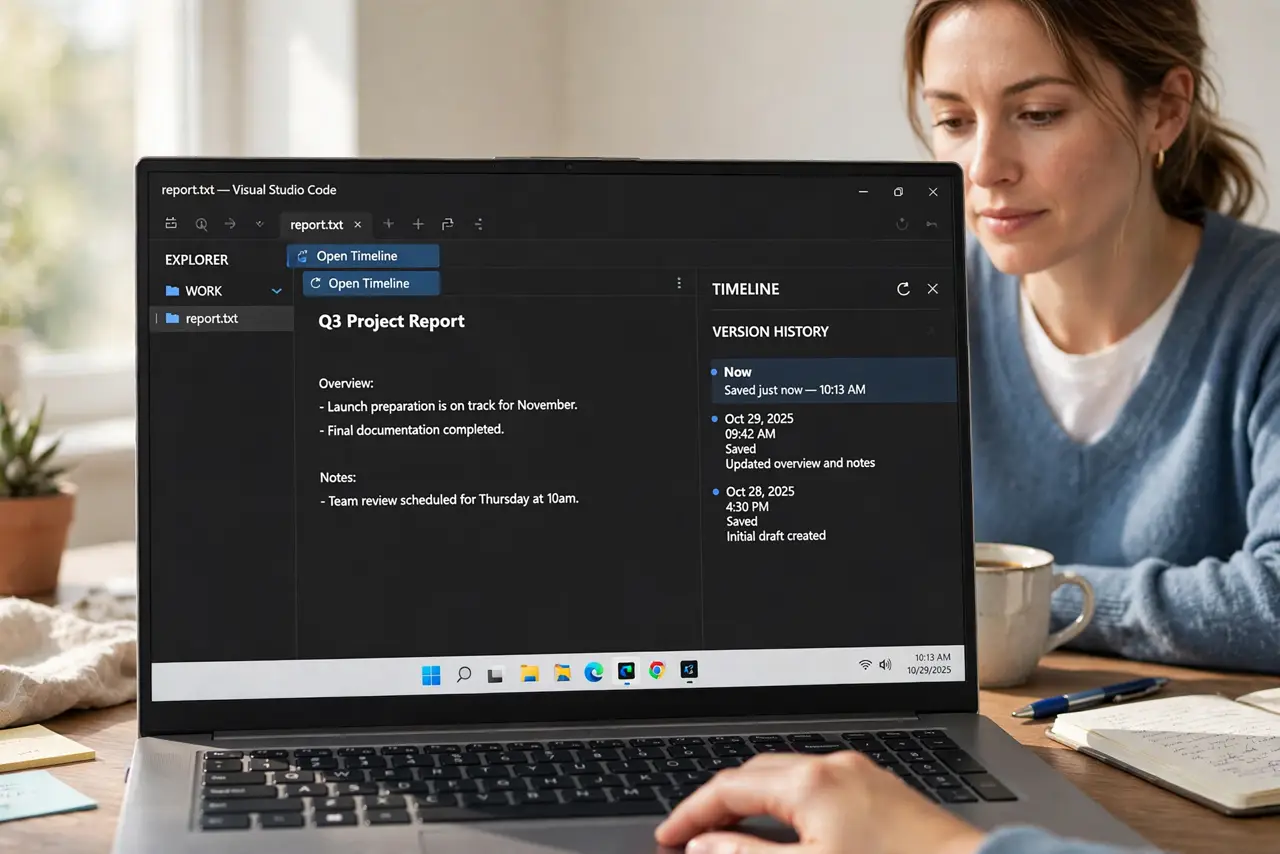
- Do not copy-paste old content manually from a preview. Use Restore — manual copying loses formatting and creates a mess.
- Do not assume deleted files are in version history. Version history covers edits; deleted files live in Trash for 30 days — different rescue, different place.
- Do not let uploaded-file versions expire unnoticed. Non-Google files only keep versions 30 days — download critical old versions promptly.
- Do not restore in a panic without previewing. Picking the wrong timestamp just means restoring again — preview first and restore once.
Frequently asked questions
How long does Drive keep versions?
For Google Docs, Sheets, and Slides: effectively forever, with full history. For uploaded files (PDFs, images): 30 days or 100 versions, whichever comes first.
Can I see who made each change?
Yes — the history panel shows the editor's name and avatar per version, and Docs can show you the exact edits with 'Show changes' checked.
Does restoring notify collaborators?
No notification is sent, but collaborators will see the content change. For shared files, a quick message explaining the restore avoids confusion.